Cilantro IO: PaperCut MF × OfficeRnD — Setup Guide
Install and configure Cilantro IO to integrate OfficeRnD with PaperCut MF, import OfficeRnD users, and export print/copy/scan/fax transactions back to OfficeRnD plans.
Before attempting to action this guide, contact your PaperCut Reseller to purchase a license.
1. Document Information
1.1. Introduction
The purpose of this document is to provide an installation and configuration guide for integrating Office RnD with PaperCut MF using the Cilantro IO platform.
As of May 2026, OfficeRnD only support Fee creation when they are associated with a Plan, offering enhanced reporting around print-related costs within OfficeRnD dashboards and the ability to manage discounts/credits assigned to Plans within OfficeRnD. Existing customers just need to create their Plan(s) in OfficeRnD and upgrade Cilantro IO to adopt this functionality. Please pay particular attention to the Export action and associated Conversion profile, as these may have changed since you last performed an implementation.
With OfficeRnD’s v2 API implementation, there is no longer a way of creating FEES without an associated Plan..
1.3 Existing customers responding to the API v2 release
Customers reviewing this guide in preparation for OfficeRnD’s v2 API changes need to read and action the following.
1.3.1 v2 API Permissions
Log in to your OfficeRnD console.
From the left-hand menu, select Settings / Data & Extensibility and Developer Tools.
On your existing application, click the cogged wheel and select Edit.
Select all of the following API permissions under the “API v2” dropdown:
flex.billing.plans.readflex.space.locations.readflex.community.members.readflex.community.companies.readFlex.community.fees.createflex.user.auth.signin
Press Update to save your changes.
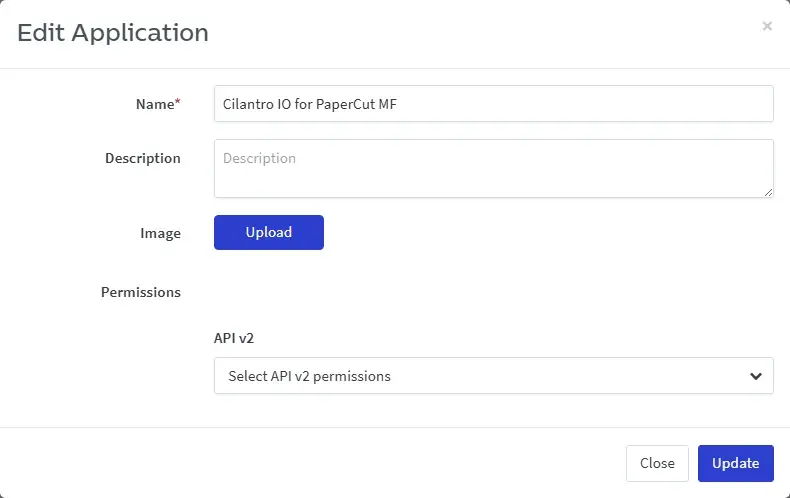
Edit the OfficeRnD application and select the API v2 permissions.
1.3.2 v2 API ORGSLUG
The introduction of OfficeRnD’s v2 API has necessitated changing the URL Cilantro IO uses to connect to the customer environment.
- URL was:
https://app.officernd.com/api/v1/organizations/{orgSlug} - URL is:
https://app.officernd.com/api/v2/organizations/{orgSlug}
1.3.3 Fees must be associated with a Plan
Customers must prepare their Cilantro IO installation to ensure that they have adopted the built-in Plans functionality. As of the v2 API, Cilantro cannot create Fees without an associated Plan. For detailed instructions, see section 2.4.
2. Office RnD Prerequisites
To allow Cilantro to communicate with Office RnD, register a new application in the Office RnD platform. The organisation slug (orgSlug) is also required to form the API URL.
2.1. Obtain the Organisation Slug
The Office RnD admin should visit https://app.officernd.com/login (opens in a new tab) and log in.
Open Settings → Account Details → Company & Billing Info.
Record the value in the Admin Portal field. This is the Organisation Slug.
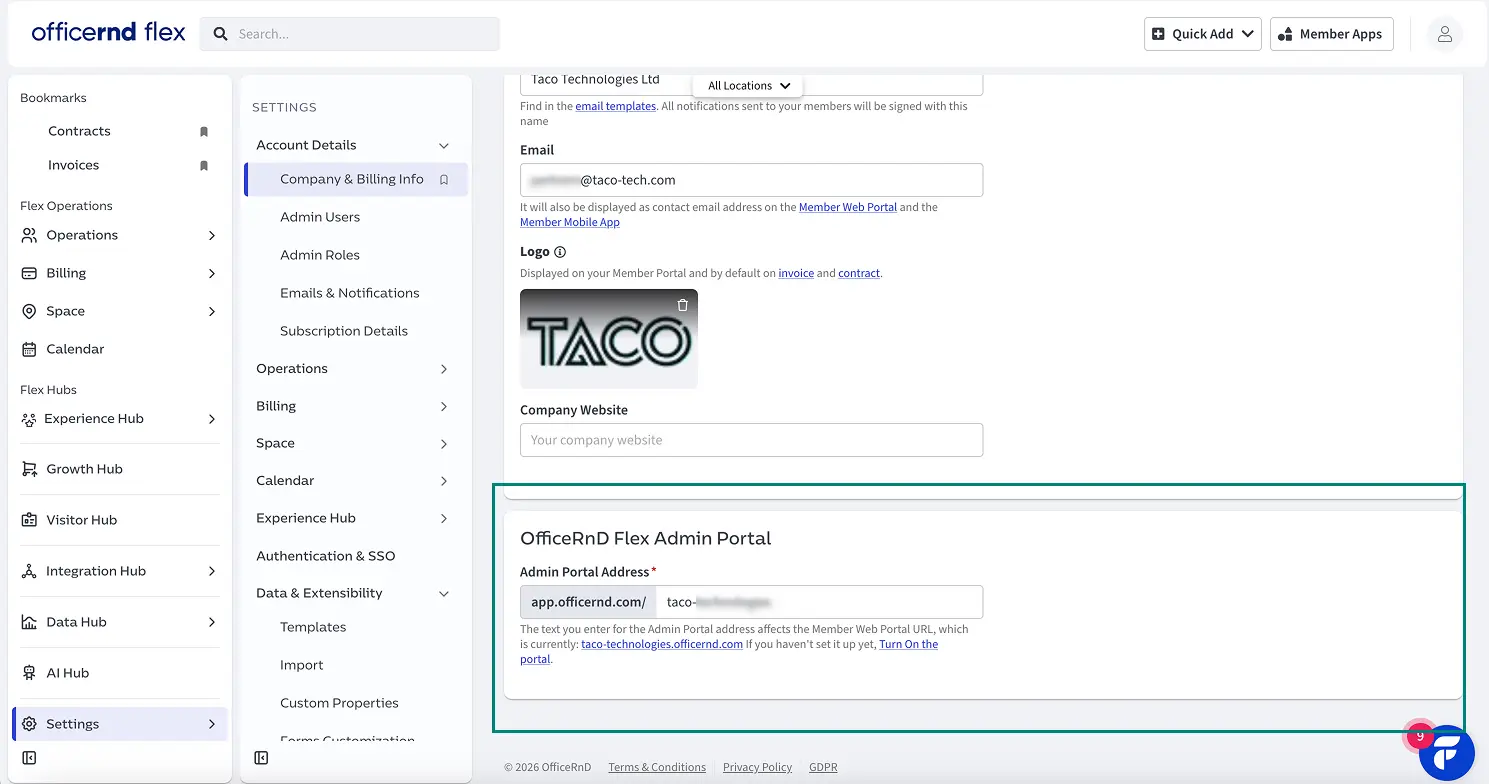
The Admin Site field contains the Organisation Slug.
2.2. Determine OfficeRND Location
CilantroIO can only authorise one location per instance of PaperCut MF. Determine which location within the OfficeRND instance is to be used with this instance of PaperCut MF and CilantroIO.
2.3. Create a New Application
From the left-hand menu, select Settings / Data & Extensibility and Developer Tools.
Click Add Application and create a new application named “Cilantro IO for PaperCut MF”.
Set API v2 permissions:
flex.billing.plans.readflex.space.locations.readFlex.community.members.readFlex.community.companies.readFlex.community.fees.createflex.user.auth.signin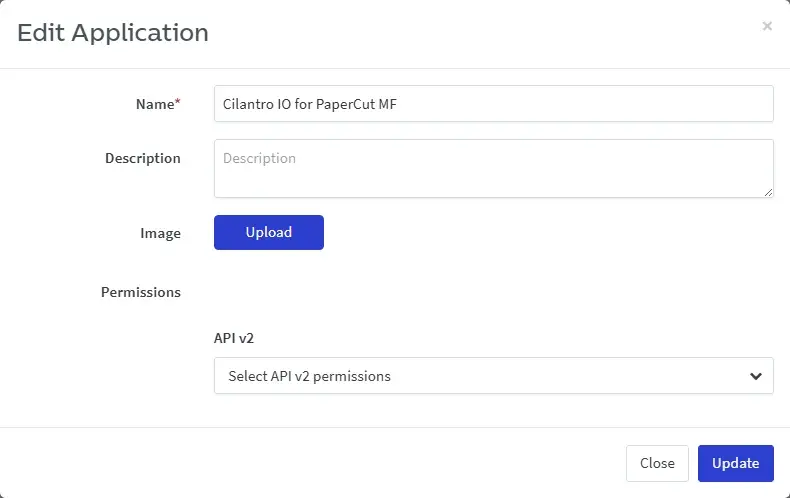
Create or edit the OfficeRnD application and select the API v2 permissions.
Once the Application has been created, click the gear next to your application name, then click View next to the Application name, and record the Client ID and Client Secret as shown below.
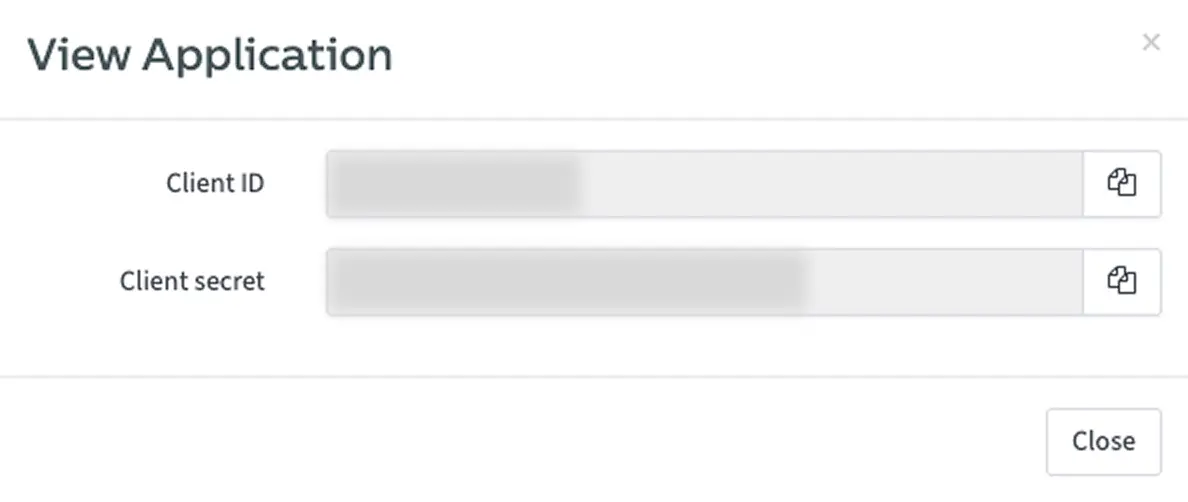
Record the Client ID and Client Secret.
2.4. OfficeRnD Product / Plans
Prior to installing Cilantro IO and commencing configuration, identify or create the Plan(s) that print-related activity should be allocated to.
You may assign all activity to a single Plan, or break activity down by Job Type (Print/Copy/Scan/Fax), Page Size (A4/A3), or Colour vs B&W jobs.
It is strongly advised that page costs be aligned between PaperCut MF and the plans in OfficeRnD. PaperCut MF reports do not provide page costs to Cilantro; Cilantro posts the number of pages in a transaction to OfficeRnD and the OfficeRnD plan applies the configured cost per unit/page. Aligning the two systems will ensure that user sees the same cost in PaperCut MF as is charged by OfficeRnD.
For example, if a two-page print job contains one Colour page and one B&W page, and the customer has two plans, Cilantro allocates one page to the Colour plan and one page to the B&W plan. End users may become confused if PaperCut MF and OfficeRnD are configured with different costs per page.
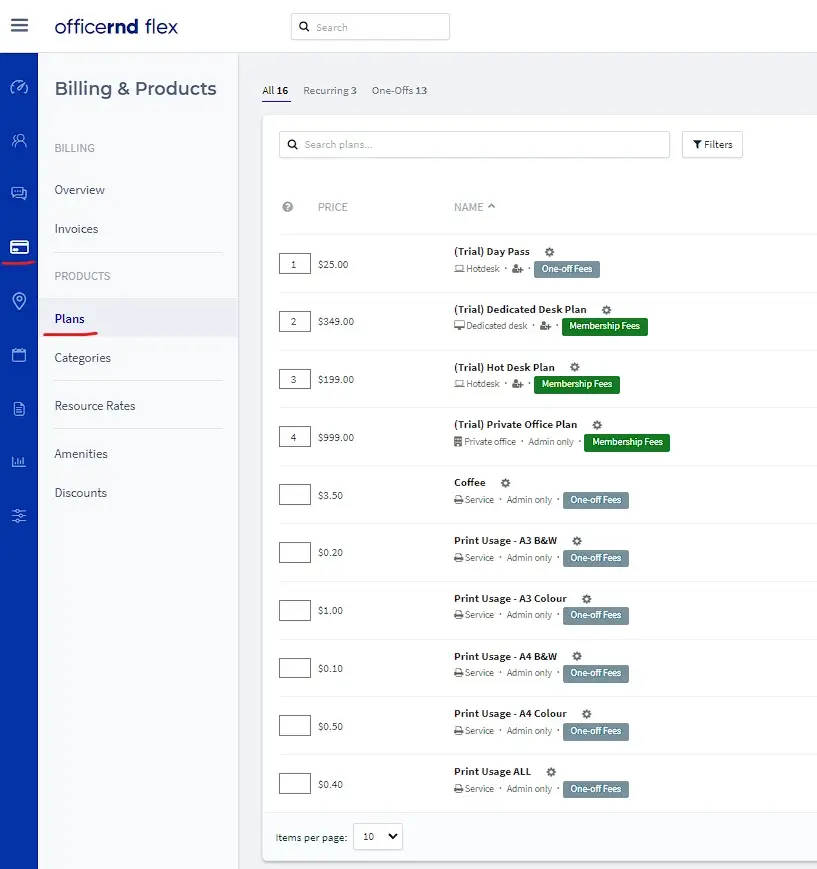
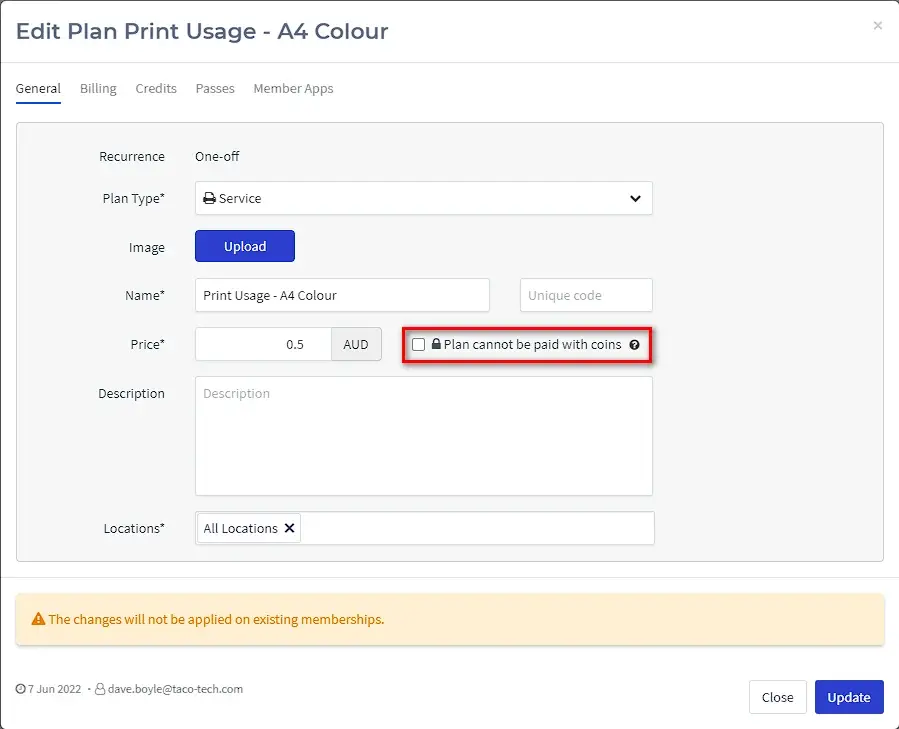
Functionality exists within OfficeRnD for discounts/credits to be applied to Plans. Only One-off Service-type plans support this functionality. “Plan cannot be paid with coins” must be unticked for each Plan utilised by Cilantro for charges to consume Coins.
It is strongly recommended that PaperCut MF be used for User Authentication, Job tracking and Reporting only. Leave OfficeRnD to manage discounts rather than utilising PaperCut MF quota abilities.
3. PaperCut MF Configuration
In order for Cilantro to integrate with PaperCut MF, it is necessary to configure the PaperCut MF Application Server appropriately. Please follow the steps below to configure the PaperCut MF Server.
Environments running PaperCut MF versions prior to22.1.1can skip to step 4.
Thesecurity.propertiesfile does not exist in earlier versions, and the full file pathC:\Program Files (x86)\CilantroIO\Cilantro.IO.PaperCutSyncAndAuth.execan be entered directly into the Custom Sync Source fields on the Options - User/Group Source page.
3.1. Security Properties
Access the
security.propertiesfile on the PaperCut MF server by either opening Notepad or another text editor as an administrator, or by moving the file somewhere accessible, such as the desktop.Find the line
security.custom-executable.allowed-directory-list=and add the custom source pathCilantro.IO.PaperCutSyncAndAuth.exe. By default, this isC:\Program Files (x86)\CilantroIO\. The double slashes are required for Windows, which is the only platform that Cilantro IO supports at the time of writing.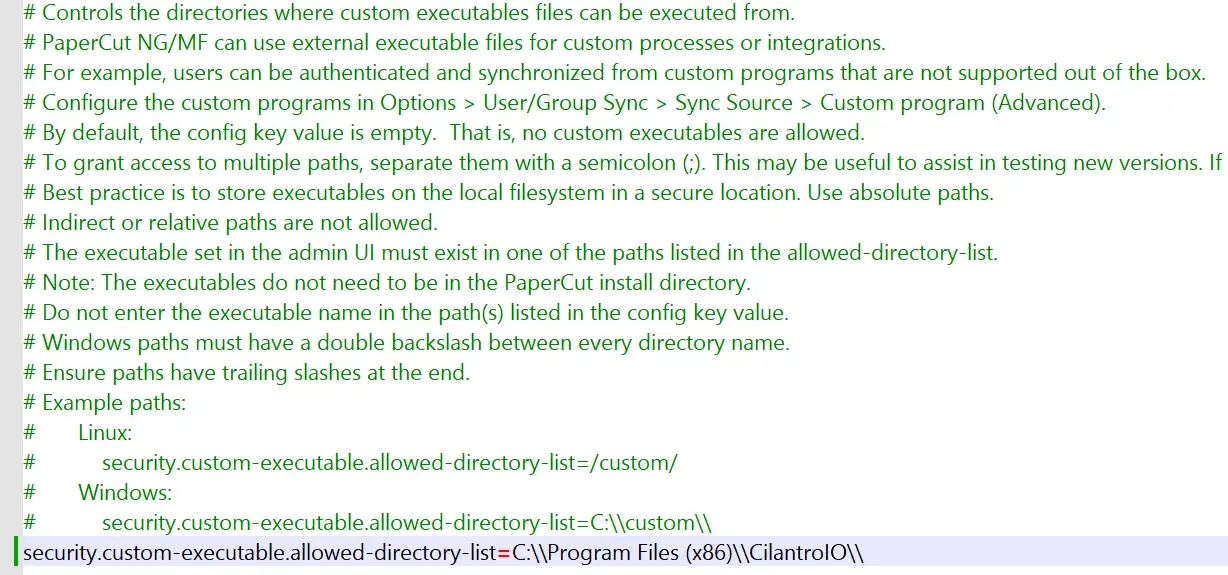
Update security.properties to allow the Cilantro executable directory. After saving the modified
security.propertiesfile in[Install-Path]\PaperCut MF\server, restart the PaperCut Application Server service to apply the changes.Log into the PaperCut MF Server using your admin username and password.
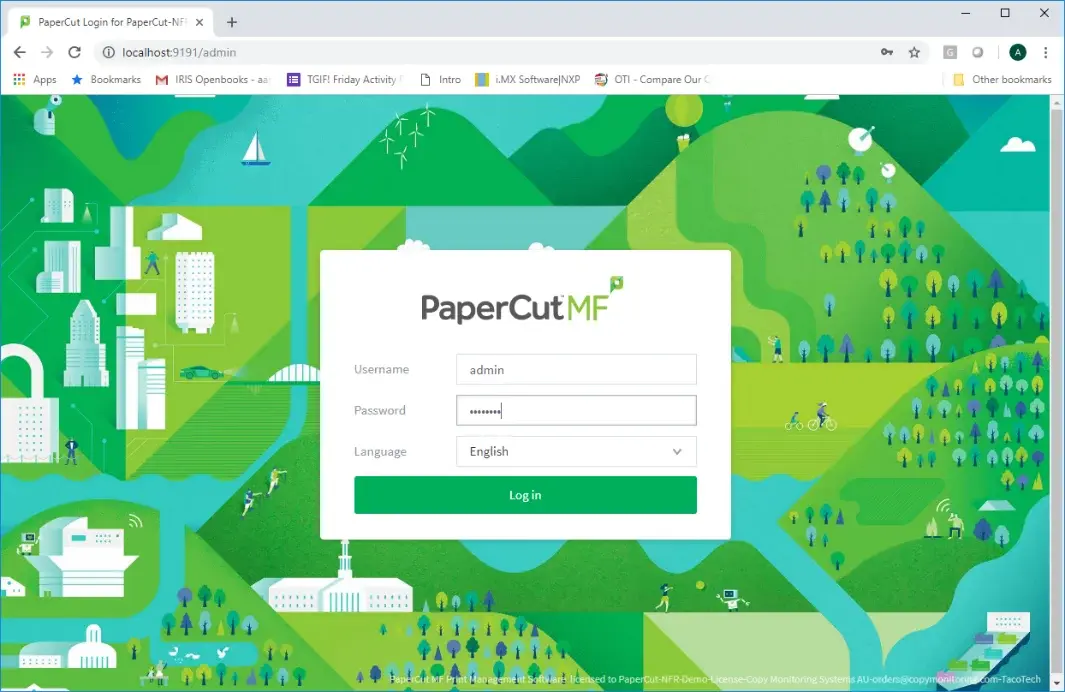
Log in to the PaperCut MF server.
3.2 Cilantro Connection to PaperCut MF
From the menu on the left-hand side, select Options, click the Advanced tab, and scroll to the Security section. In Allowed XML Web Services callers, enter the IP address of the computer on which the Cilantro Server Component will be installed. If the Server Component is installed on the PaperCut MF Application Server, enter the local loopback IP address
127.0.0.1. Scroll to the bottom of the page and click Apply.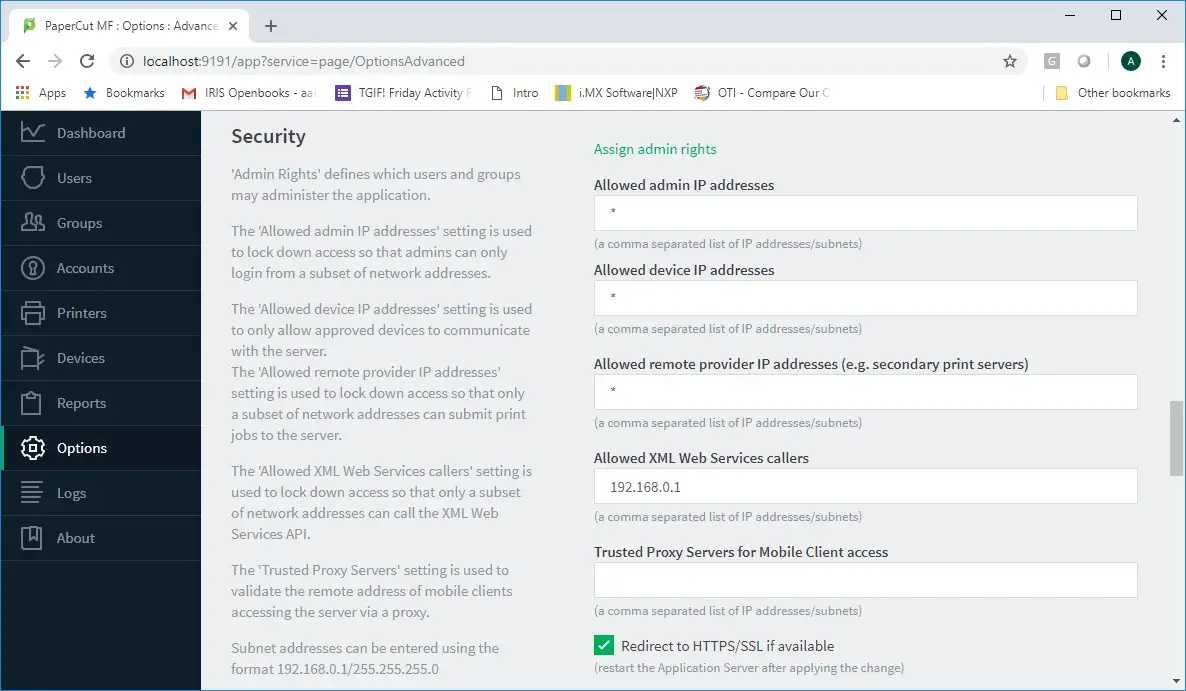
Configure allowed XML Web Services callers. From the left-hand menu, select Options and, from the Actions menu, select Config editor (advanced).
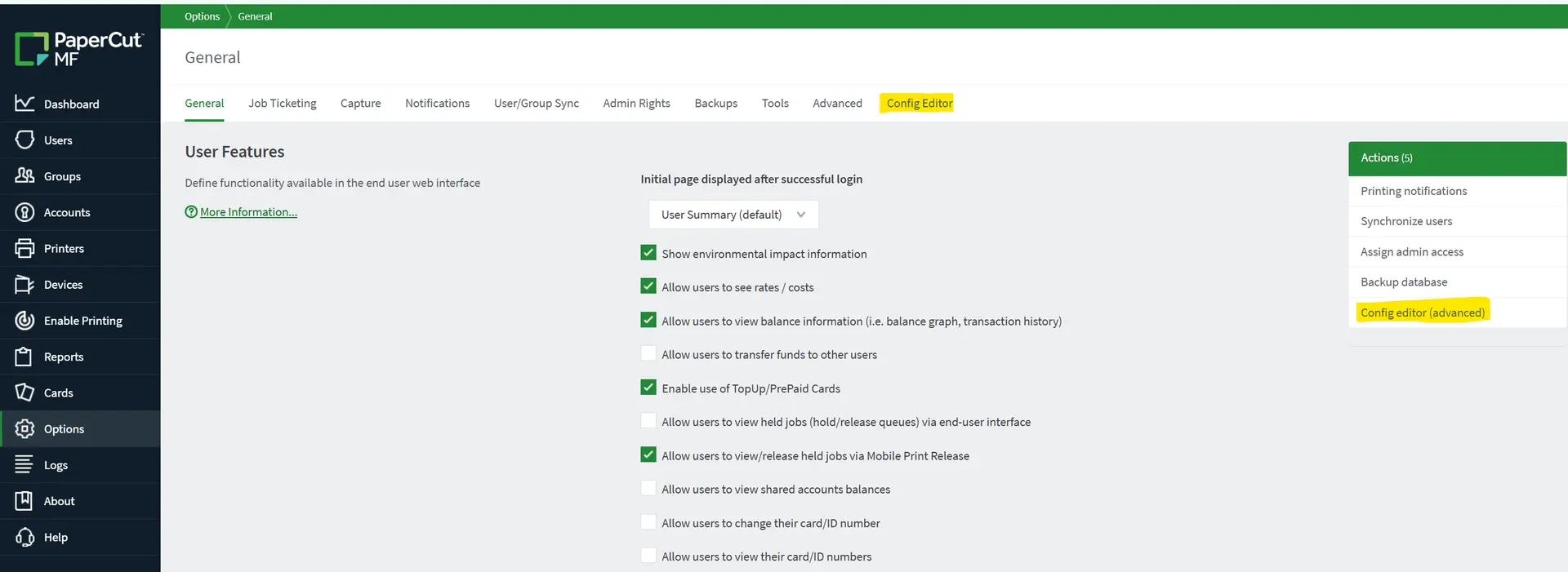
Open the PaperCut Config editor and add the XML Web Services auth token. Set the PaperCut XML Web Services API Key. This key is like a password that authorises Cilantro to access the PaperCut MF Server and functions. To add the key, scroll to the bottom of the page; in the name field enter
auth.webservices.auth-token, and in the value field enter a password of your choice.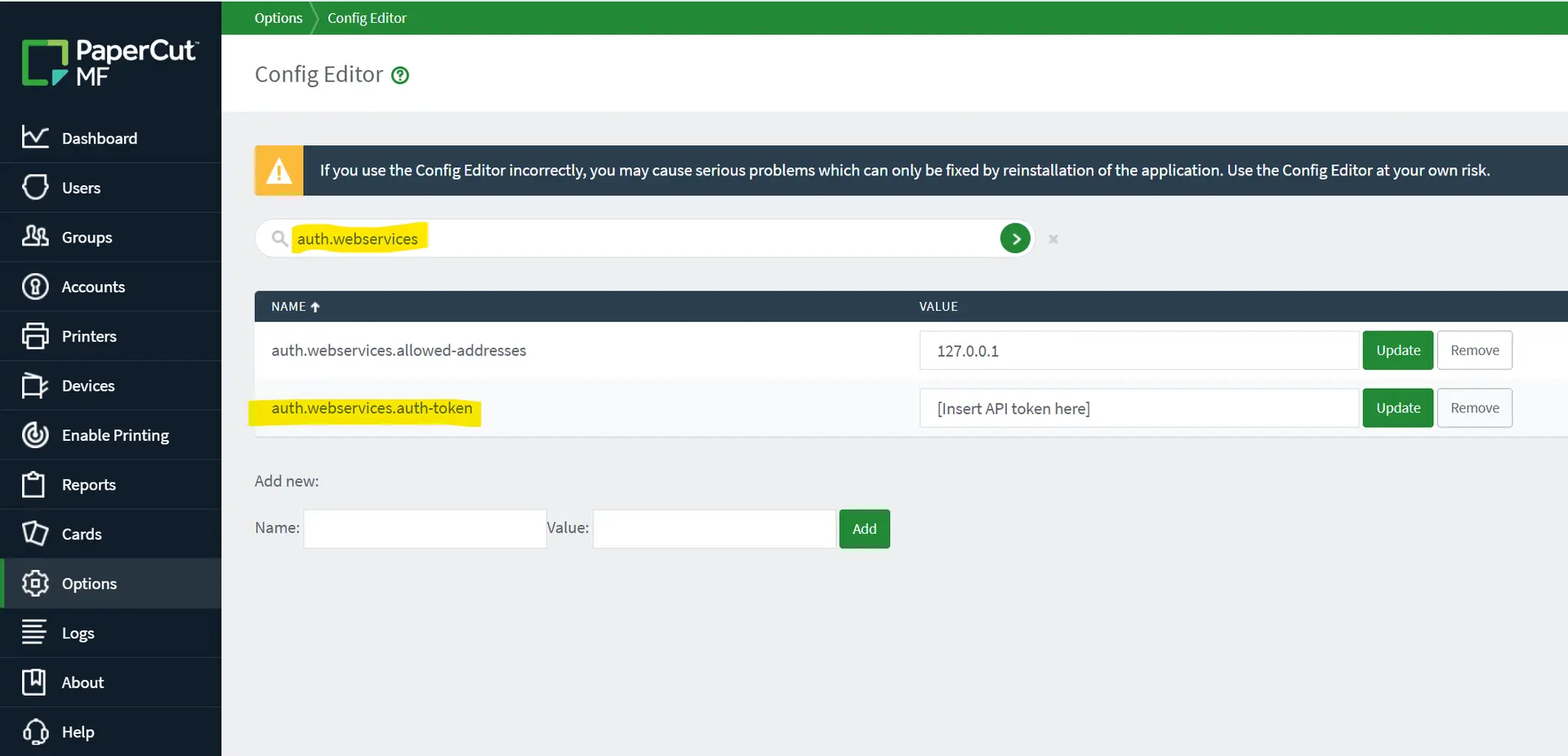
Set auth.webservices.auth-token and system.normalize-network-username . Additionally, add or update the configuration key
system.normalize-network-usernameto have a value ofN.From the left-hand menu, select Options and scroll to Account Options. Ensure Make shared account PIN/code visible is ticked.
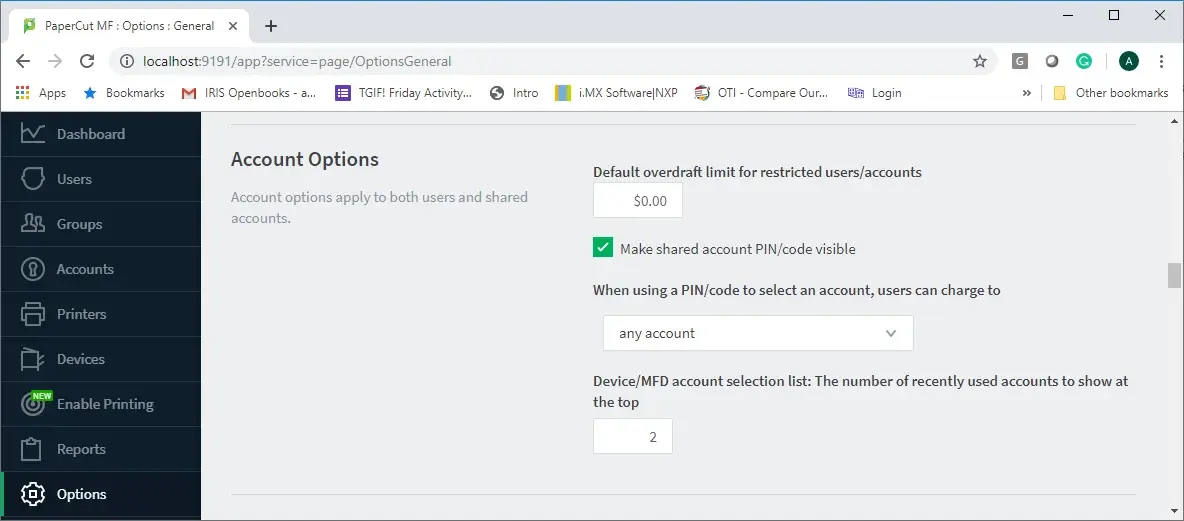
Enable visibility for shared account PIN/code.
3.3 User Sync & Authentication Settings
From the left-hand menu, select Options and click the User/Group Sync tab.
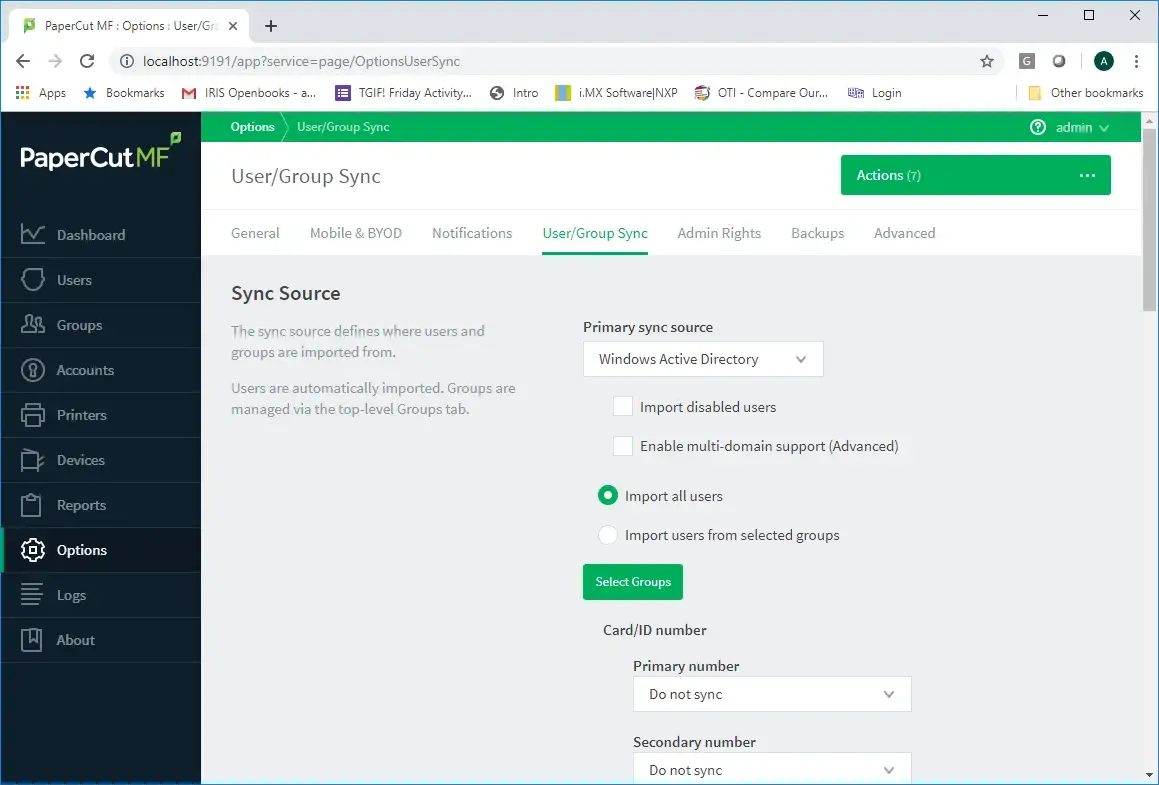
Open the User/Group Sync tab in PaperCut MF. In Primary sync source, select Custom program (Advanced). In Custom user program and Custom auth program, enter
Cilantro.IO.PaperCutSyncAndAuth.exefor PaperCut MF22.1.1or later. For older versions, enter the full pathC:\Program Files (x86)\CilantroIO\Cilantro.IO.PaperCutSyncAndAuth.exe.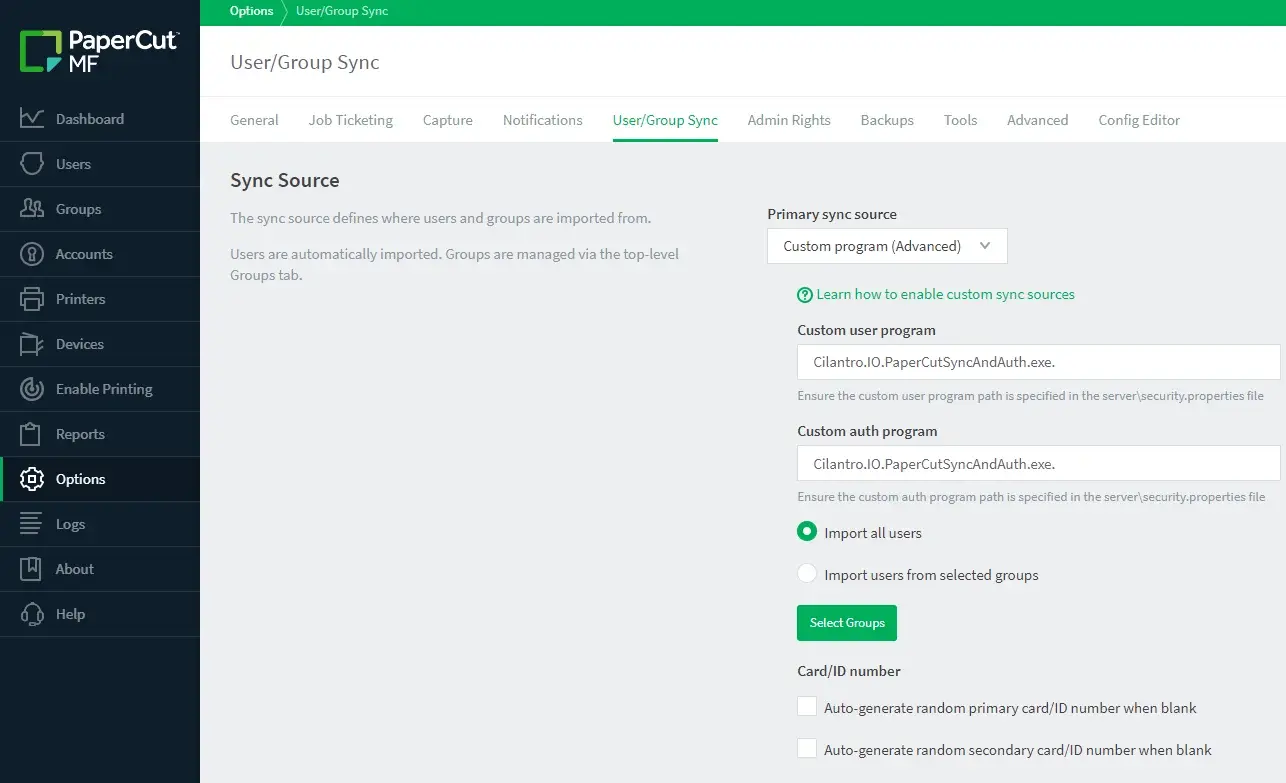
Configure the Custom Program sync and auth source. Scroll to Sync Options and uncheck Import new users and update details overnight. This prevents PaperCut MF from automatically creating IDs and changing user-to-group mappings that Cilantro IO must manage.
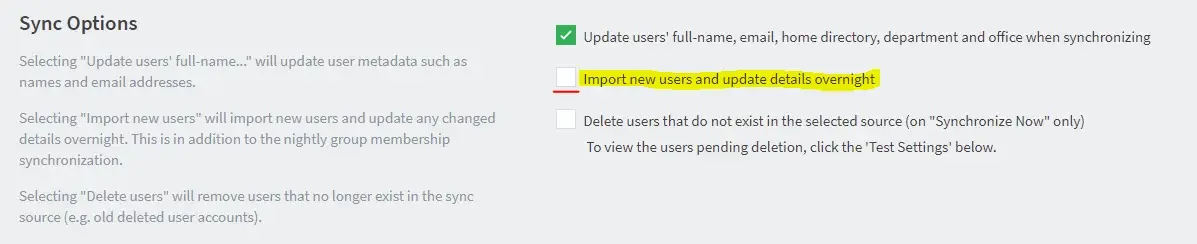
Uncheck Import new users and update details overnight . Click Apply.
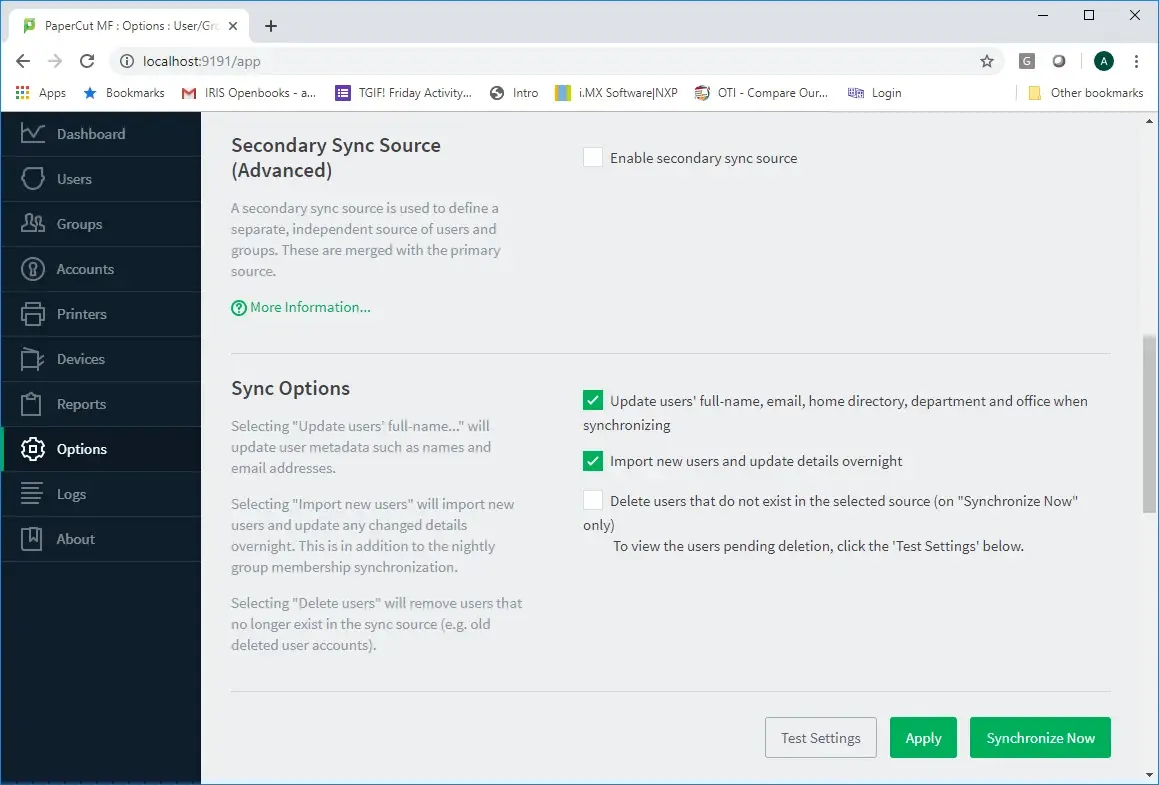
Click Apply to save the User/Group Sync settings. Make sure the "On Demand User Creation" setting is configured to "create the user on demand (default)"
Test username/password login through the user portal:
http://[Server-Address]:9191/userorhttps://[Server-Address]:9192/userwith an OfficeRND user.
3.2 PaperCut Reports
As of API v2, all CilantroIO OfficeRnD integrations should be using the below report and matching transaction export. Other legacy options exist - please adjust to this if you are still using them
From the menu on the left-hand side, select Reports and click Schedule / Email Reports.
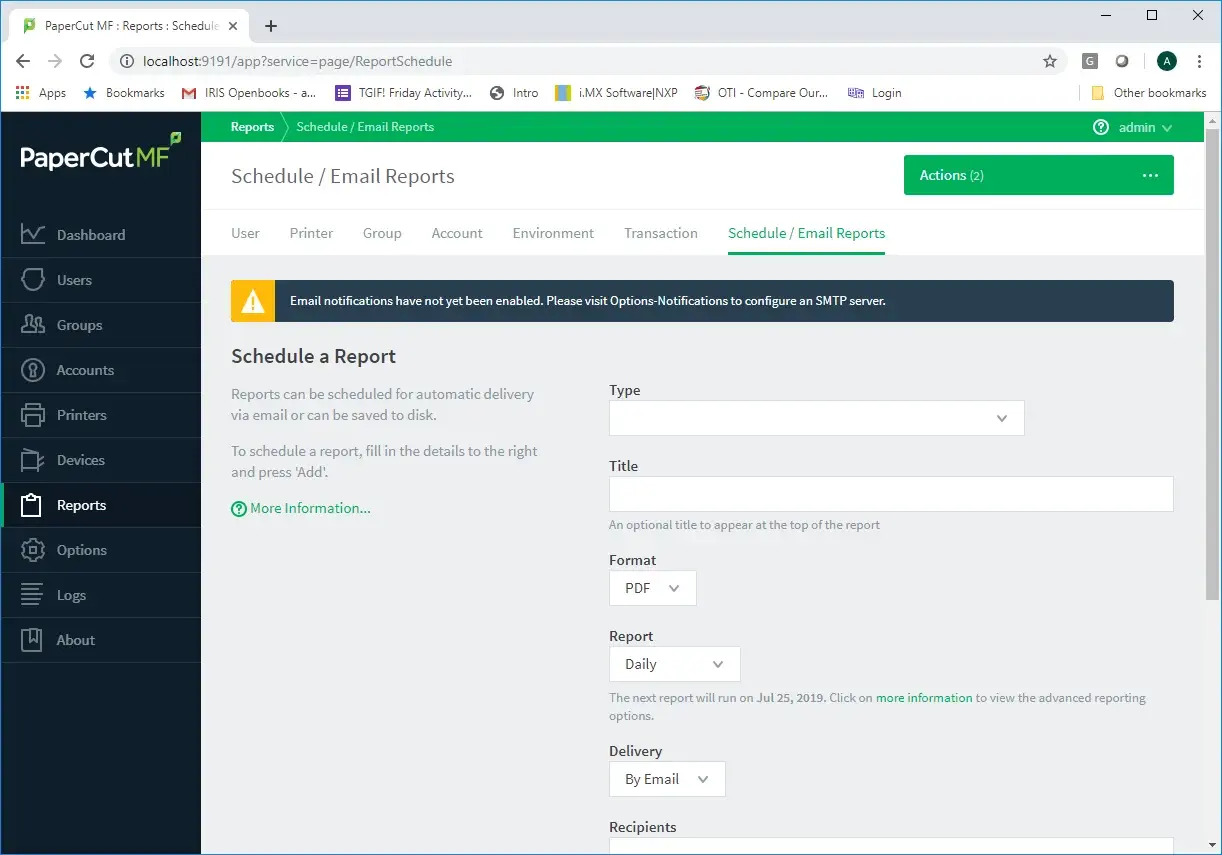
Schedule / Email Reports in PaperCut MF. For Type, select the required report for the usage scenario.
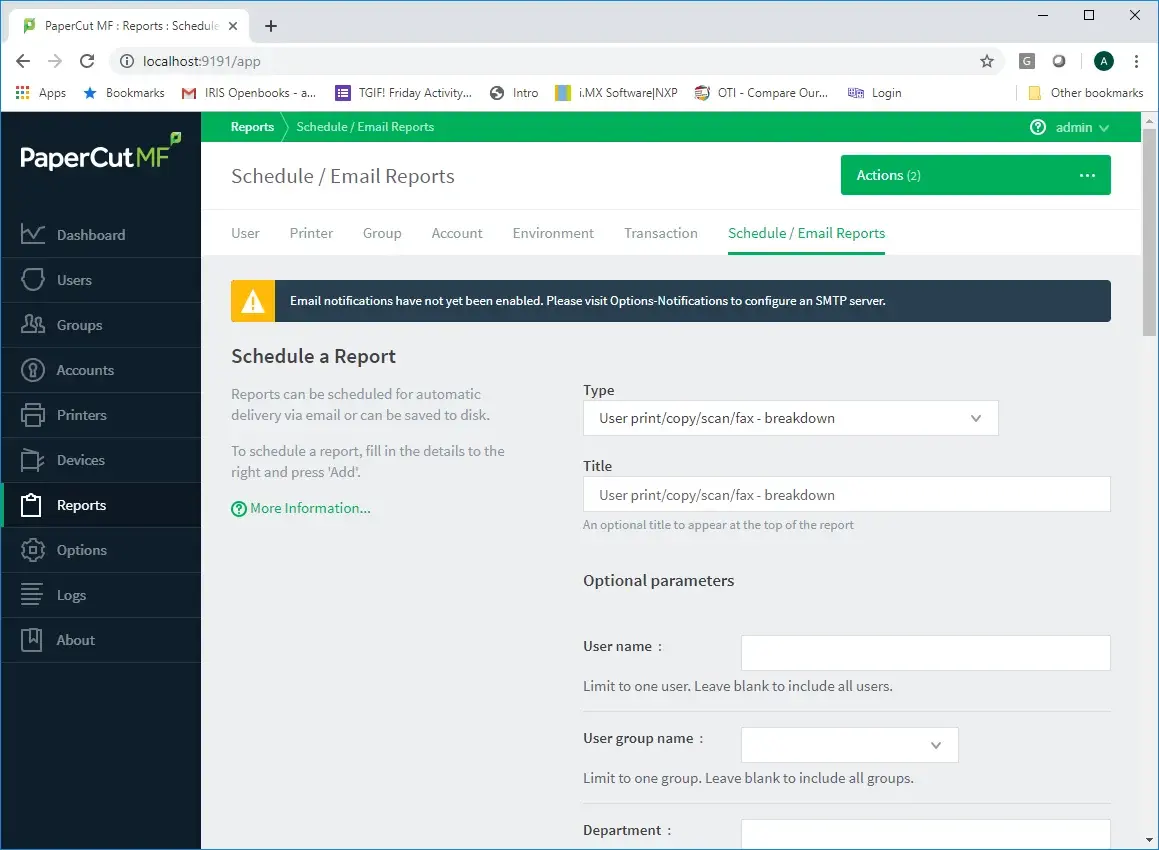
Select the required report Type for the usage scenario. Scroll to Job Type and click Select All.
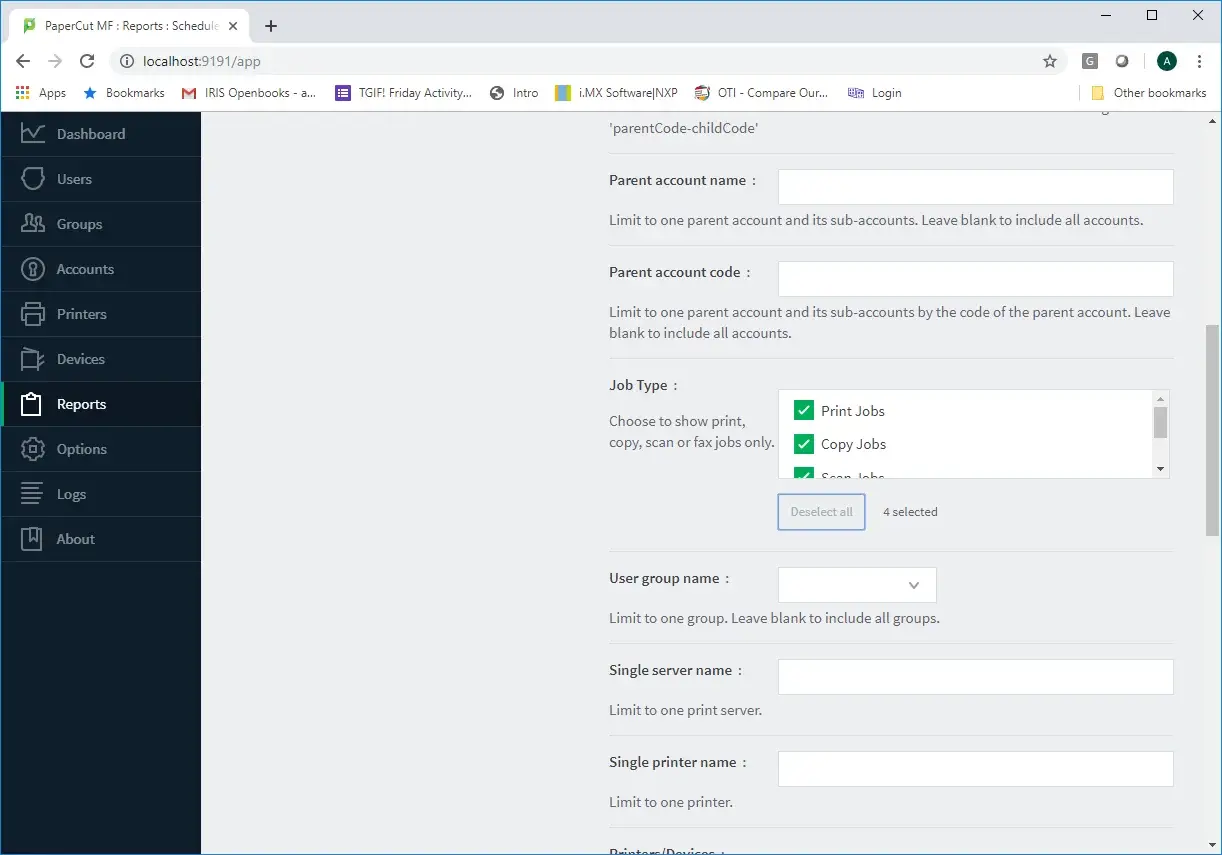
Select all Job Types. Scroll to Format, select CSV, change Delivery to To File, and enter the file name:
joblog.Tick Append date-stamp to file name, then click Add.
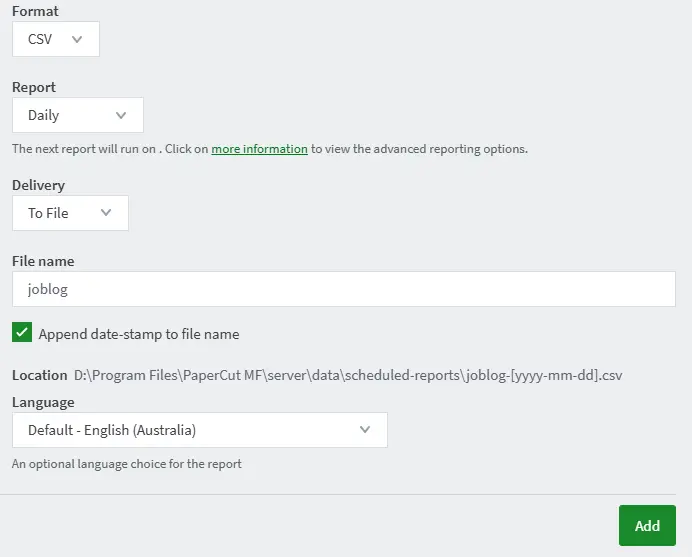
Configure CSV To File delivery and append date-stamp.
4. License File
Taco Technologies will generate a license file and pass this to the reseller during order processing.
Resellers/ASCs can download a customer’s license file via their Cilantro Reseller portal.
Locate the Vendor.
Select the Licenses Tile and click Download.
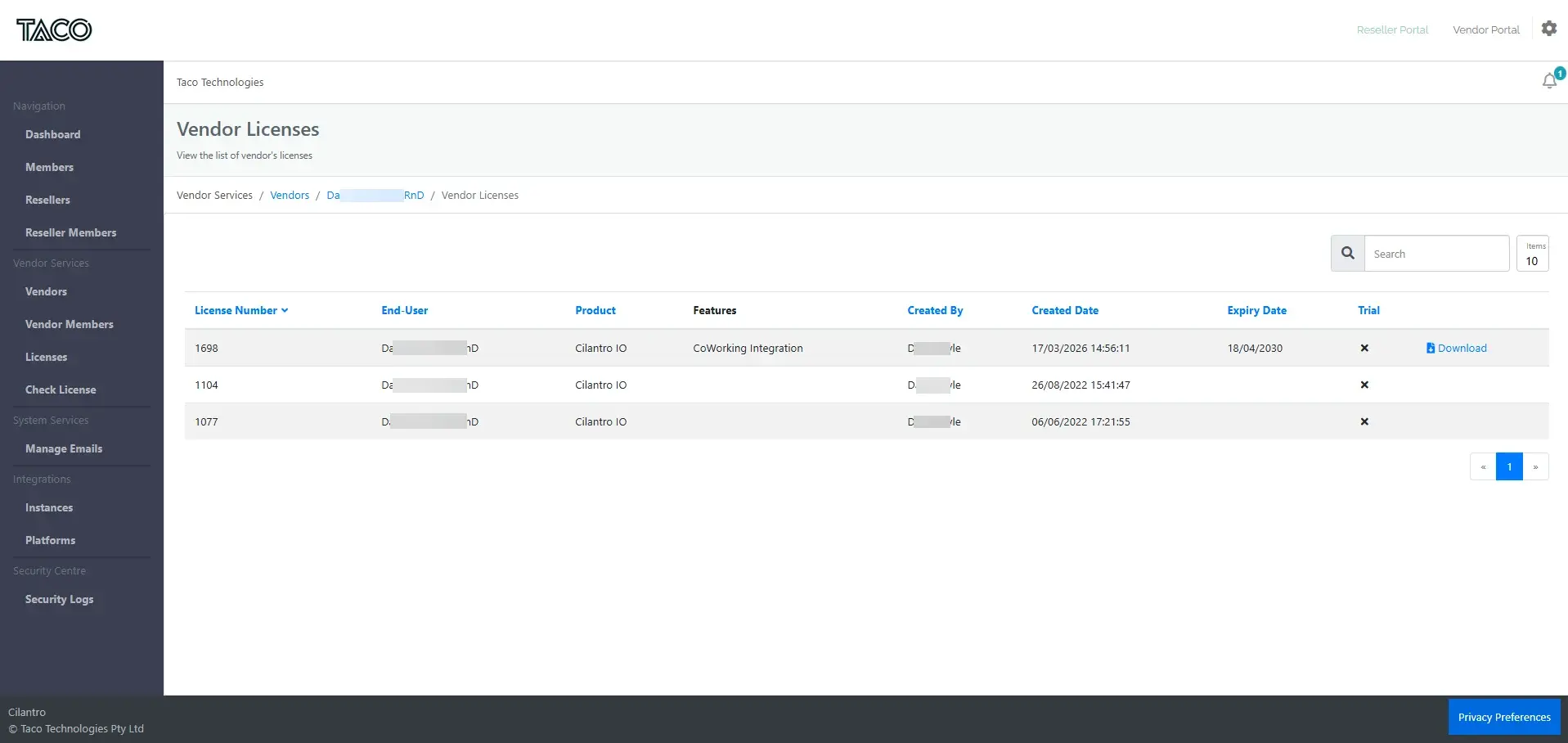
Download the customer license from the Cilantro Reseller portal.
5. Cilantro IO Installation
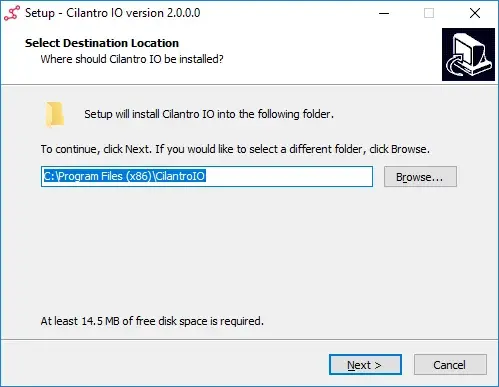
On the PaperCut MF Server, download Cilantro IO from Cilantro IO Setup.exe (opens in a new tab) and run the installer.
Set the install location and click Next.
Choose the Cilantro IO install location. Enter the Program Group name for Start Menu links.
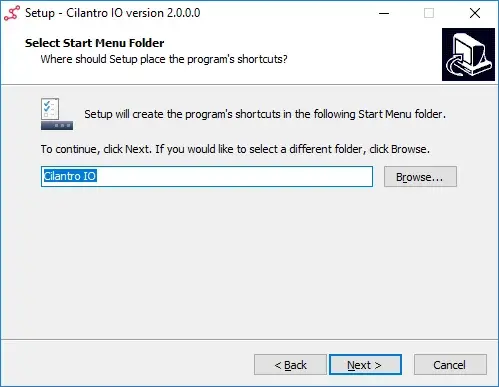
Choose the Start Menu folder. Click Install.
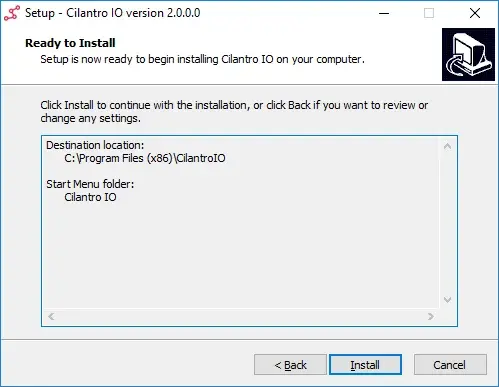
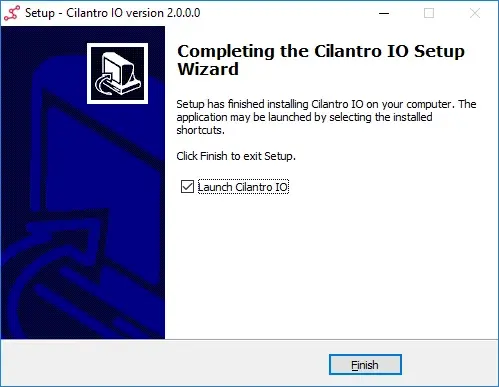
Install Cilantro IO. After installation, launch Cilantro IO by clicking Finish.
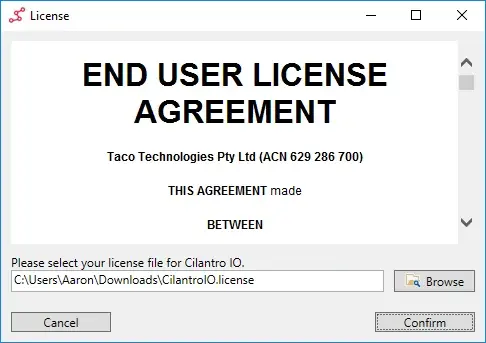
Finish installation and launch Cilantro IO. When prompted, browse for the license file and click Confirm.
Browse for and confirm the license file. Wait for Cilantro IO to configure default settings from the license and display the tasks before continuing.
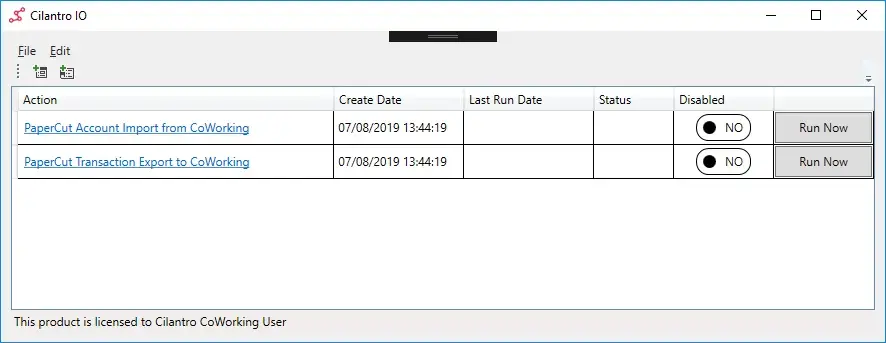
Wait for default tasks to appear.
Configure PaperCut and Co-Working Settings
On the application menu, click Edit and choose PaperCut Settings. Enter the PaperCut MF Server connection information and the
auth.webservices.auth-tokenvalue from PaperCut MF in the PaperCut API Key field. Once the information has been entered, click the Save button.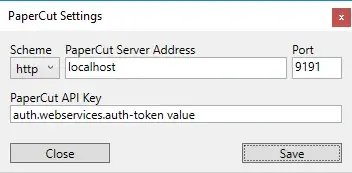
Enter the PaperCut MF Server details and PaperCut API Key. On the application menu, click Edit & Co-Working Settings.
- CoWorking Platform = Office RND
- Office RnD API URL
https://app.officernd.com/api/v2/organizations/{orgSlug} - Client ID =
- Client Secret =
- The customer specific details should have been obtained as per the prerequisites section of this guide
- Location =
- A dropdown list of locations will be available once the above details have been entered, only one can and must be selected
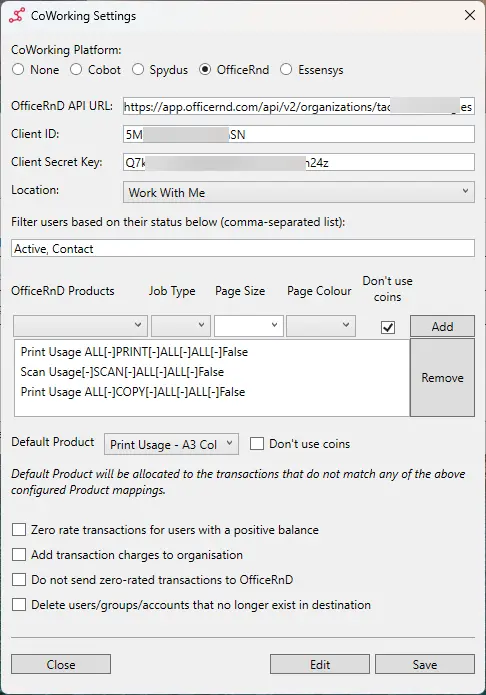
Enter the Office RnD API URL, credentials, and select one Location.
- A dropdown list of locations will be available once the above details have been entered, only one can and must be selected
Note: Office RnD requires an office to be associated with each transaction. As PaperCut MF does not provide the office in which a transaction was created, we simply select a default office here.
Filter users based on their status
- Lower case (supported values =
active/contact/former)
- Lower case (supported values =
Click Save
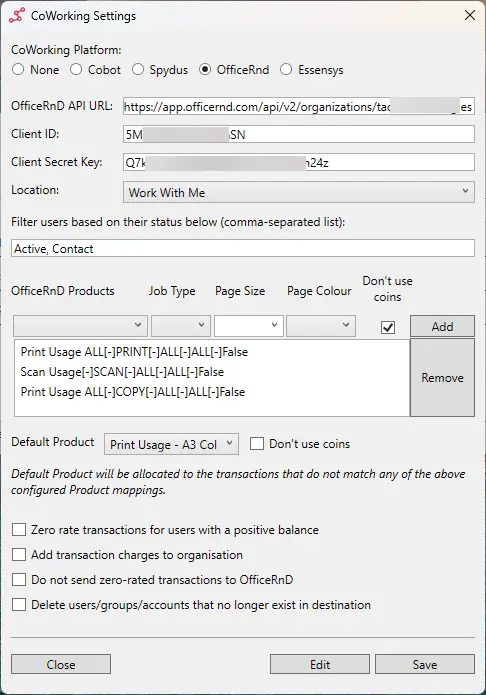
Filter users based on their status, then click Save. To configure the Job profiles against Plans it is necessary to reselect the Coworking Settings under the Edit menu on the IO homescreen.
- OfficeRnD Products/Plans
- Select the checkbox Select at least one Product below AFTER entering the above details! (Sunset by v2 API introduction as Fee creation without an associated plan will no longer be possible)
- OfficeRnD Products = Browseable list of Plans from OfficeRnD
- Job Type = Print / Copy / Scan / Fax
- Page Size = A4 / A3 etc.
- Page Colour = Colour vs Black & White pages
- Don’t use coins = False (to consume credit in OfficeRnD)
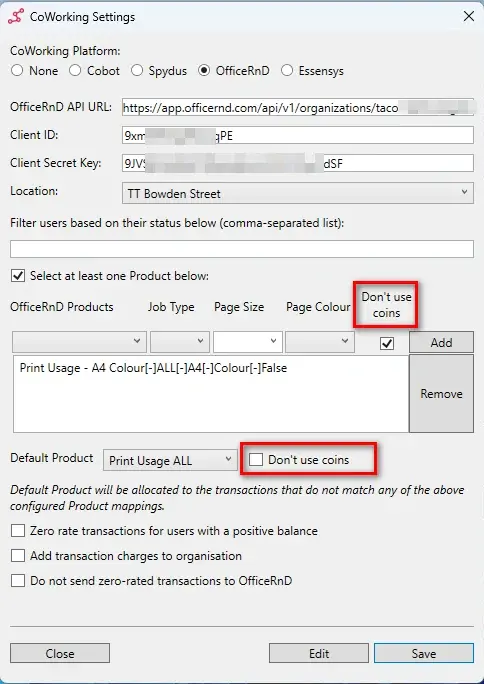
Configure OfficeRnD Products/Plans and leave Don’t use coins unticked to consume credit.
- OfficeRnD Products/Plans
It is strongly recommended that the customer create a catch all product for anything that doesn’t meet the defined profile criteria. This is applied to the Default Product below the main profile window. New products/profiles can be added once it becomes apparent that different page sizes are in use.
OfficeRnD has a concept for credit called Coins. Within OfficeRnD a Company is granted coins by means of a Membership typically. Products/Plans are configured in a way that permits the consumption of Coins and then when Cilantro IO exports charges to OfficRnD it flags that a charge is to consume coins, based on the Product/Plan assigned.
Cilantro IO’s interface has retained the reverse logic that OfficeRnD’s API utilises. Meaning IF the customer wishes to consume coins the boxes should be UNTICKED!
Example 1 - A single OfficeRnD product for all activity
- OfficeRnD Product = ALL Print Usage
- Job Type = ALL
- Page Size = ALL
- Page Colour = ALL
- Don’t use coins = Unticked
Example 2 - A split by Page Size
- Profile 1
- OfficeRnD Product = ALL A4 Usage
- Job Type = ALL
- Page Size = A4
- Page Colour = ALL
- Don’t use coins = Unticked
- Profile 2
- OfficeRnD Product = ALL A3 Usage
- Job Type = ALL
- Page Size = A3
- Page Colour = ALL
- Don’t use coins = Unticked
- Profile 3
- OfficeRnD Product = Everything Else
- Job Type = ALL
- Page Size = Default
- Page Colour = ALL
- Don’t use coins = Unticked
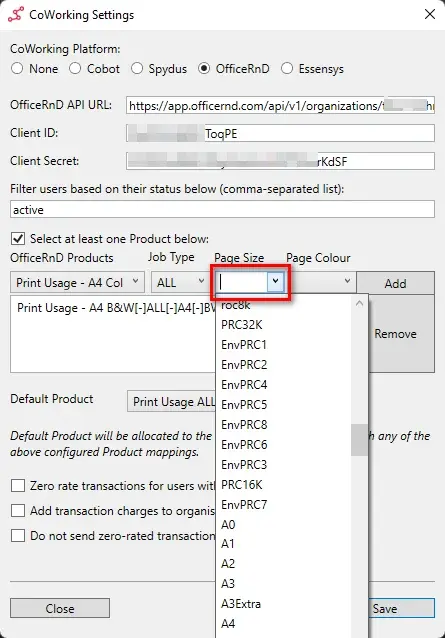
Page sizes can be selected from a list of all sizes supported by PaperCut MF, to make this task easier, searching by typing the name is supported:
Zero rate transactions for users with a positive balance - Not recommended
- Ticked if the customer provides a free printing balance to its customers via PaperCut MF. When this is checked, if the customer’s balance is greater than zero, the transaction created in Office RnD will be zero rated
Add transaction charges to organisation - Recommended
- Ticked if the end-user wants print / copy / scan / fax transactions to be recorded against the organisation in Office RnD and not against the individual user (
isPersonalflag in OfficeRnD)
- Ticked if the end-user wants print / copy / scan / fax transactions to be recorded against the organisation in Office RnD and not against the individual user (
Do not send Zero-rated transactions to Office RnD
- Ticked if the end-user does not want print/copy/scan/fax transactions with zero rate to be recorded in Office RnD
Finally, click Save to save the CoWorking Settings.
5.1. Configure the Account Import Task (Optional)
If desiring to bulk import all members on a schedule that fit the previously configured location and status filter the account import task is responsible for importing the active Users from Office RnD and creating them in PaperCut MF.
From the main application window, click the PaperCut Account Import from CoWorking task.
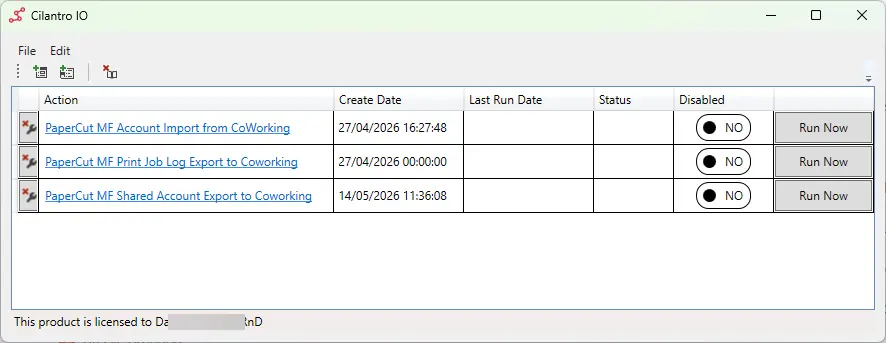
Select the PaperCut Account Import from CoWorking task. The Action Wizard is displayed providing a description of the Wizard and its purpose. Click the Next button.
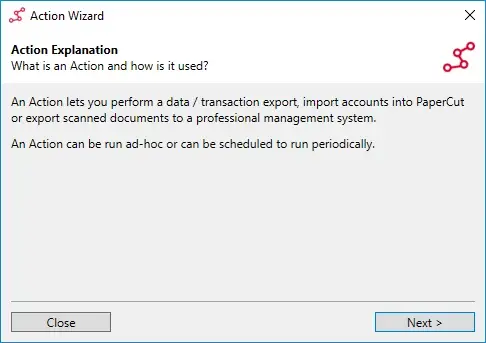
Action Wizard explanation. The Action Type dialog is displayed showing the type for the Action. This has been pre-configured to import accounts to PaperCut MF. Ensure the Action Type is PaperCut Account Import and click Next.
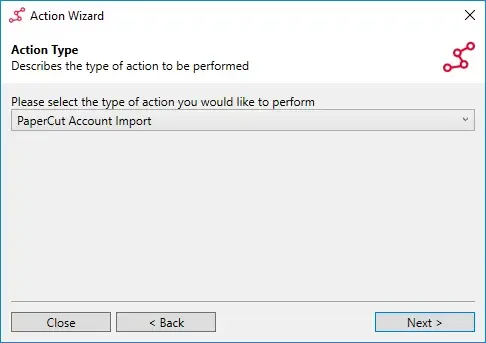
Ensure the Action Type is PaperCut Account Import. In the Action Data Source dialog, ensure CoWorking Platform is selected for the data source and click Next.
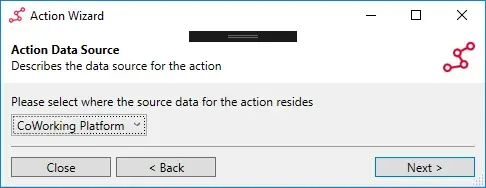
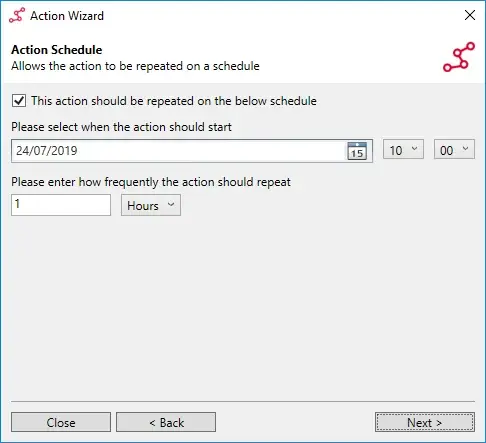
Select CoWorking Platform for the data source. On the Action Schedule dialog, tick the This action should be repeated on the below schedule check box. This ensures the account import recurs with the specified frequency and that new Users are regularly imported into PaperCut MF.
Enter a start date from which the Action is to repeat, a start time for the Action and an import frequency. A frequency of 1 day is suggested as new users are automatically imported from Office RnD when they sign into PaperCut MF for the first time.
Once the appropriate values have been entered, click Next.
On the Action Name dialog, you may rename the Action to something more descriptive if desired and finally click Save.
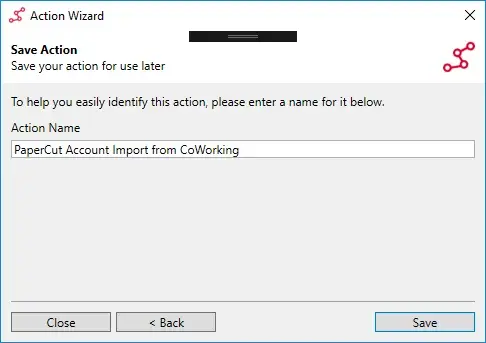
Name and save the account import action.
5.2. Configure the Transaction Export Task
The transaction export task is responsible for transferring all PaperCut MF print, photocopy, scan and fax transactions to Office RnD.
From the main application window, click the required PaperCut Transaction Export to CoWorking task.
The Action Wizard is displayed providing a description of the Wizard and its purpose. Click the Next button.
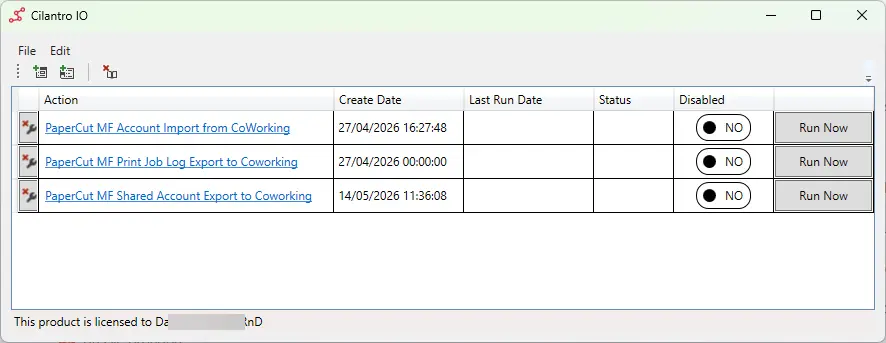
Select the required PaperCut Transaction Export to CoWorking task. 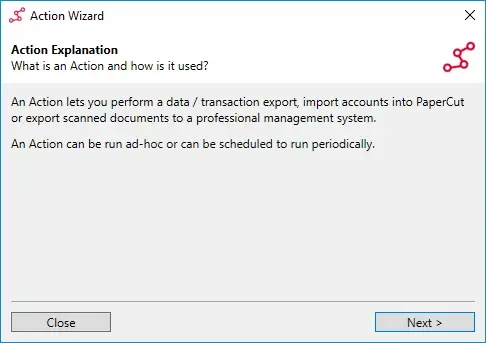
Action Wizard explanation. The Action Type dialog is displayed showing the type for the Action. This has been pre-configured to export transactions from PaperCut MF. Ensure the Action Type is Data / Transaction Export and click Next.
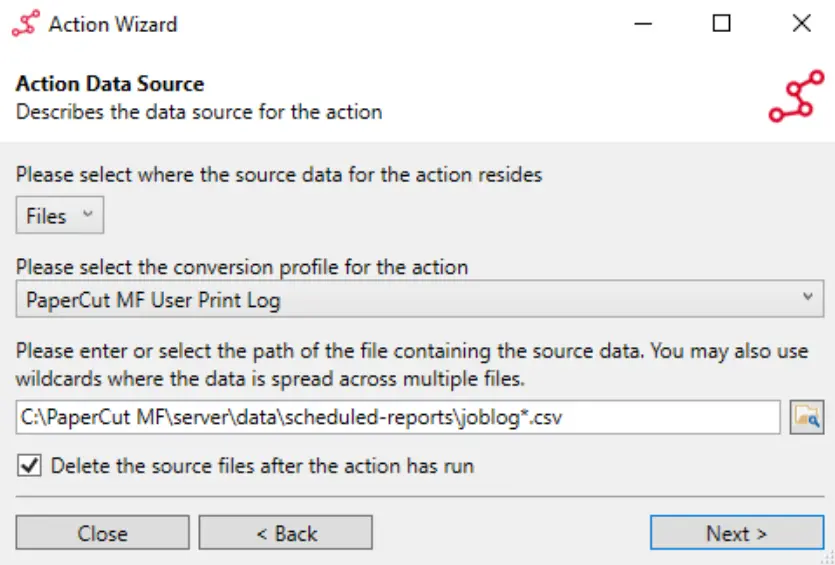
In the Action Data Source dialog ensure Files is selected for the data source.
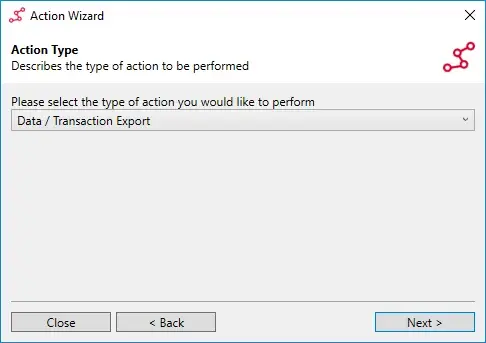
Ensure the Action Type is Data / Transaction Export.
The next step is critical, the conversion profile selected is based on the report being exported from PaperCut MF. This conversion profile understands the data structure of a particular report and how to handle that data when passing it on to the destination system.
The source data path & file name is preconfigured, this must match the location and filename configured in the section that covered PaperCut MFs scheduled report.
e.g c:\Program Files\PaperCut MF\server\data\scheduled-reports\joblog*.csv
Additionally, the Delete the source files after the action has run check box should be ticked. This ensures transactions are not duplicated in Office RnD by reprocessing the same scheduled report files the next time the Action runs.
In the Action Destination dialog, ensure CoWorking Platform is selected for the data destination. The mappings from the scheduled report have already been configured.
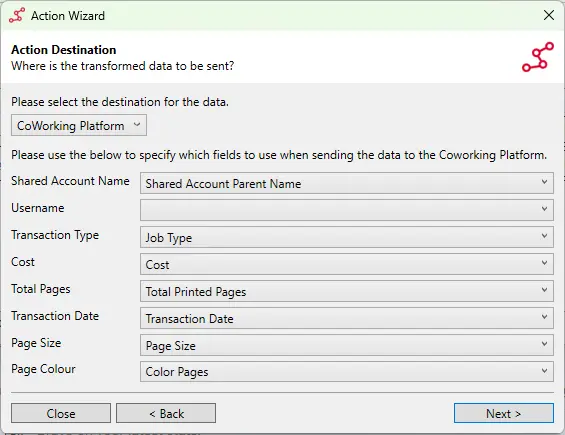
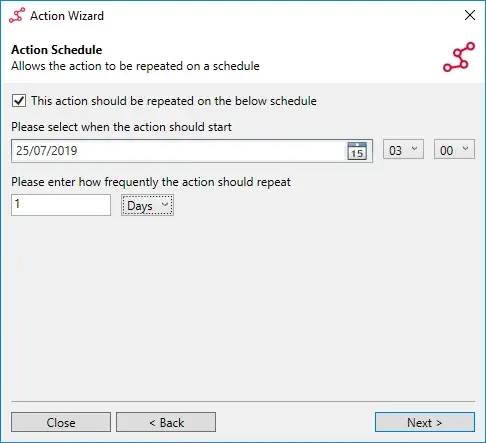
Ensure CoWorking Platform is selected as the data destination. On the Action Schedule dialog, tick the This action should be repeated on the below schedule check box. This ensures the transaction export recurs with the specified frequency and that transactions are daily exported to Office RnD.
Enter a start date from which the Action is to repeat, a start time for the Action and an export frequency. As transactions are daily exported from PaperCut MF at 00:10, the start time for the task should be selected at random between 03:00 AM & 05:00 AM to allow PaperCut MF to finish the export and the repeat frequency should be 1 day.
Once the appropriate values have been entered, click Next.
On the Action Name dialog, you may rename the Action to something more descriptive if desired and finally click Save.
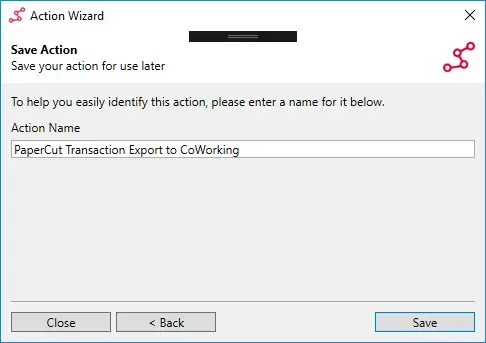
Name and save the transaction export action.
6. Update License
To update the license ahead of an expiry, follow the below:
If the license has expired, all actions will stop operating and upon opening the application CilantroIO will prompt for a valid license file
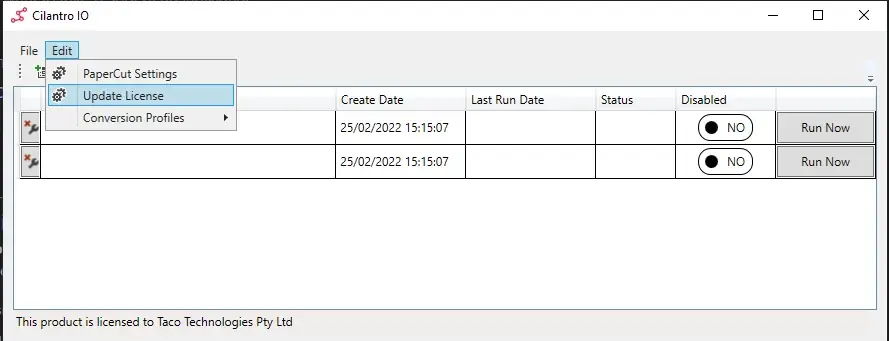
In the Cilantro IO Application, click Edit, then Update License.
When presented with the EULA screen, select browse and choose the new file as provided by your Reseller or Taco Tech.
Apply the new License and confirm that on the Cilantro IO Application it states the product is licenced to your organisation.