
Cilantro: PaperCut Hive × OfficeRnD — Setup Guide
Provision members automatically, map plans to print jobs, and export costs to OfficeRnD — Coins included.
1) Prerequisites



Register an application in OfficeRnD and note your organisation slug (orgSlug). To use Bill to Member, enable it in OfficeRnD under Settings → Billing Settings → Billing Rules.
1. Org slug (Organisation Slug)
Go to https://app.officernd.com/login (opens in a new tab) and sign in.
Open Settings → Account Details → Company & Billing Info.
Copy the value in OfficeRnD Flex Admin Portal (e.g.,
papercut-demo).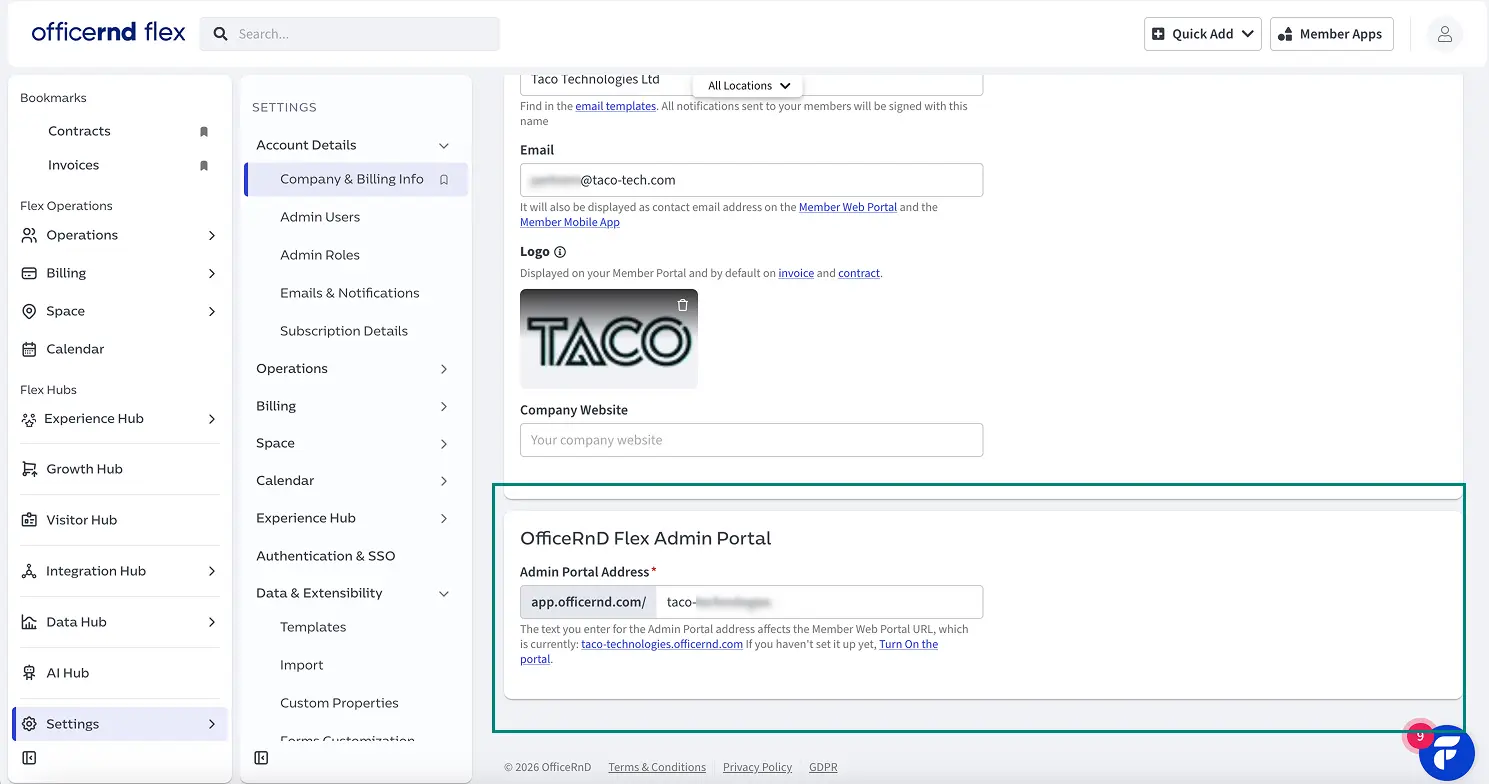
Admin Portal shows your orgSlug .
1.2 Create a new application
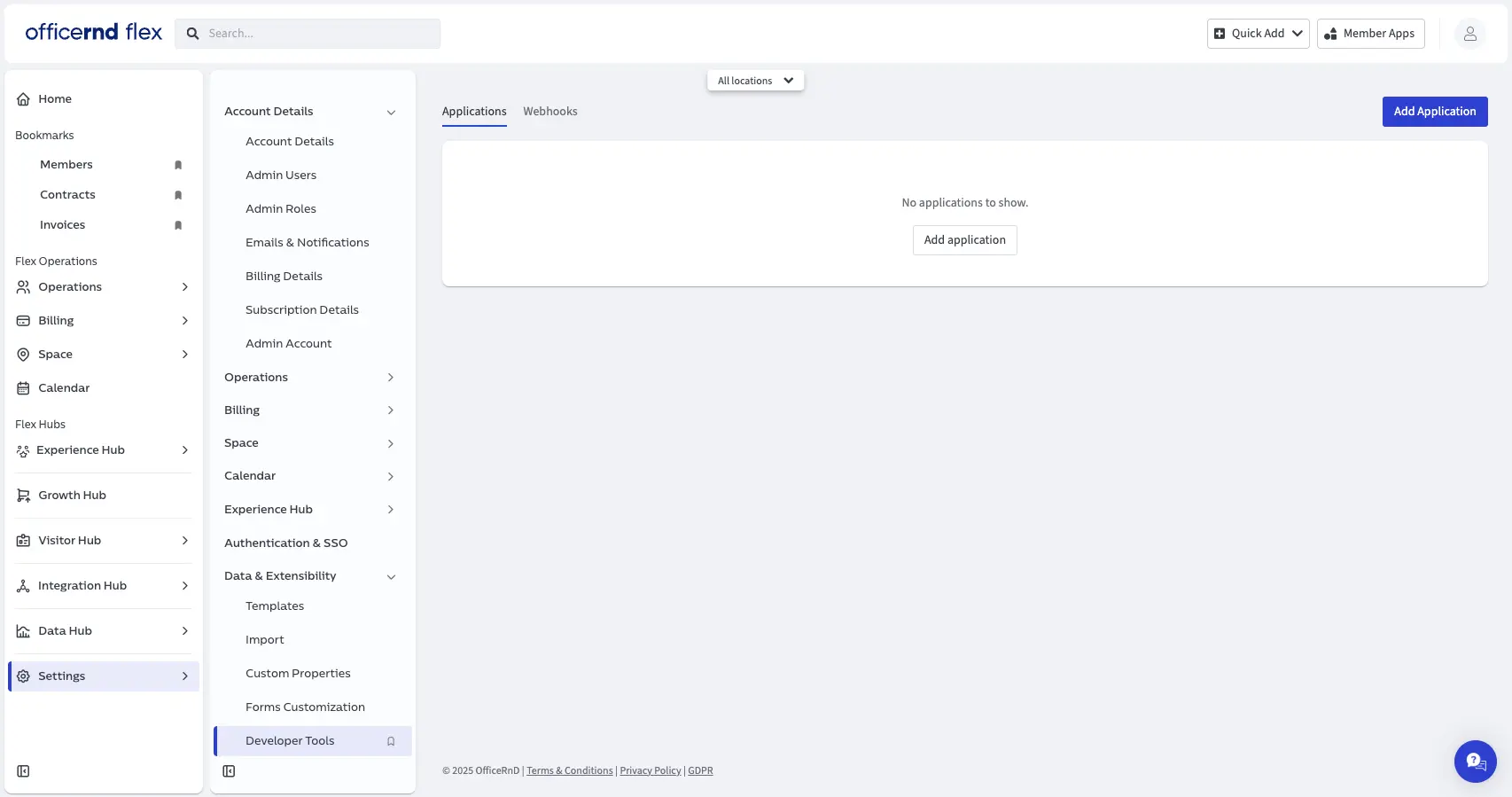
2.1 Navigate to Developer Tools
Go to Settings → Data & Extensibility → Developer Tools.
1.2.2 Add Application
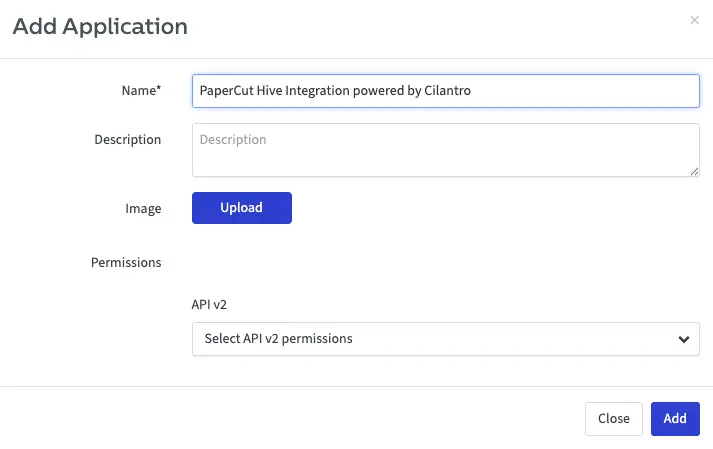
Click Add Application and create “PaperCut Hive Integration powered by Cilantro”.
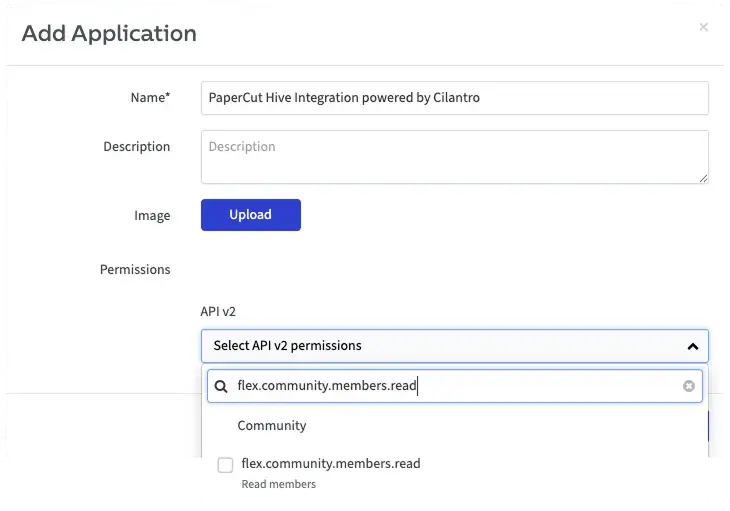
1.2.3 API v2 permissions
Grant these scopes:
Flex.billing.plans.readFlex.community.members.readFlex.community.companies.readFlex.community.fees.createFlex.settings.webhooks.createflex.settings.webhooks.delete
2.4 Client ID & Secret
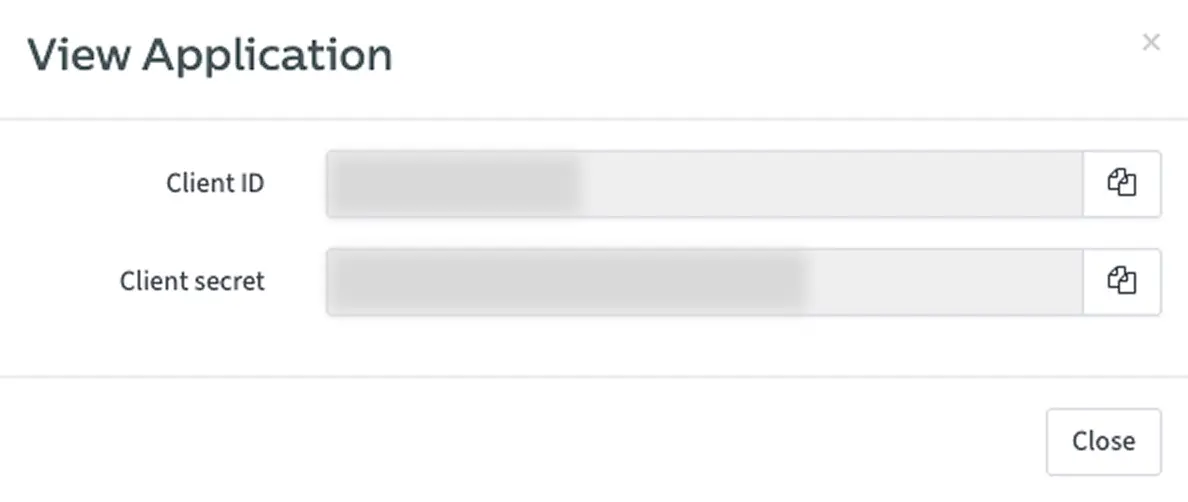
Once the Application has been created, click the gear next to your application name, then click View next to the Application name, and record the Client ID and Client Secret as shown below.
1.3 Create Plans / Products
In Billing & Products → Plans add one-off service plans for printing:
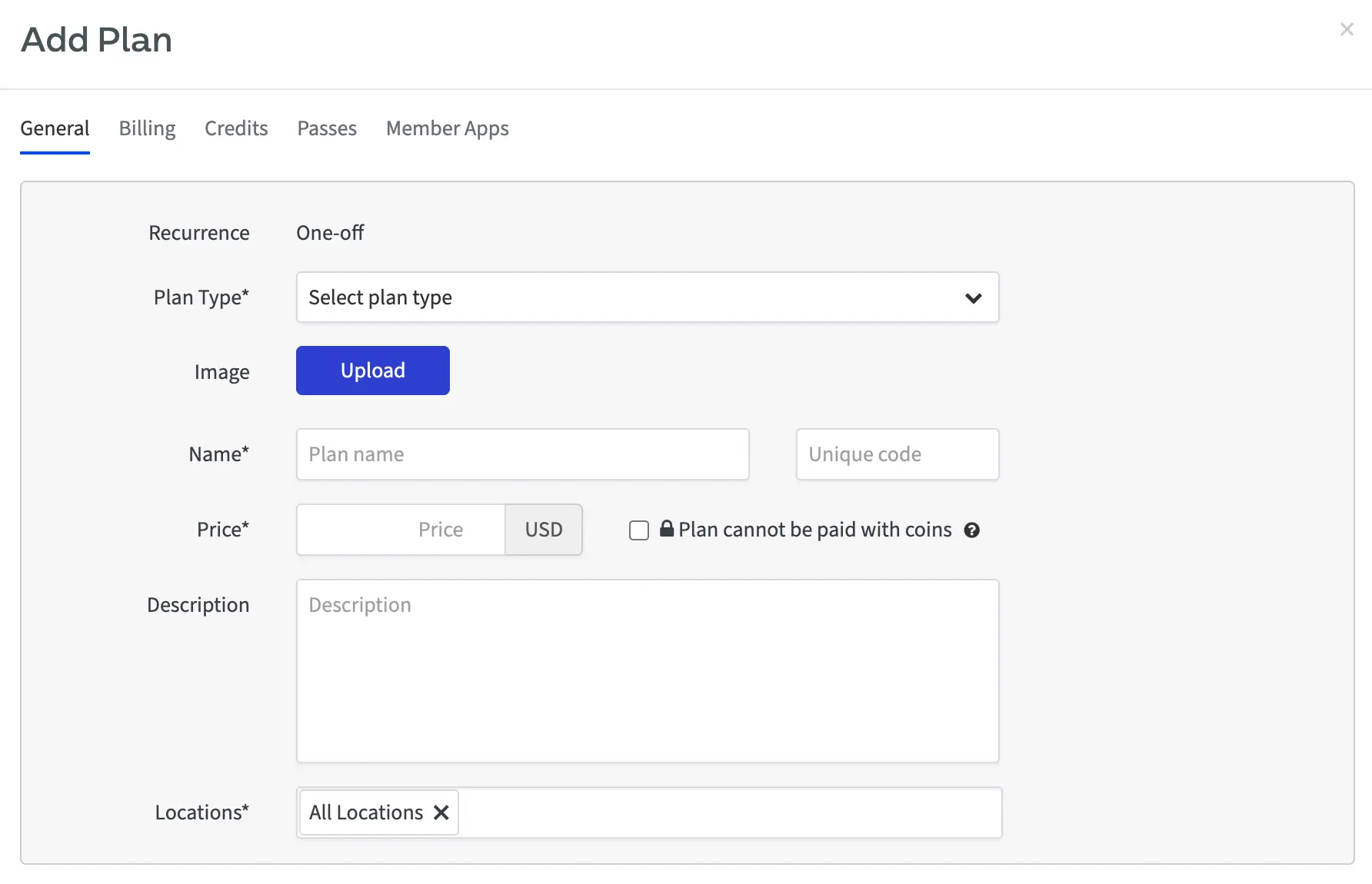
Add a new “One-Off” plan
Plan type = Service
Name — e.g. Printing A4 B&W
Price — cost per page
Leave “Plan cannot be paid with coins” unticked
Description — e.g., All Print/Copy/Scan on A4, Black & White
Locations — All locations
Choosing a plan strategy
You can keep it simple with a single plan or model multiple plans to mirror job profiles. Pick one approach:
- One plan for everything (simple to start) — create one plan that captures all modelled activity. Use this same plan as your catch-all in step 4 so unexpected jobs are still billed.
- Multiple plans by profile
- By colour: a plan for all B&W activity and a plan for all Colour activity.
- By size + colour: plans for A4 B&W, A4 Colour, A3 B&W, A3 Colour.
- Add another plan for your catch-all mapping.
Tip: Embrace flexibility (more granular plans) for detailed reporting, or limit it (one or two plans) for simpler invoices.
4) Assign Coins as credit to Companies
Go to Operations → Companies → open a company → Credits tab:
Click Add Credit
Allocate the Monthly quota of Coins
Set Valid for = One-off Plans
Select the print plans you created
Choose the Start & End dates
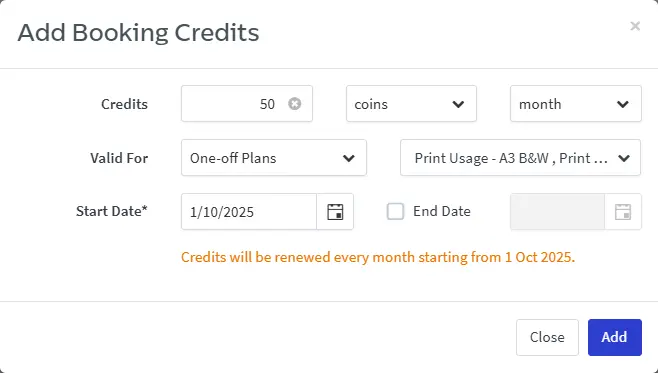
Assign monthly Coins and link to plans.
2) OfficeRnD Connector Configuration
After completing the prerequisites, configure the Cilantro connector.
2.1 Create an Account
Sign up for a local account.
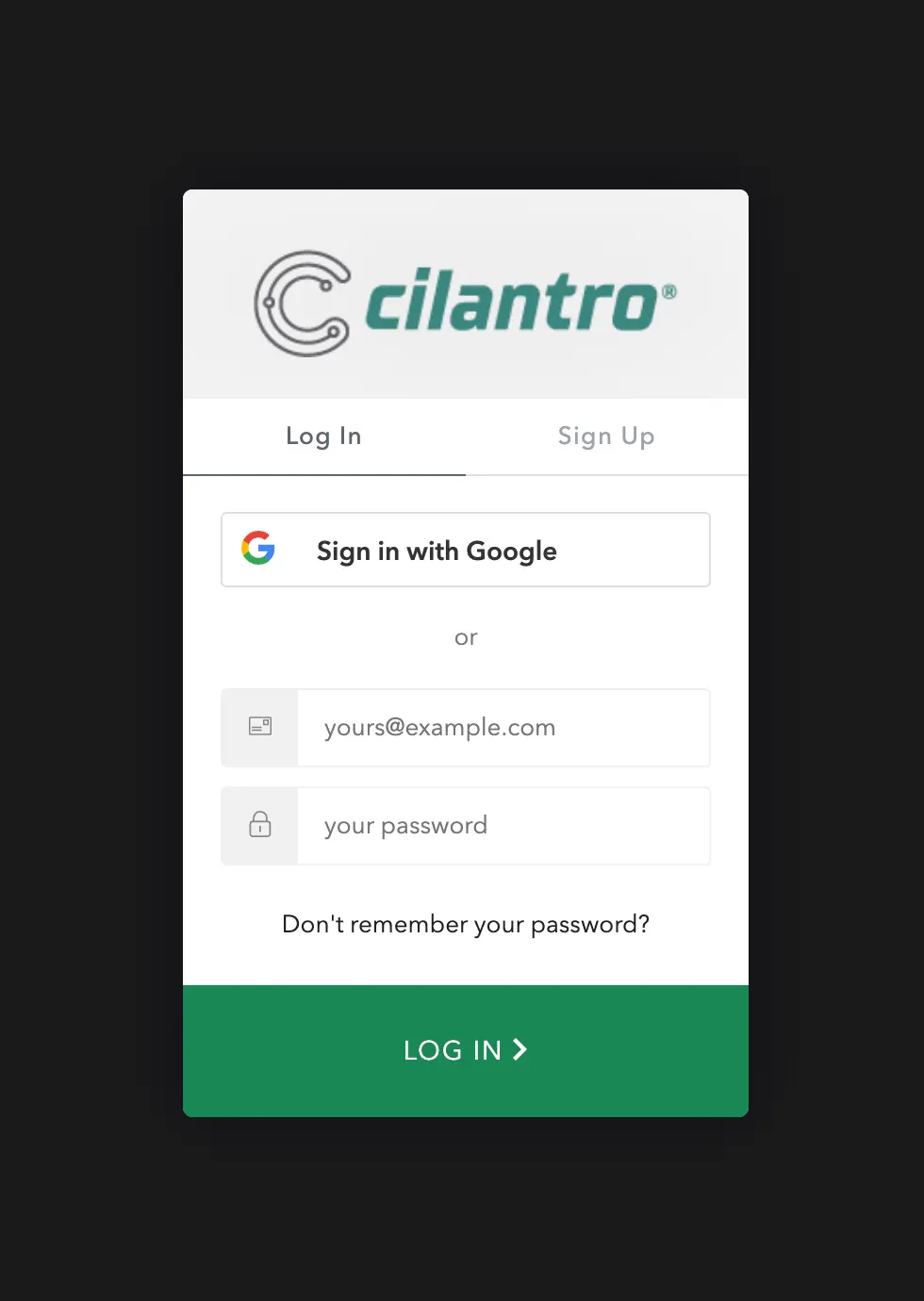
Create your Cilantro account.
2.2 Authentication
Connect to OfficeRnD using:
- a. Org Slug (e.g.,
my.company) - Client ID & Client Secret
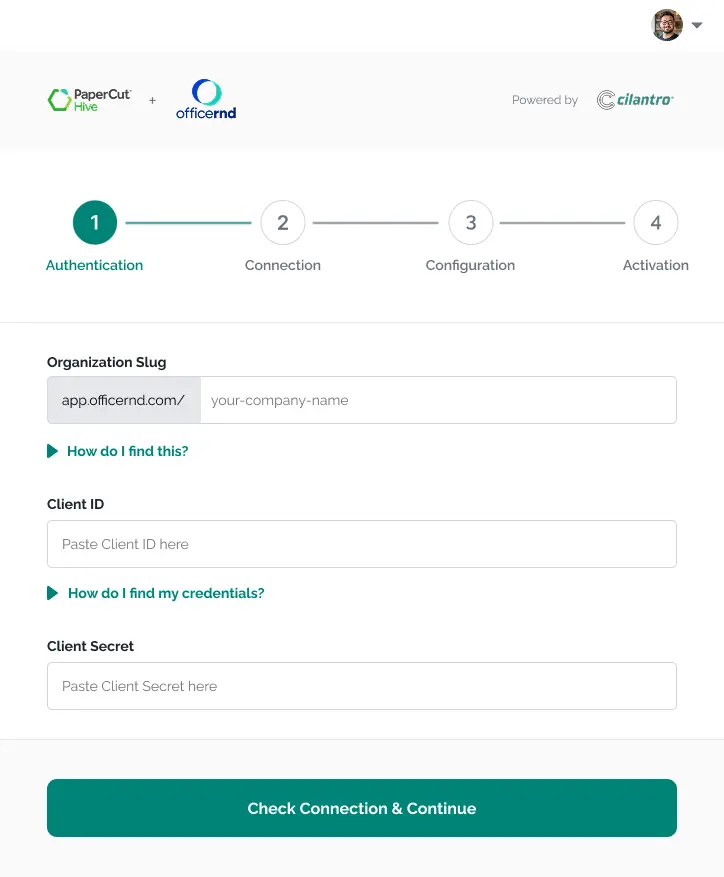
Enter Org Slug, Client ID, and Client Secret.
- a. Org Slug (e.g.,
2.3 Configuration Details
2.3.1 Members, Billing & Costs
1) Members
- a. Select the Companies whose OfficeRnD members should be imported into PaperCut Hive. All newly imported users receive a PaperCut Hive email. See invitation email (opens in a new tab).
- b. Choose which Member statuses filter members (click to select/unselect; multiple supported).
- c. Decide whether members should be removed from Hive if their status later doesn’t match.
2) Individuals
Individuals don’t belong to a Company in OfficeRnD and can have different statuses.
- a. Include Contacts in addition to Active under “Include the following Member Statuses”.
Transactions uploaded to OfficeRnD always have isPersonal=false.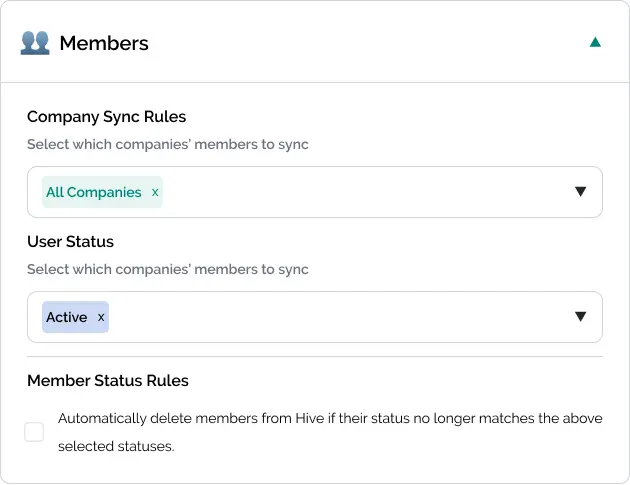
3) Billing
Note: Only transactions occurring after configuration are passed to OfficeRnD.
Choose export timing:
- Never Member import only, no transaction export
- Twice daily (~01:00 & 13:00 UTC)
- Monthly on the 28th (often simpler for invoicing)
Choose whether to pass costs to OfficeRnD.
Choose whether to flag costs as personal (controls whether OfficeRnD bills the Member or their Company). If billing to member, enable OfficeRnD → Settings → Billing Settings → Billing Rules → Billing to member.
4) Products / Plans
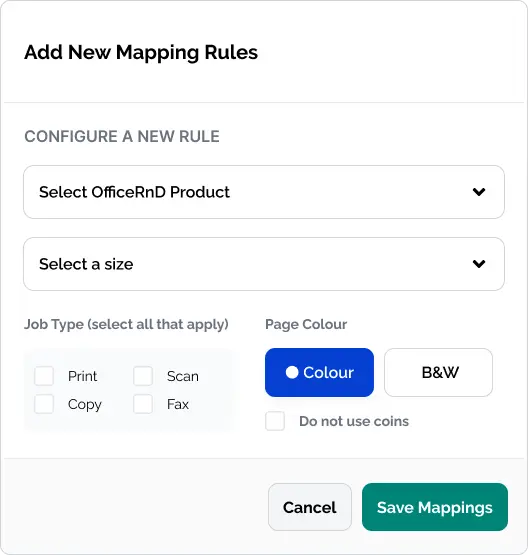
Create mapping from print activity to OfficeRnD plans (plans first in 1.3; optional Coins in 1.4):
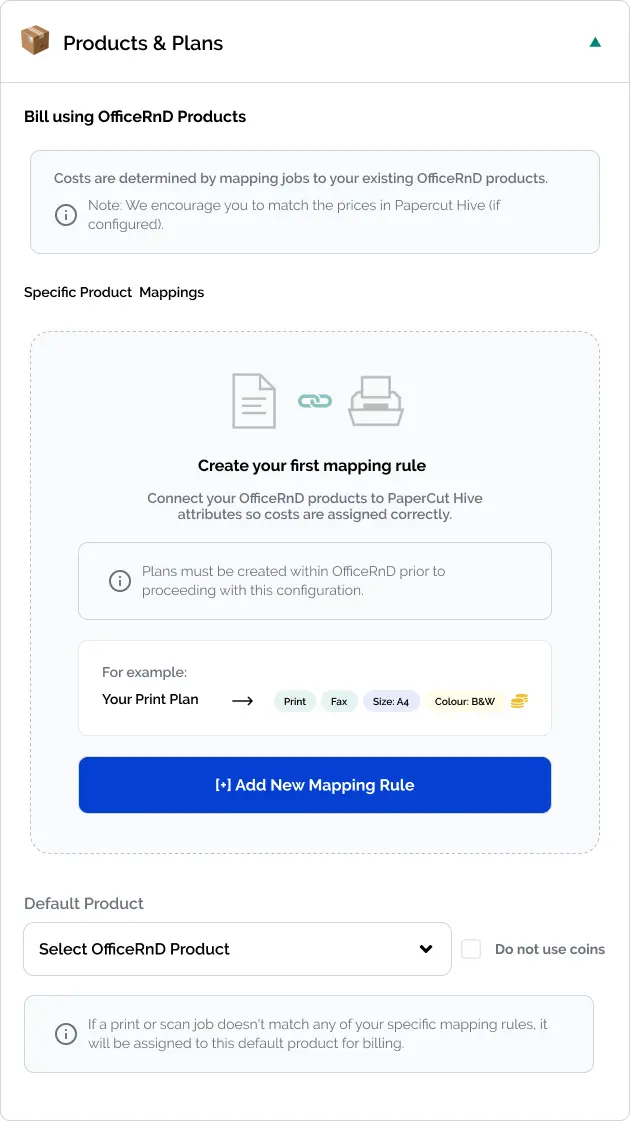
- a. Click [+] Add new mapping rule and define a profile:
- i. OfficeRnD Product (live lookup)
- ii. Job Type
- iii. Page size
- iv. Page colour
- v. Do Not Use Coins = unticked to consume coins as credit
- b. Add a catch-all plan for unexpected sizes (e.g., non-A4 jobs).
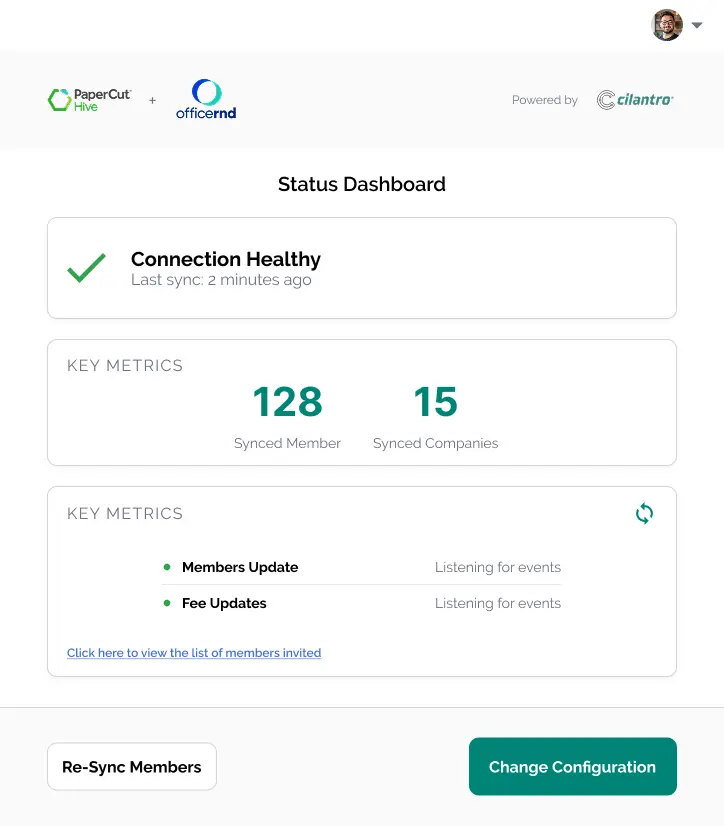
2.4 Status Page
- Check connector status
- See number of members imported
- View last run timestamps; trigger Re-sync if needed
3) Troubleshooting (Q/A)
Q: Unexpected Members synced with Hive
A: Double-check the Companies and Member statuses selected for import (see 2.3.1).
Q: New member added in OfficeRnD but not appearing in Hive
A: Open the add-on Status page and press Re-sync. Then check OfficeRnD Webhooks for failures.
Q: Members of a specific company are no longer importing to Hive
A: Double-check all settings and confirm the company hasn’t been renamed in OfficeRnD.
Q: “Bill to member” is enabled but invoices don’t reflect it
A: Ensure OfficeRnD Settings → Billing Settings → Billing Rules → Billing to member is enabled.
Q: Members & Companies import but Individuals aren’t invited to Hive
A: Ensure Contacts is selected under “Include the following Member statuses”.