
Cilantro IO: PaperCut MF & iManage — Setup Guide
Install and configure the Cilantro IO integration to connect PaperCut MF with iManage Work for scanned document routing.
Before attempting to action this guide, contact your PaperCut Reseller to purchase a license.
1. Document Information



1.1 Introduction
The purpose of this document is to provide an installation and configuration guide for integrating iManage with PaperCut MF using the Cilantro IO platform.
Readers should be aware that iManage is a very complex platform and there is a requirement to carefully align customer expectations with what is practically possible.
Those familiar with the integration, please note that as of January 2025 and Cilantro IO v17.8.0, there are two authentication methods available. The enhancement was made to facilitate cloudimanage.com customers, but any customer can use the PKCE type as long as their iManage Work Server is internet addressable.
2. Pre-requisites
2.1 iManage connection
Destination folder(s)
As there is no ability to perform live lookups/browsing for folders in iManage when using PaperCut MF’s Integrated Scanning, the customer must have a common folder under ALL destination Workspaces, e.g. “Scanned Documents”.
See 3.1. PaperCut MF Scan to iManage Configuration for detailed information.
iManage SDK
The customer requires a licence for the iManage SDK (software development kit) to support this integration — this is purchased from iManage. It may already be included in their licence. Get the customer to reach out to iManage support to confirm this.
iManage App
iManage customers can be split into three basic groups, and how their implementation proceeds depends on their grouping:
cloudimanage.com customers
iManage partner-hosted
Customer on-premise
cloudimanage.com customers
These customers are using an iManage Work server hosted by iManage themselves, in their own cloud environment.
Taco must request that iManage connect Taco’s registered globally available application to the customer instance. To achieve this, Taco must be advised of the customer’s name and their cloudimanage.com Customer/Tenant ID.
If a customer doesn’t know how to obtain their customer/tenant ID, they should log in to their iManage Work portal and then open this page as a new tab in the same browser: https://cloudimanage.com/work/web/api.
cloudimanage.com customers do not have the ability to create their own apps, as partner-hosted and on-premise customers can.
iManage partner-hosted customers
These customers are working with an iManage partner (not Taco) that hosts their iManage Work server.
Cilantro’s implementation is treated the same as for on-premise customers. However, be aware that a third party will likely be involved.
On-premise customers
These customers host their iManage Work server themselves, on their own managed infrastructure.
Taco’s “Globally available” app cannot be made available to these customers, but they can create their own app within their “Control Center” console.
To create an app, a user must be a member of the global “nrtadmin” group.
App types
As of January 2025, there are two app types in play:
(Legacy) Native Desktop type with Password Grant
(Preferred) Native Desktop type with PKCE authentication
From a Cilantro perspective, all Cilantro IO v17.8.0 customers can use the preferred PKCE auth method application. However, it comes down to a specific customer’s on-premise or partner-hosted implementation as to whether this is possible. They must have a publicly (internet) addressable server, not just a local DNS name.
Should their server not be accessible via the internet, they need to use the legacy type as Cilantro’s cloud environment MUST be able to connect to their server for authentication purposes.
cloudimanage.com customers can only use the iManage-connected PKCE auth method app.
PKCE auth type app creation
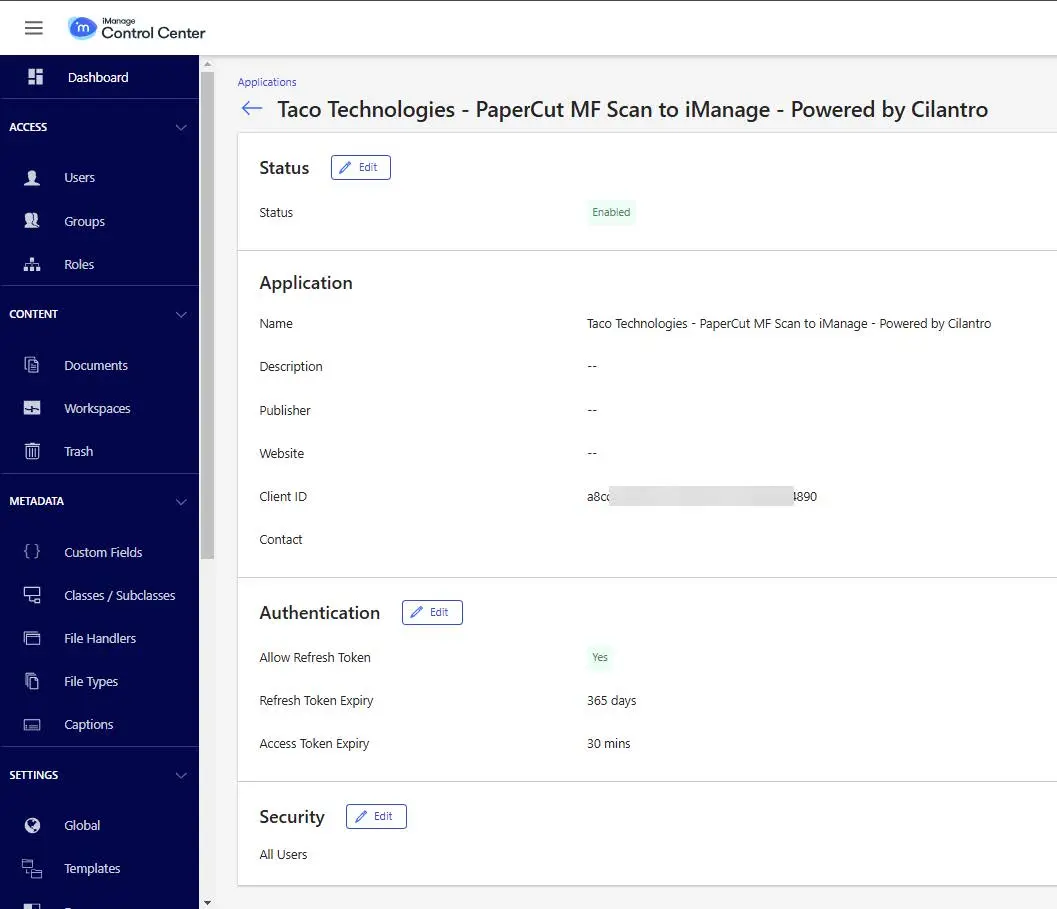
- APP type = Native Work Desktop type
- App Name = Taco Technologies - PaperCut MF Scan to iManage - Powered by Cilantro
- Auth Type = PKCE
- ClientID = Generate your own and take a note of it
- ClientSecret = Generate your own but it is not used for Cilantro’s connection
- Auth token refresh = Allow
- Refresh Token expiry = Default value
- Access Token expiry = Default value
Password Grant type creation
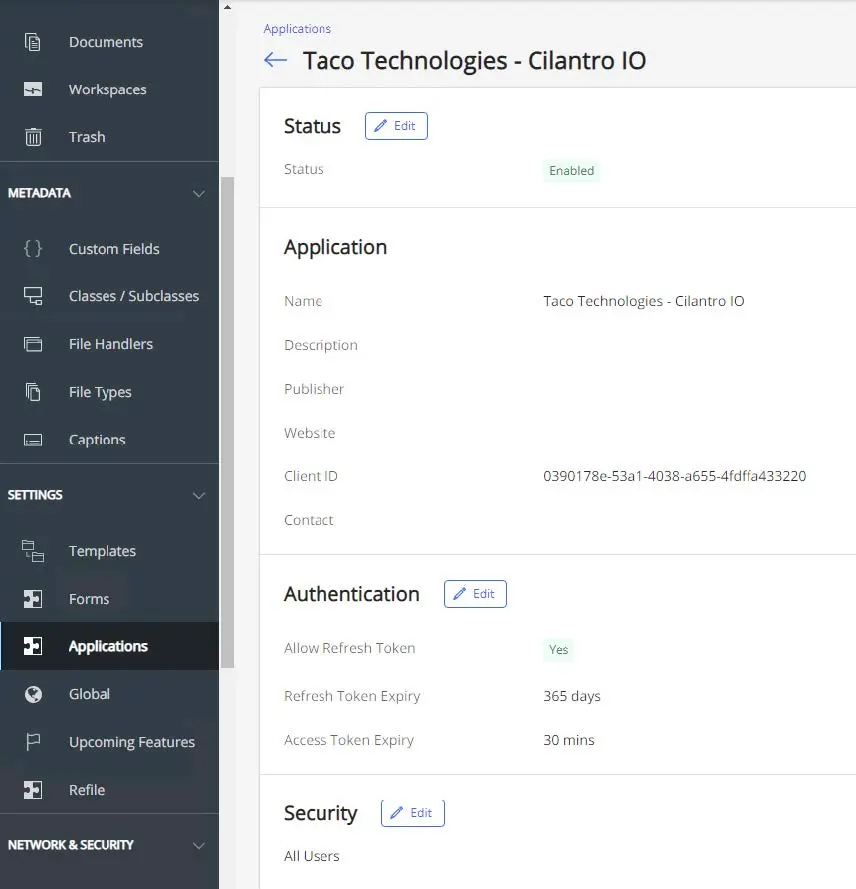
- APP type = Native Work Desktop type
- App Name = Taco Technologies - Cilantro IO
- Auth Type = Password Grant
- ClientID = Generate your own and take a note of it
- ClientSecret = Generate your own but it is not used for Cilantro’s connection
- Auth token refresh = Allow
- Refresh Token expiry = Default value
- Access Token expiry = Default value
Each Cilantro IO install requires a licence. If the license has not been provided, email sales@taco-tech.com and include the client’s name.
2.2 iManage User Authentication
Authentication between Cilantro IO and the customer iManage Work server requires a valid iManage Virtual User account and password. This account must be a member of the ‘NRTADMIN’ group in iManage Work. It is the customer’s responsibility to provide these credentials and, should that user account be disabled in iManage, they will need to update Cilantro IO with new credentials for the solution to continue working.
Unfortunately, iManage does not support using accounts that originated from an external user directory, i.e. Active Directory.
2.3 Supported iManage versions
iManage released version 10.2 of their Work platform in 2017. Only this version or higher is supported by Cilantro. Any version older than this will need to be upgraded by iManage to facilitate the Cilantro connection. This upgrade should be discussed directly with iManage and sits outside of any professional service agreement with Taco Technologies or their reseller.
iManage has a cloud SaaS product offering, along with their traditional on-premise product. For our purposes the two products are identical — all REST v2 APIs and associated authentication methods are the same.
2.4 Matter/Workspace security
The scope for Cilantro to map user permissions from iManage to PaperCut MF is very complex to deliver and is not currently available, but is on the feature roadmap.
Users interacting with the PaperCut MF front end do not directly access any data held within a Workspace. They simply choose a PaperCut MF Scan Action based on the intended folder and then select the actual Workspace (PaperCut MF Shared Account).
From there, PaperCut MF produces the document and accompanying metadata file; Cilantro picks both up and places the file in the intended destination. If a customer wishes to prevent users having access to ALL Workspaces, they will have to manually change the Shared Account user/group permissions within PaperCut MF.
3. PaperCut MF Configuration
In order for Cilantro to integrate with PaperCut MF, it's necessary to configure the PaperCut MF Application Server appropriately. Please follow the steps below to configure the PaperCut MF Server.
PaperCut MF Server log in
- Log into the PaperCut MF Server using your admin username and password.
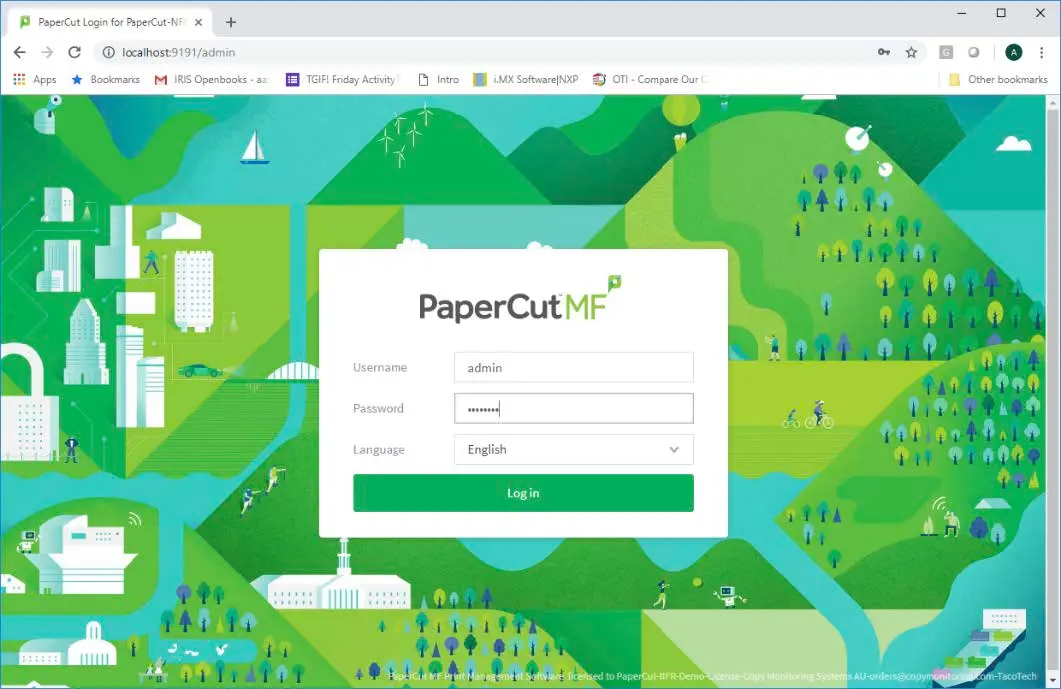
Log into the PaperCut MF admin interface with an administrator account.
- Log into the PaperCut MF Server using your admin username and password.
Configure PaperCut MF API access
- Still in Options, click the Advanced tab and scroll to the Security section. In the Allowed XML Web Services callers textbox, enter the IP Address of the computer on which Cilantro IO is to be installed. If Cilantro IO is to be installed on the PaperCut MF Application Server, simply enter the local machine loopback IP Address
127.0.0.1. Once the IP Address has been entered, scroll to the bottom of the page and click Apply.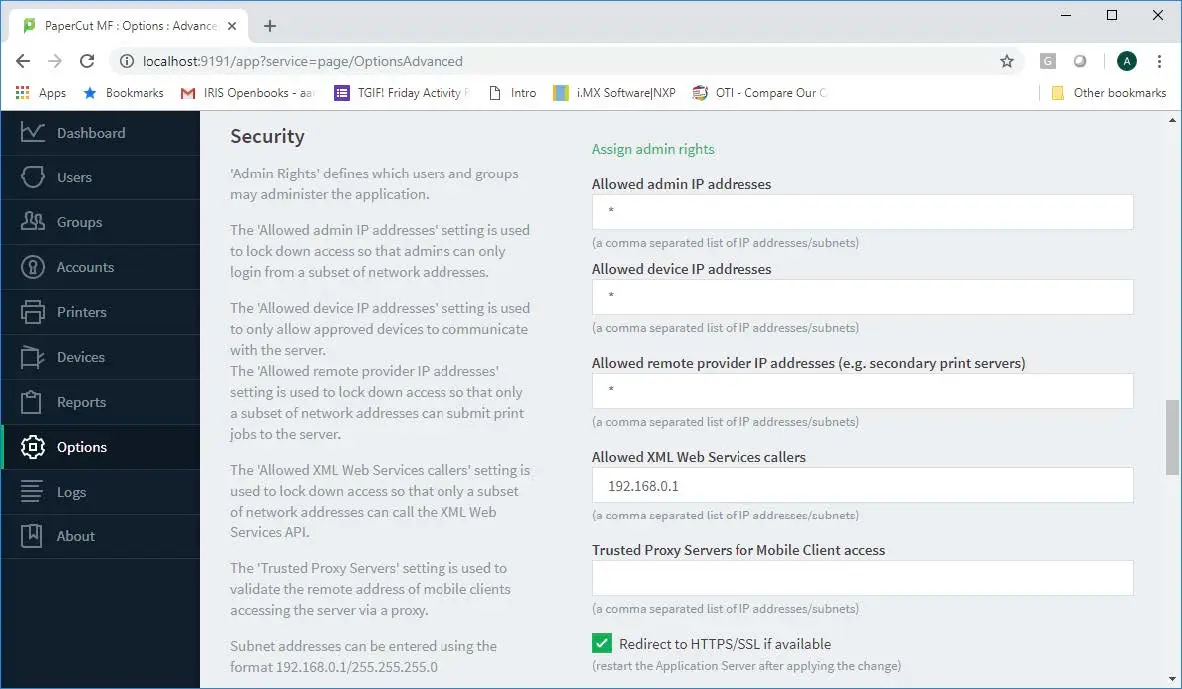
Add the Cilantro server IP to the 'Allowed XML Web Services callers' list in the Advanced Options tab.
- Still in Options, click the Advanced tab and scroll to the Security section. In the Allowed XML Web Services callers textbox, enter the IP Address of the computer on which Cilantro IO is to be installed. If Cilantro IO is to be installed on the PaperCut MF Application Server, simply enter the local machine loopback IP Address
2. From the menu on the left-hand side, select Options and from the Actions menu select Config editor (advanced).
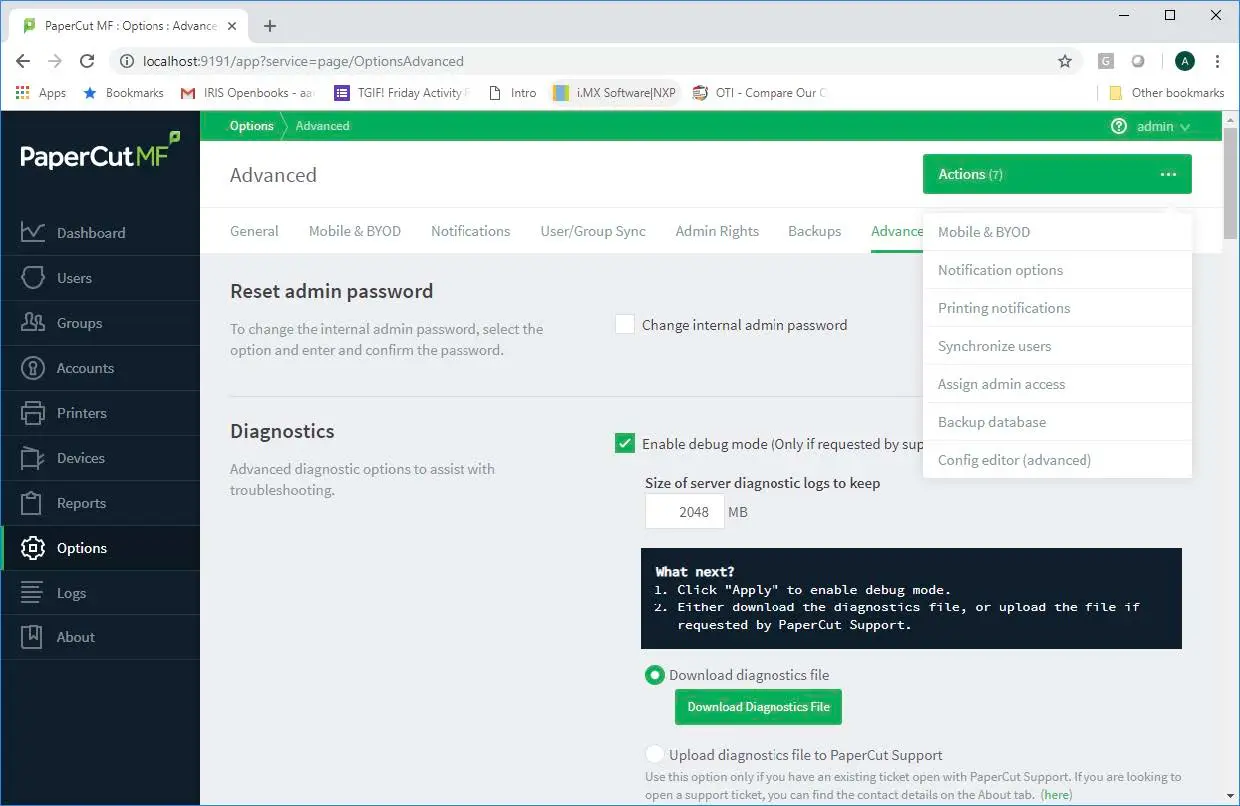
Configure PaperCut XML Web Services API Key
- Navigate to Options / Config Editor.
- First, search for
auth.webservices.auth-tokenat the top of the page. If the key already exists, update the value to the password of your choice. If it’s not there, scroll to the bottom of the page and in the Add new: section enter the config keyauth.webservices.auth-tokenas the name and API key as the value. Then click the Add button to add the new PaperCut XML Web Services API key.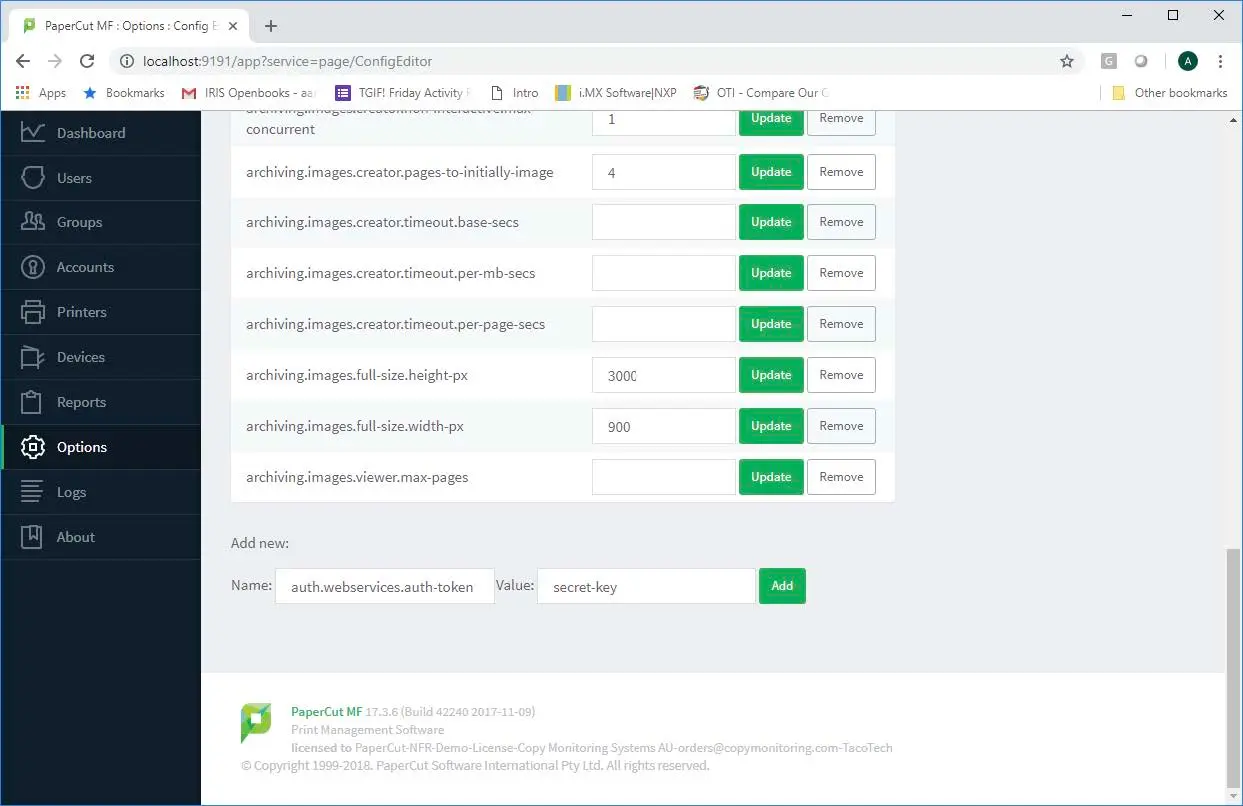
Add or update the auth.webservices.auth-token config key to define the API key for Cilantro IO.
Configure PaperCut MF Template account
This template configuration will be applied to all Accounts created after this point. If accounts have already been created, use the Bulk Account Actions to copy configuration.- Account Security
Navigate to the Accounts tab and select the Template Account.
Select the Security tab — select All Users from the drop-down menu beneath Groups and press the Add button.
Press Apply on the Details tab.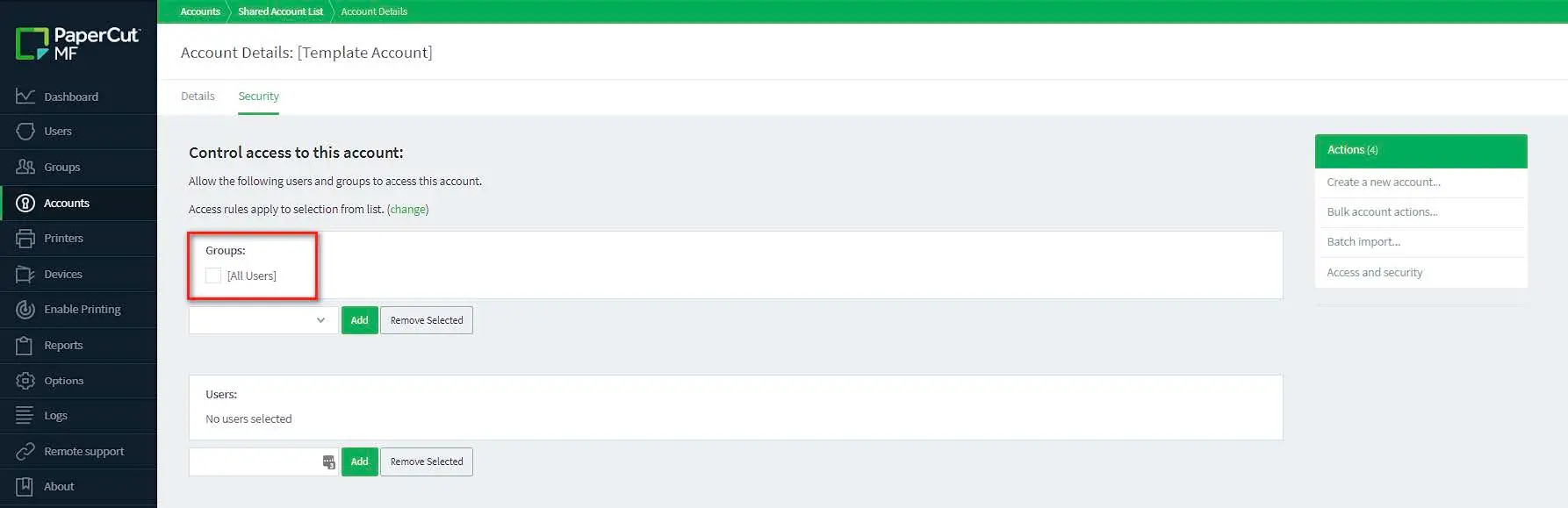
Configure the Template Account so “All Users” have access to the shared accounts. - Configure Client Options
So that the user is not presented with irrelevant information whilst scanning, it is necessary to disable Client options.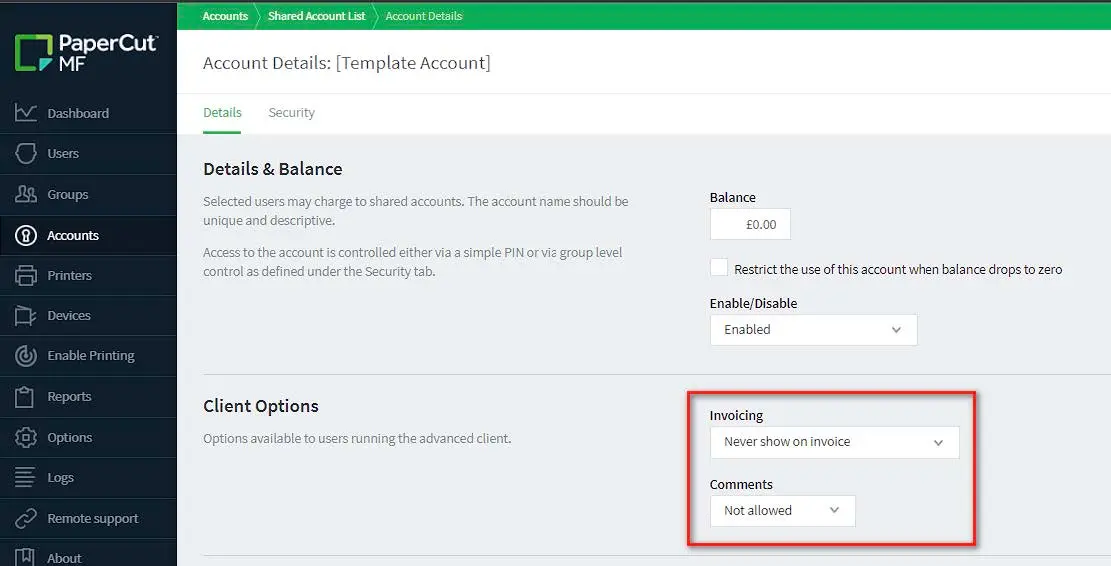
Disable Client Options on the Template Account so users aren’t shown unnecessary prompts when scanning.
- Account Security
Printer settings
As the customer is not using Shared Accounts to perform Cost Recovery, simply to identify the Workspace that a file should be scanned to, it is necessary to configure printers to ignore the Use Shared Account configuration against a user at the time of submitting a print job.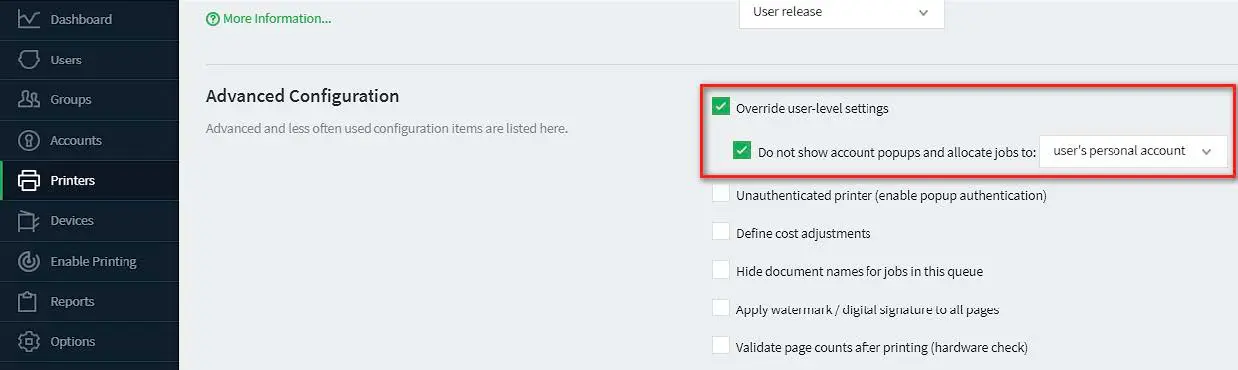
Update Template Printer settings so Shared Account configuration is ignored for cost-recovery and scan workflows. Configure this against the Template printer, then copy the setting to all other printers.
3.1 PaperCut MF Scan to iManage Configuration
iManage as a platform is very open to delivering a specific experience per customer environment. As such it is a complex task to build an integration that can accommodate all of the possible variables.
Before implementing it is essential that you sit down with the customer and understand their requirements and how they match with Cilantro’s capabilities.
Folders within iManage are one of the best examples of this:
When Workspaces are created in iManage, the folders beneath them can be created based on preconfigured templates or on an ad-hoc basis.
The templates themselves are not fixed; they may contain folders that are ‘required’ (every Workspace gets them), or ‘optional’ (the user creating the Workspace must actively select the folder for it to be added to the Workspace).
Individual custom folders can also be created during the Workspace creation or added afterwards.
As PaperCut MF’s Integrated Scanning interface is the front end of this solution, there is no ability to browse within iManage for folders. This means that we must create a Scan Action for each destination folder, without the ability to validate if the selected Workspace (Shared Account) contains that folder.
For a usable experience, the customer should identify the folders common to ALL or most Workspaces and educate their staff around the use of the solution.
Each Scan Action will require a dedicated folder within the Windows file directory.
This table may assist you with mapping Scan Actions against folders:
PaperCut MF Scan Action | Windows Folder | iManage Folder Name |
|---|---|---|
Example: Scan to Agreements | C:\Scans\Agreements | Agreements |
Configure PaperCut MF Scan Action(s)
- From the left-hand menu in PaperCut MF, click Devices, select the Scan Actions tab and click the Create New button to create a new Scan Action.
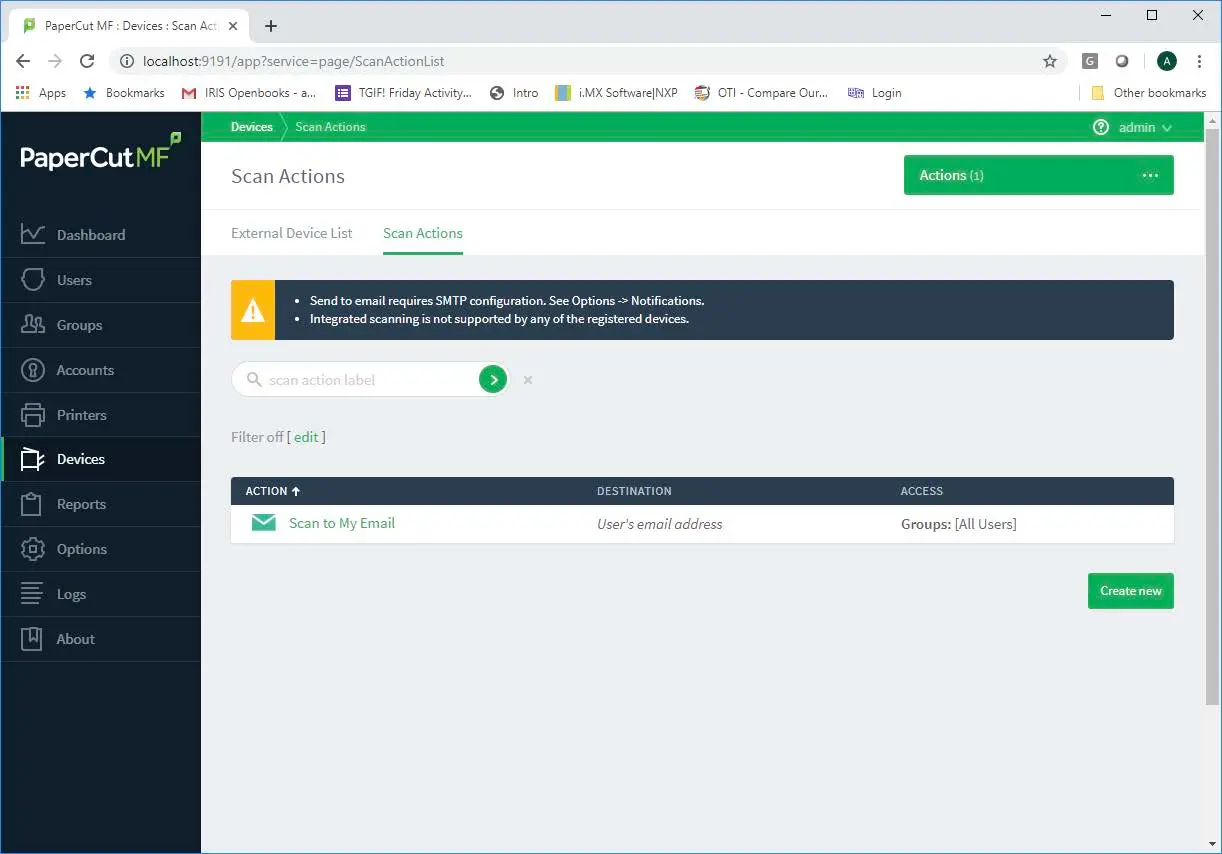
Configure the Scan to iManage action to use a folder destination and include the scanned metadata XML file. - Enter the details for the Scan Action ensuring the Type is set to Folder. The Label may be of your choosing, but Scan to iManage is suggested. The Path should be a specific folder on the PaperCut Server and may include substitution macros. Please make a note of the path as this will be required in the configuration of Cilantro IO. Additionally, the Include scanned metadata (as XML file) checkbox MUST be ticked.
Note: Due to the way that Cilantro must construct the names of Shared Accounts within PaperCut MF,
%account%cannot be used as a substitution macro for either Folder path or Filename.- Make sure you have
%date%in the file name, otherwise scanned documents with the same name will continuously duplicate. User can edit must be unchecked.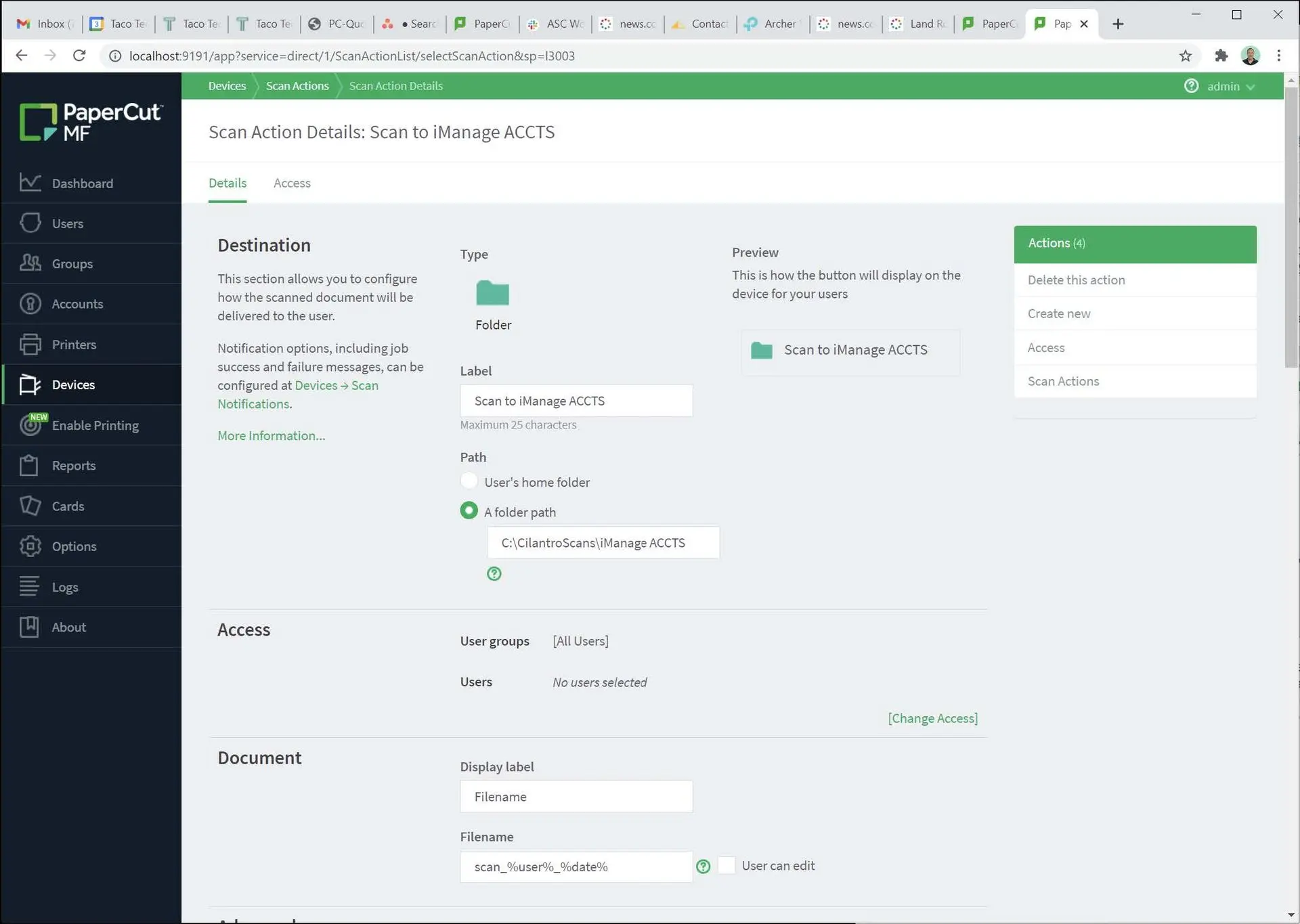
Ensure the filename includes the %date% macro and uncheck 'User can edit' to prevent file duplication. - Finish the Action configuration with the client’s scan preferences and click Save & configure access.
- On the Access List, configure who may access the particular Scan Action as per the client’s request.
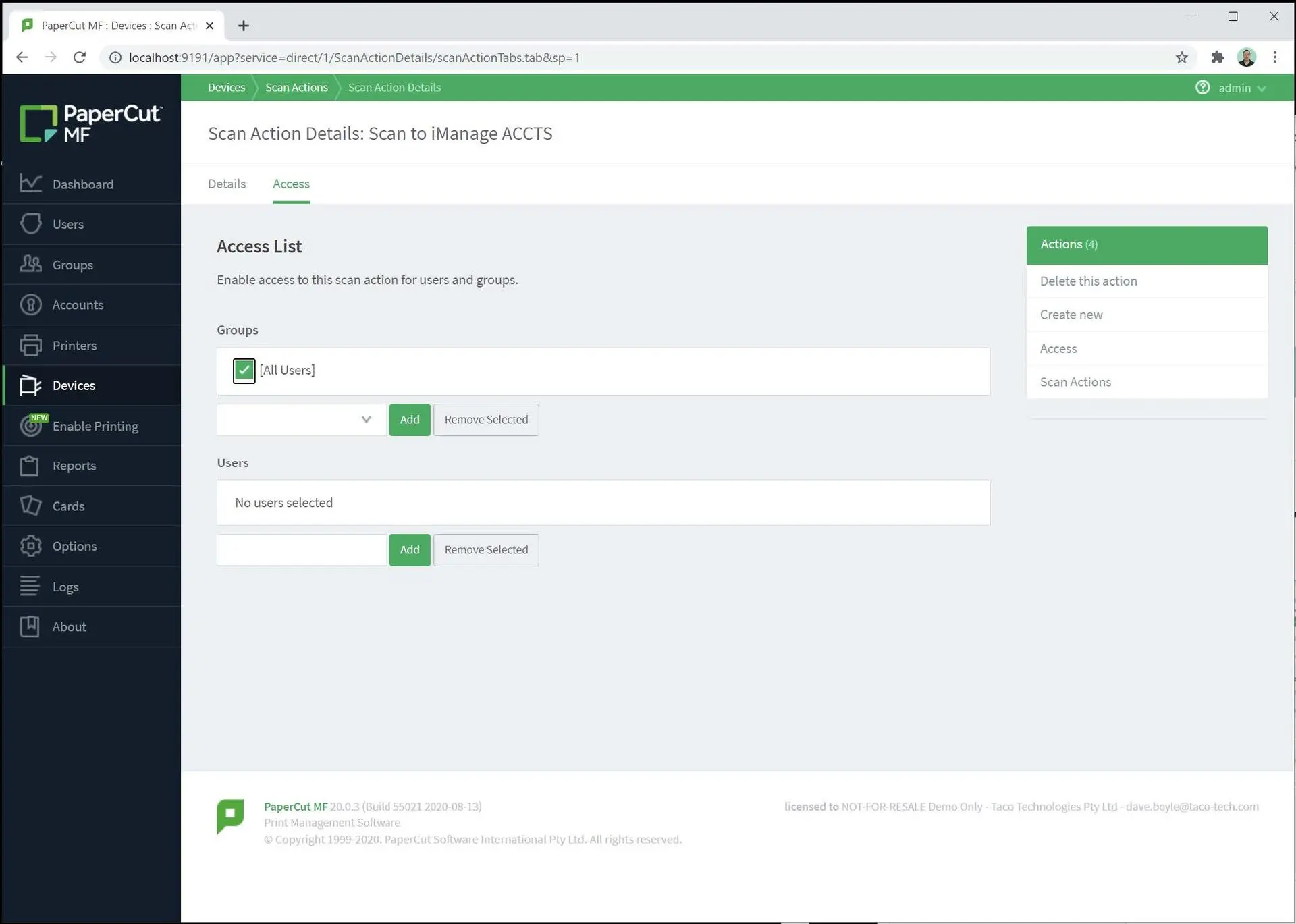
Set which users and groups can use the Scan to iManage action on the Access List screen. - Repeat this process for any extra Scan workflows to be created.
- From the left-hand menu in PaperCut MF, click Devices, select the Scan Actions tab and click the Create New button to create a new Scan Action.
4. Cilantro IO Installation
On the PaperCut MF Server, download Cilantro IO from
https://cilantro.taco-tech.com/Content/Assets/CilantroIO/Cilantro IO Setup.exeand run the installation package.Set the location on the PaperCut MF Server where Cilantro IO should be installed and click Next.
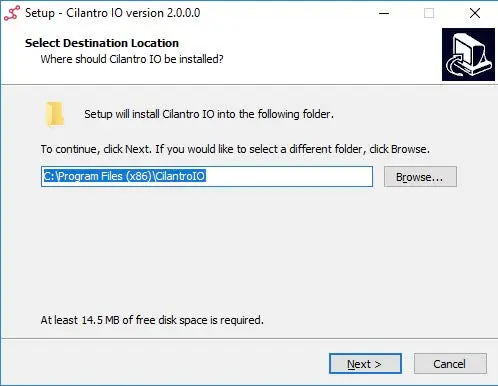
In the Cilantro IO Setup Wizard, choose the installation folder on the PaperCut MF server. Enter the Program Group name in which links to Cilantro IO will be created under the Start menu.
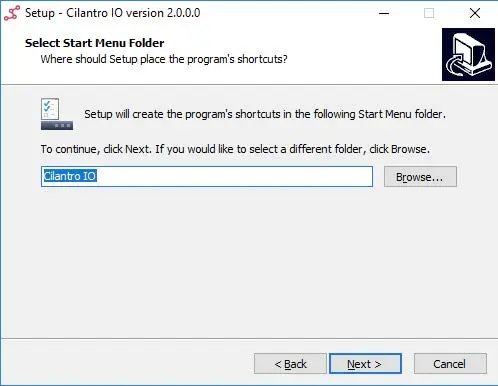
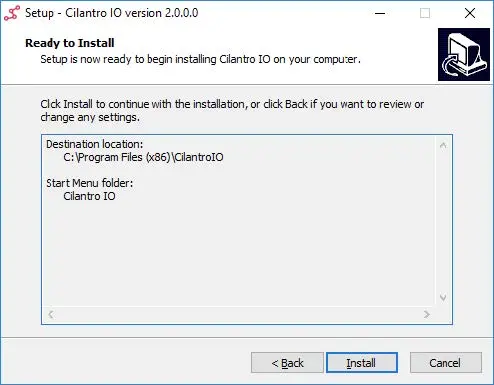
Select the Start Menu program group and proceed to install Cilantro IO. Click the Install button to install Cilantro IO.
Complete the Cilantro IO installation and launch the application from the Setup Wizard. Once Cilantro IO has been installed, launch the program by clicking the Finish button.
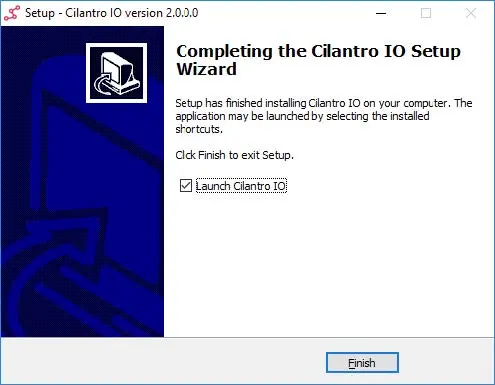
Click the Finish button to finalise the installation. Cilantro IO will request the licence file previously provided. Click the Browse button to select the licence file and click Confirm.
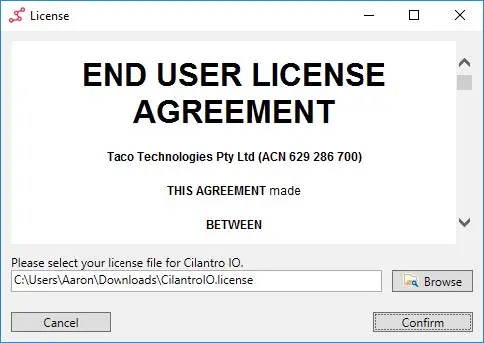
Load your Cilantro IO license file and confirm to continue. On the application menu, click Edit and choose PaperCut Settings. Enter the PaperCut MF Server connection information and the
auth.webservices.auth-tokenvalue from PaperCut MF in the PaperCut API Key field. Once the information has been entered, click the Save button.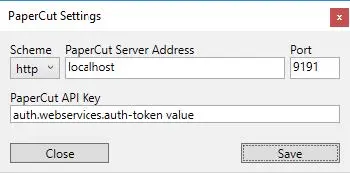
Configure the PaperCut server address , port and API key .
4.1 Configure the Account Import Task
The account import task is responsible for importing the active Workspaces from iManage and creating them as Shared Accounts in PaperCut MF.
From the main application window, click the PaperCut Account Import action name.
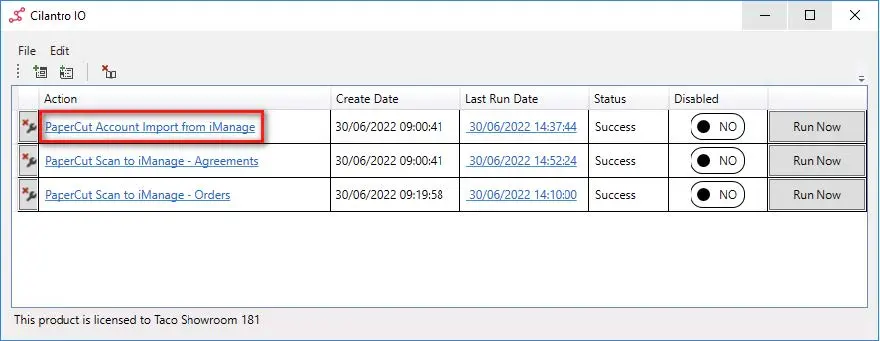
From the Cilantro IO main window, select the PaperCut Account Import action to start configuration. - The Action Wizard is displayed, providing a description of the wizard and its purpose. Click the Next button.
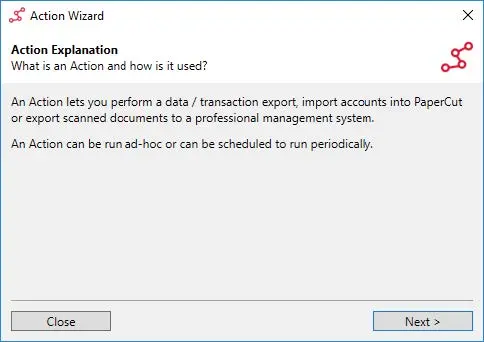
Account Import Action wizard introduction screen describing the import workflow. - The Action Type dialog is displayed showing the type for the Action. This has been pre-configured to import accounts to PaperCut MF. Ensure the Action Type is PaperCut Account Import and click Next.
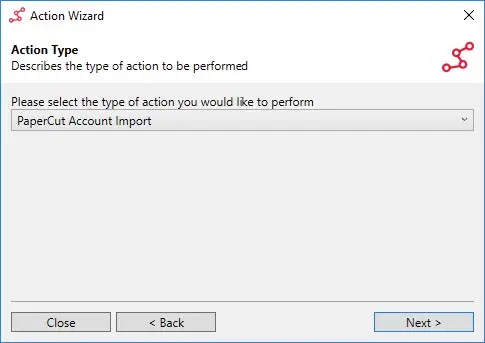
Account Import Action wizard with ‘PaperCut Account Import’ selected as the action type. - In the Action Data Source dialog, select iManage from the drop-down menu.
- The Action Wizard is displayed, providing a description of the wizard and its purpose. Click the Next button.
Authentication
a. iManage Server connection configuration:
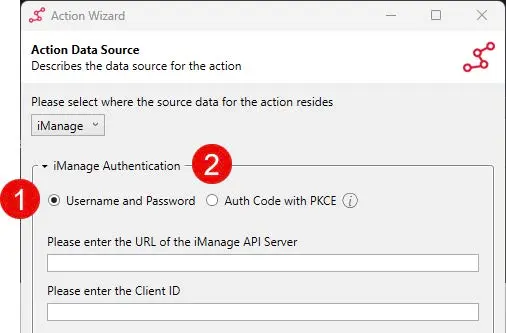
iManage Auth Method (app dependent)
(Legacy) Password Grant type
(Preferred) PKCE type
PKCE Authentication type (Preferred)
Select the “Auth Code with PKCE” type.
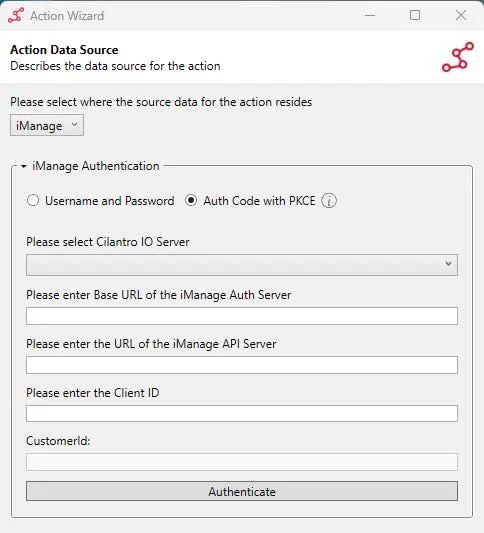
Cilantro IO Server
- Select your region’s Cilantro Server.
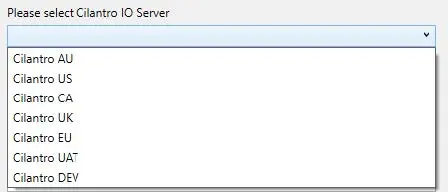
Select the regional Cilantro IO Server from the drop-down list
- Select your region’s Cilantro Server.
Base URL for Auth Server
- iManage Cloud =
https://cloudimanage.com - iManage on-premise = customer provided
- iManage Cloud =
URL for iManage API Server
- iManage Cloud =
https://cloudimanage.com/api - iManage on-premise = customer provided
- iManage Cloud =
Client ID
- If the customer is using cloudimanage.com and Taco’s global app has been connected, then the Client ID is common to all customers using it.
- If the customer is creating their own app (on-premise or partner-hosted), then they will generate their own Client ID.
- Global Client ID =
a8ccec08-0b4c-4990-bcf8-42a963e84890. - Otherwise, the customer creates their own.
Authenticate
- Pressing the Authenticate button will open a web browser and require the customer to authenticate with their iManage server. Once complete, you can close the browser tab and return to Cilantro IO to complete the configuration.
Customer ID
- Upon a successful connection, the customer’s ID will be automatically populated.
Password Grant type (Legacy)
Select the “Username & Password” type.
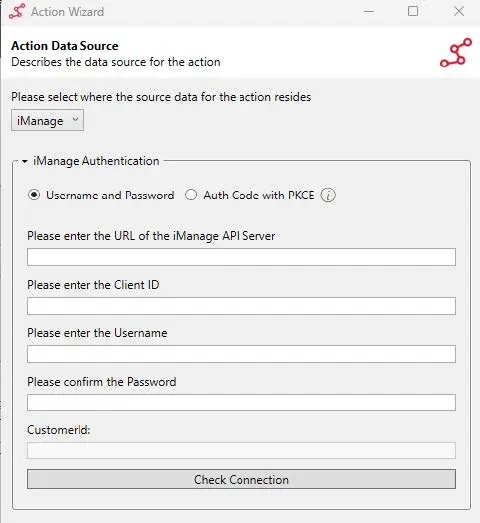
iManage API Server field
- iManage on-premise = customer provided.
Client ID
- Generated as part of app creation in iManage Control Centre.
Username & Password
- iManage user account provided by the customer.
Select Check Connection & confirm successful.
- Note the CustomerID is auto-populated.
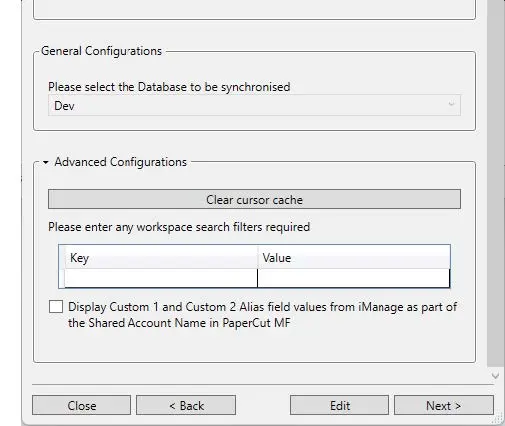
Advanced configuration for account import including cursor cache and custom filters.
- Note the CustomerID is auto-populated.
General Configuration
Select the required Database
- Select the required value from the list.
Advanced Configuration
Clear cursor cache
- This is only required should it be requested by support or necessary to clear all MF Shared Accounts and start the Workspace import from scratch.
Filter
- iManage standard is for a custom field to be used for STATUS.
- The customer will have to provide their specific definitions/values, e.g.
custom7=OPEN.
Display Custom 1 and Custom 2 Alias field values…
- These fields have a Parent/Child relationship that identifies the Client/Matter for some customers. If selected, the values contained in the Alias field will be prefixed to the Workspace name when IO creates the Shared Account in PaperCut MF.
- Not all customers will use these fields. Some may just add the Client/Matter in the Workspace name themselves.
Note: iManage Work is very open to a very tailored configuration for each client. The custom fields are a great example of this; just because one customer uses them a certain way does not define a standard across all customers. You must obtain clear guidance from the customer around what attributes are used for what purpose.
Action Running Schedule and Preferences
On the Action Schedule dialog, tick the This action should be repeated on the below schedule checkbox. This ensures the account import occurs with the specified frequency and that new Matters are regularly imported into PaperCut MF.
Enter a start date from which the Action is to repeat, a start time for the Action and an import frequency. A frequency of 1 hour is suggested.
Once the appropriate values have been entered, click Next.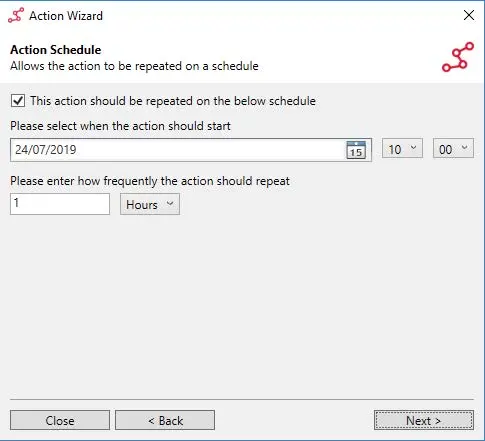
Action schedule screen configuring how often the Account Import Action runs. On the Action Name dialog, you may rename the Action to something more descriptive if desired and finally click Save.
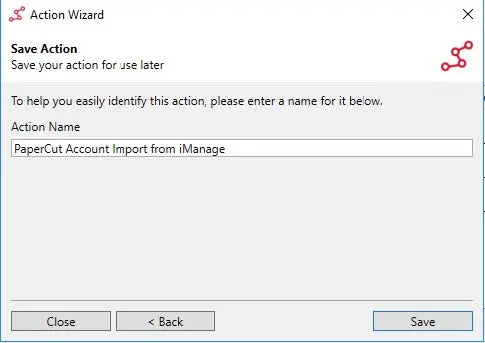
Enter a name to identify the action
4.2 Configure Scanned Document Export action(s)
There needs to be one Export Action per PaperCut MF Scan Action/Folder.
Configure the Scanned Document Export action(s)
- On the main application window, click the File menu, select New and choose Action.
- The Action Wizard is displayed, providing a description of the wizard and its purpose. Click the Next button.
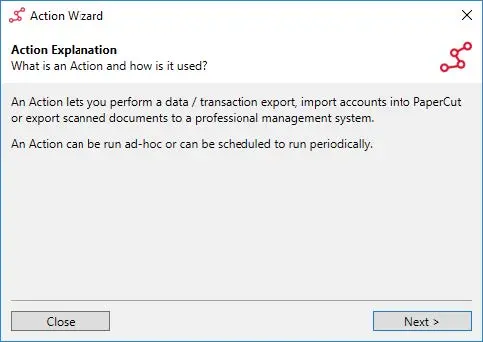
Setup wizard initiated. - In the Action Type dialog, select Scanned Document Export and click the Next button.
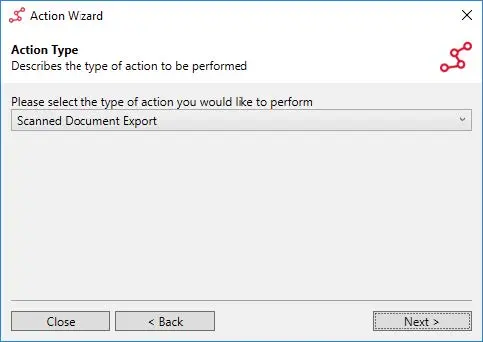
Scanned Document Export Action wizard with PaperCut MF chosen as the source. 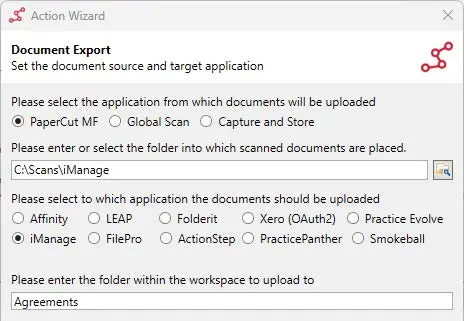
Scanned Document Export configuration showing the folder path and metadata options.
Scanned Document Location
Select “PaperCut MF” as the application creating the scanned documents.
Then enter the path where scanned documents are placed by PaperCut MF. Browse to the location using the button on the right side.
Select iManage as the document upload destination.
If the path configured in PaperCut MF contains a substitution macro, enter the parent folder location without the substitution macro.
E.g. if the path configured in PaperCut MF is C:\ScannedDocuments\%user%, the path entered in Cilantro IO should be C:\ScannedDocuments.
Make sure the Cilantro IO service has read/write/modify permissions for this folder. Sometimes the files come with higher permissions than Cilantro IO under Local System can edit, causing duplicate scans to appear in iManage.
Workspace Folder Destination
a. Enter the name of the folder, common to all Workspaces, in the field marked “Please enter the folder within the workspace to upload to”.
Authentication
As with the Account Import Action, there are two methods available (as of v17.8.0) to authenticate the connection between Cilantro IO and the customer’s iManage Work server:
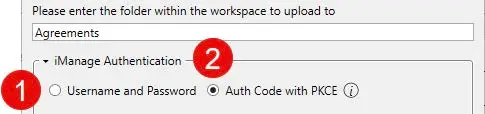
iManage Auth Method (app dependent)
(Legacy) Password Grant type
(Preferred) PKCE type
PKCE Authentication type (Preferred)
Select the “Auth Code with PKCE” type.
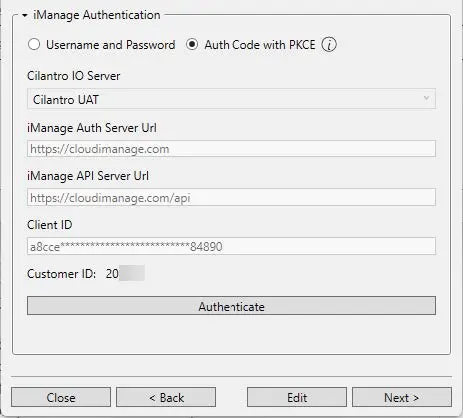
Cilantro IO Server
- Select your region’s Cilantro Server.
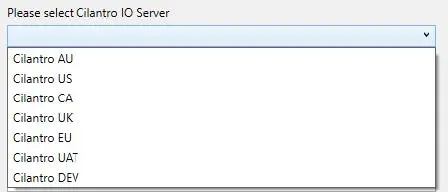
Select the regional Cilantro IO Server from the drop-down list
- Select your region’s Cilantro Server.
Base URL for Auth Server
- iManage Cloud =
https://cloudimanage.com - iManage on-premise = customer provided
- iManage Cloud =
URL for iManage API Server
- iManage Cloud =
https://cloudimanage.com/api - iManage on-premise = customer provided
- iManage Cloud =
Client ID
- If the customer is using cloudimanage.com and Taco’s global app has been connected, then the Client ID is common to all customers using it.
- If the customer is creating their own app (on-premise or partner-hosted), then they will generate their own Client ID.
- Global Client ID =
a8ccec08-0b4c-4990-bcf8-42a963e84890. - Otherwise, the customer creates their own.
Authenticate
- Pressing the Authenticate button will open a web browser and require the customer to authenticate with their iManage server. Once complete, you can close the browser tab and return to Cilantro IO to complete the configuration.
Customer ID
- Upon a successful connection, the customer’s ID will be automatically populated.
Password Grant type (Legacy)
Select the “Username & Password” type.
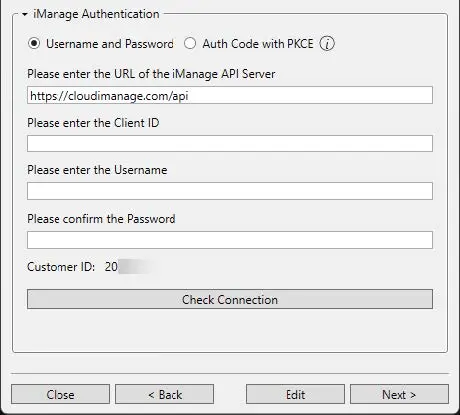
iManage API Server field
- iManage on-premise = customer provided.
Client ID
- Generated as part of App creation in iManage Control Centre.
Username & Password
- Virtual iManage user account provided by the customer.
Select Check Connection & confirm successful.
- Note the CustomerID is auto-populated.
Action Running Schedule and preferences
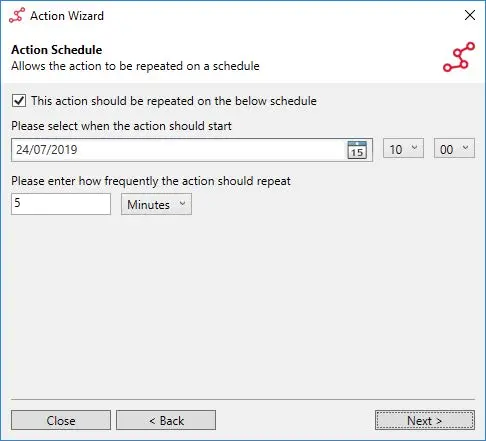
On the Action Schedule dialog, tick the This action should be repeated on the below schedule checkbox. This ensures the document export recurs with the specified frequency and that new documents are regularly exported to appropriate Matters in iManage.
Enter a start date from which the Action is to repeat, a start time for the Action and an import frequency. A frequency of 5 minutes is suggested.
Once the appropriate values have been entered, click Next.
On the Action Name dialog, enter a descriptive name for the Action and finally click Save.
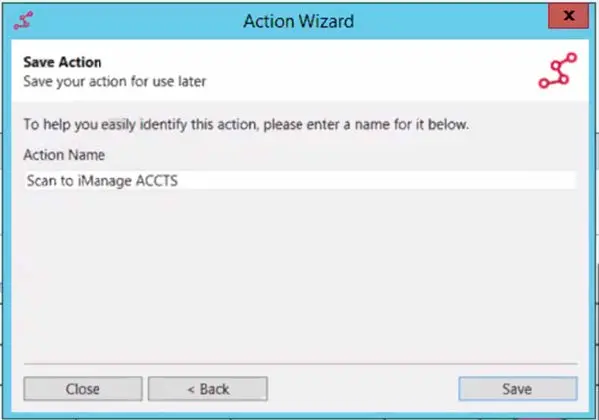
Name the action in the Action Wizard. Repeat scan Action setup for each different document type required by the iManage customer.
5. Update License
If a new License file is provided due to integration change or expiry, to update the license follow the steps below.
As of v11 of Cilantro IO, a customer’s license must explicitly state iManage integration.
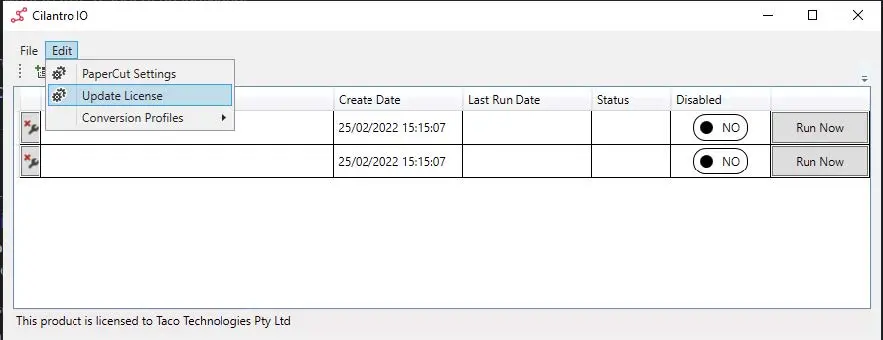
In the Cilantro IO Application, click Edit, then Update License.
When presented with the EULA screen, select Browse and choose the new file as provided by your Reseller or Taco Tech.
Apply the new License and confirm that on the Cilantro IO Application it states the product is licenced to your organisation.
6. Troubleshooting, Tips & Tricks
Action Authentication issues
- On 1st install — confirm that the user account is a Virtual (iManage internal) account and has NRTADMIN permissions.
- Was working, now not — ensure that the account is still active in iManage and that the password is unchanged. Confirm it is still a member of NRTADMIN.
- User authentication issues — iManage does not permit users from external directories (i.e. Active Directory) to authenticate app connections. Only a Virtual (iManage internal) user can be used.
- Auth method, as of Cilantro IO v17.8.0:
- You must be clear on what hosting environment the customer’s Work Server is hosted in. The Password Grant type (username & password) cannot be used with cloudimanage.com customers. Refer to Pre-requisites.
Make sure to set a filter on the account import task, if the customer uses ‘Matter Status’, to only import active accounts if possible.