
Cilantro: Stripe & PaperCut MF — Setup Guide
Install and configure the Cilantro Payment Gateway to enable Stripe payments for PaperCut MF user accounts.
Before attempting to action this guide, contact your PaperCut Reseller to purchase a license.
1) Prerequisites



Before starting the installation, ensure you have met all requirements for licensing, software, networking, and Stripe credentials.
1.1 Cilantro License
The customer requires a current Cilantro license that covers the Stripe "3rd Party Payments" functionality. A valid license file and activation key are required to complete the installation.
Download the vendor's license from their region's Cilantro Reseller Portal (under /Licenses).
Obtain the vendor's license activation key from the same portal.
Navigate to Vendors / / PaperCut Integration.
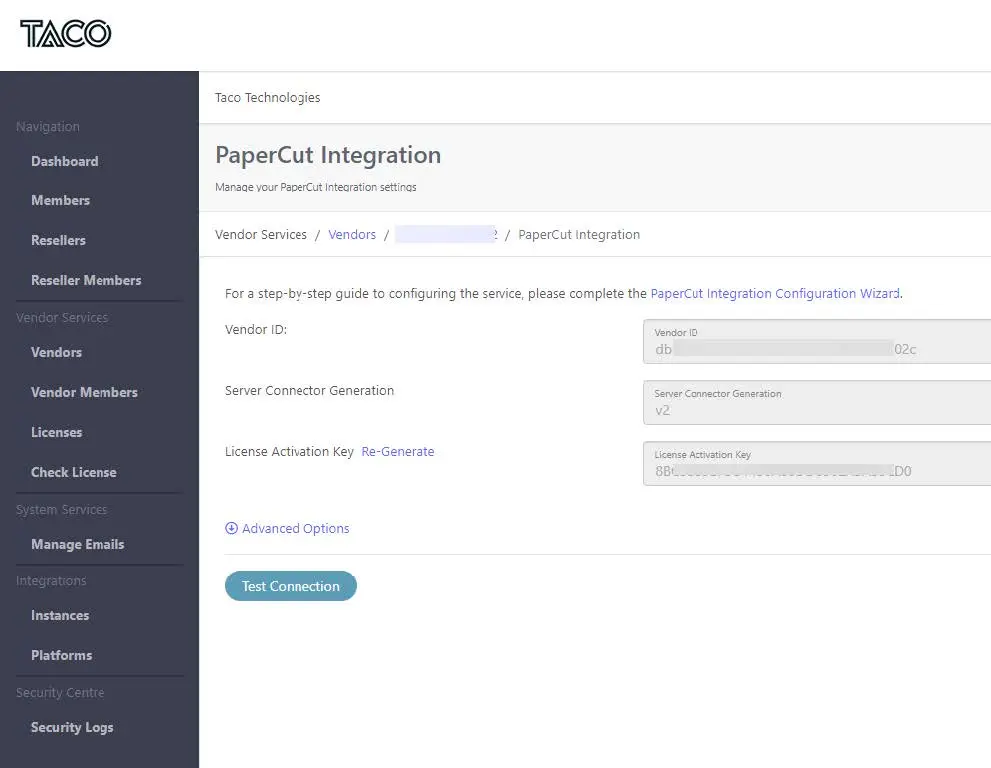
Find the 'Server Connector API Key'. If a value exists, press 'Re-Generate' to get a plain text value to use during installation.
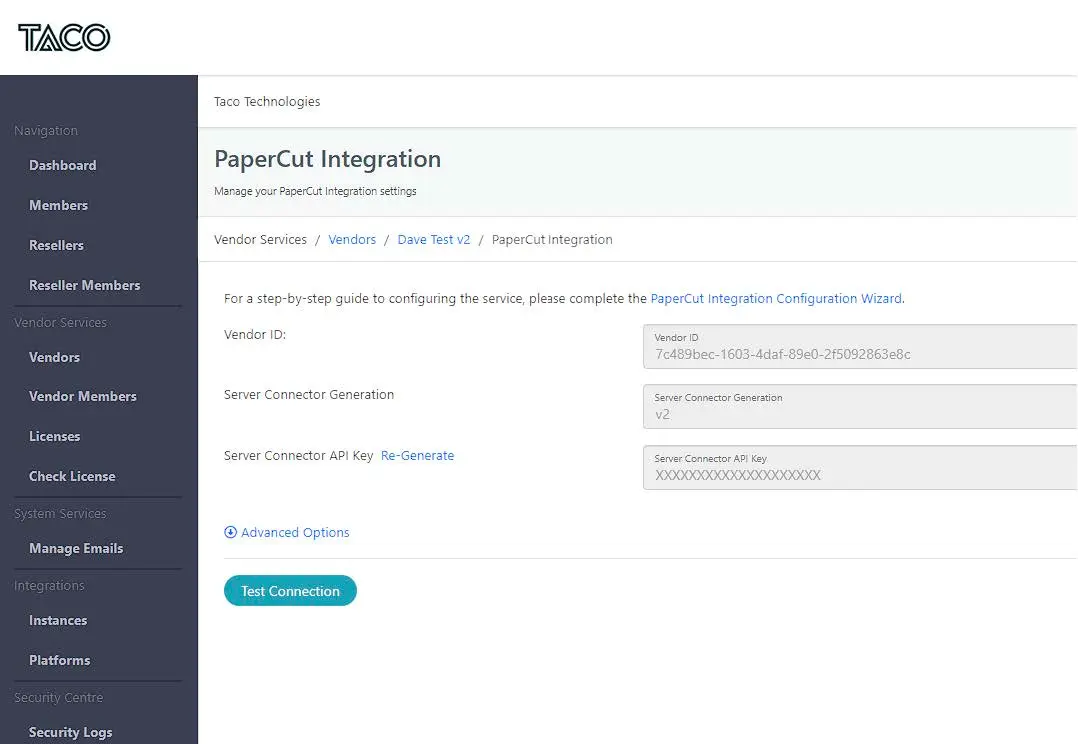
Re-Generate the Server Connector API Key in the Cilantro Reseller Portal.
1.2 Software (PaperCut MF)
The customer's PaperCut MF environment should already be configured and tested for all Pay for Print functionality. Ensure you can answer the following:
- Are user accounts restricted?
- Does user activity consume the PaperCut MF balance if positive/sufficient?
- Where is the proposed "Wallet" for funds (PaperCut/Cilantro/Spydus)?
- Are there multiple Personal accounts? Which one is for top-ups from Stripe?
1.3 Networking
The Cilantro Server Connector must be able to communicate with PaperCut MF over TCP ports 9191 (HTTP) or 9192 (HTTPS). Typically, the Server Connector is installed on the same server as PaperCut MF.
You will also need the PaperCut MF XMLRPC API Key, which is set in the config key "auth.webservices.auth-token".
The server hosting the "Server Connector" application requires outbound access to the following addresses and ports for connectivity to Cilantro's cloud services.
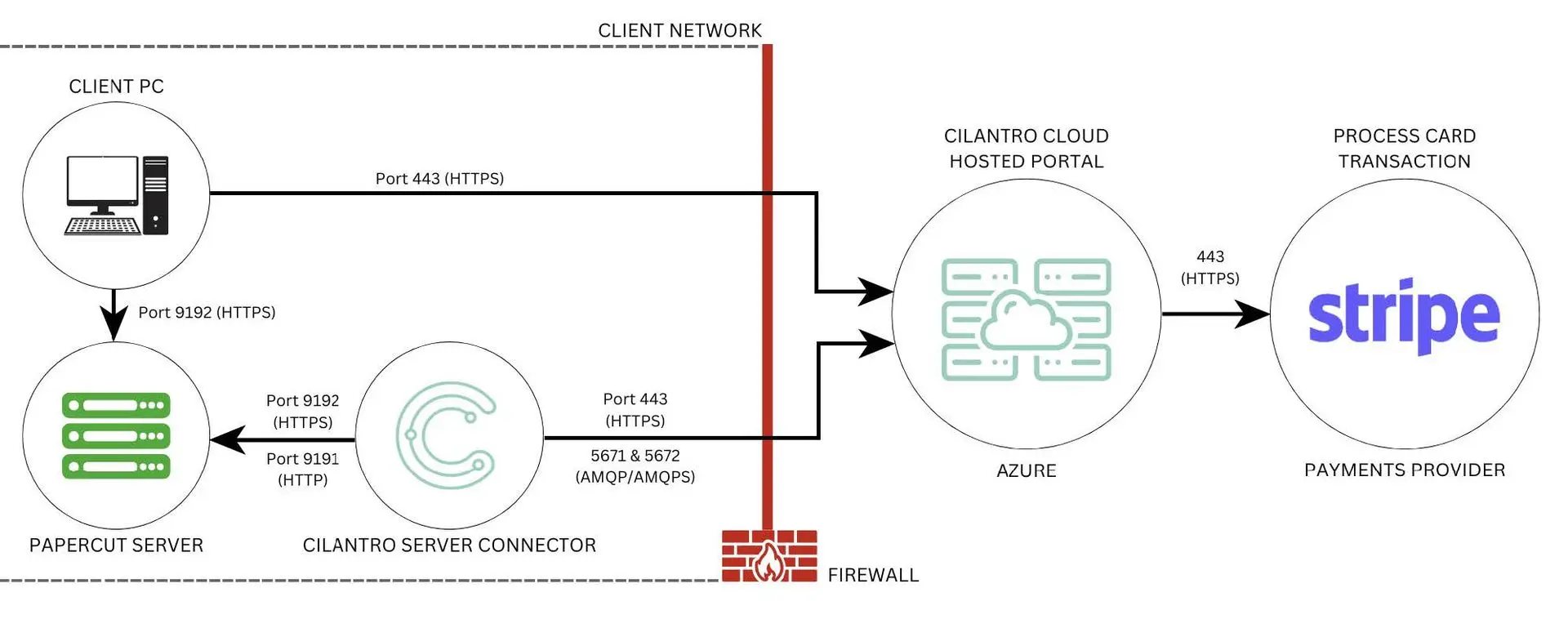
Cilantro Cloud Environment URLs (Port 443)
- AU: cilantro.taco-tech.com
- US: cilantro-us.taco-tech.com
- UK: cilantro-uk.taco-tech.com
- CA: cilantro-ca.taco-tech.com
- EU: cilantro-eu.taco-tech.com
- UAT: cilantro-uat.azurewebsites.net
Azure Service Bus Namespaces (Ports 5671 & 5672)
If you must whitelist firewall URLs, use the following namespaces by region:
- AU: sb-cilantro-prod-centralau-001.servicebus.windows.net
- US: sb-cilantro-prod-eastus-001.servicebus.windows.net
- CA: sb-cilantro-prod-canadacentral-001.servicebus.windows.net
- EU: sb-cilantro-prod-westeu-001.servicebus.windows.net
- UK: sb-cilantro-prod-uksouth-001.servicebus.windows.net
1.4 Stripe Credentials
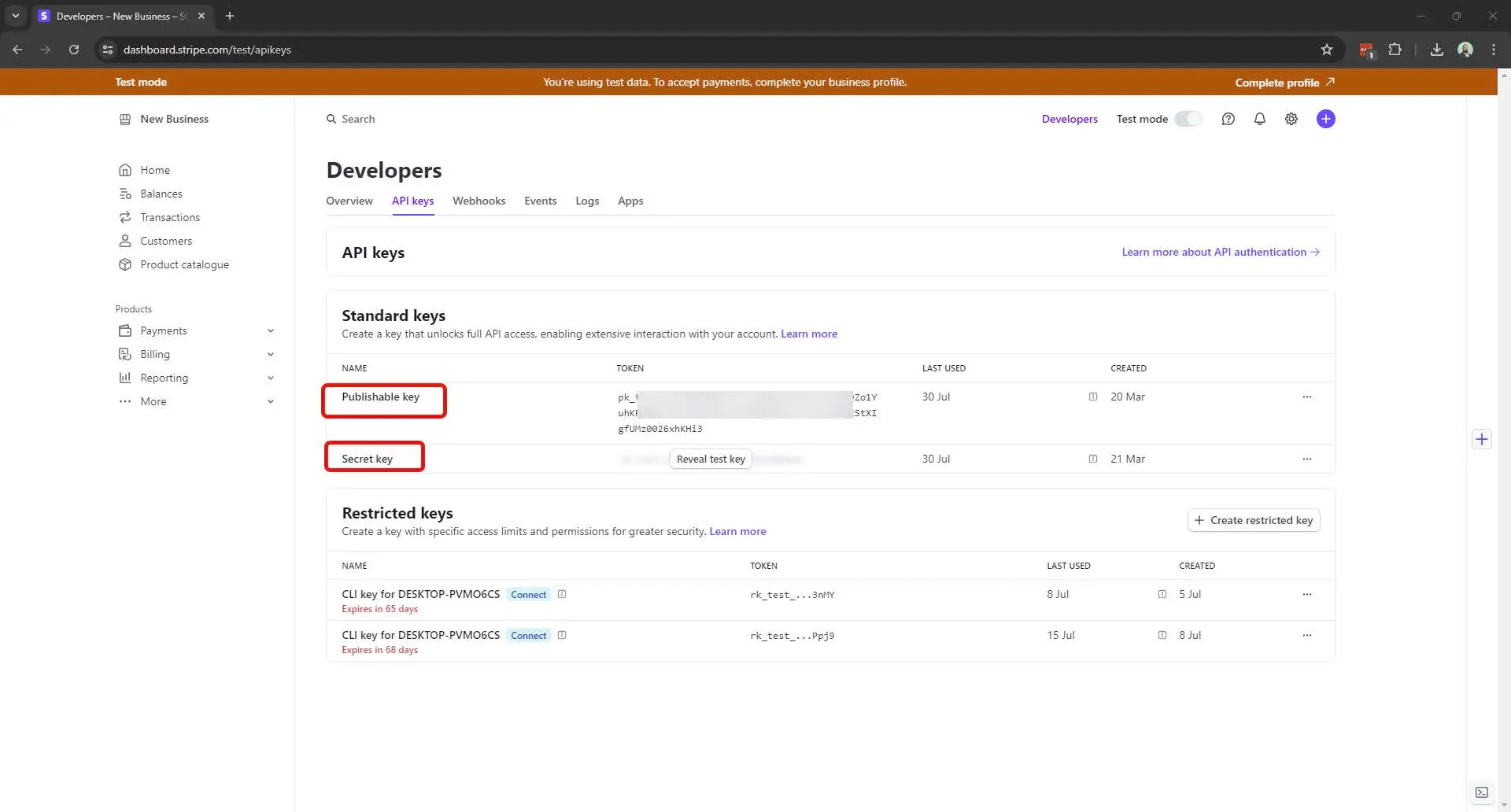
Obtain your Stripe Checkout connection credentials from the Stripe Admin portal under Developers / API keys. You will need the:
- Secret key (do not use the "Publishable key")
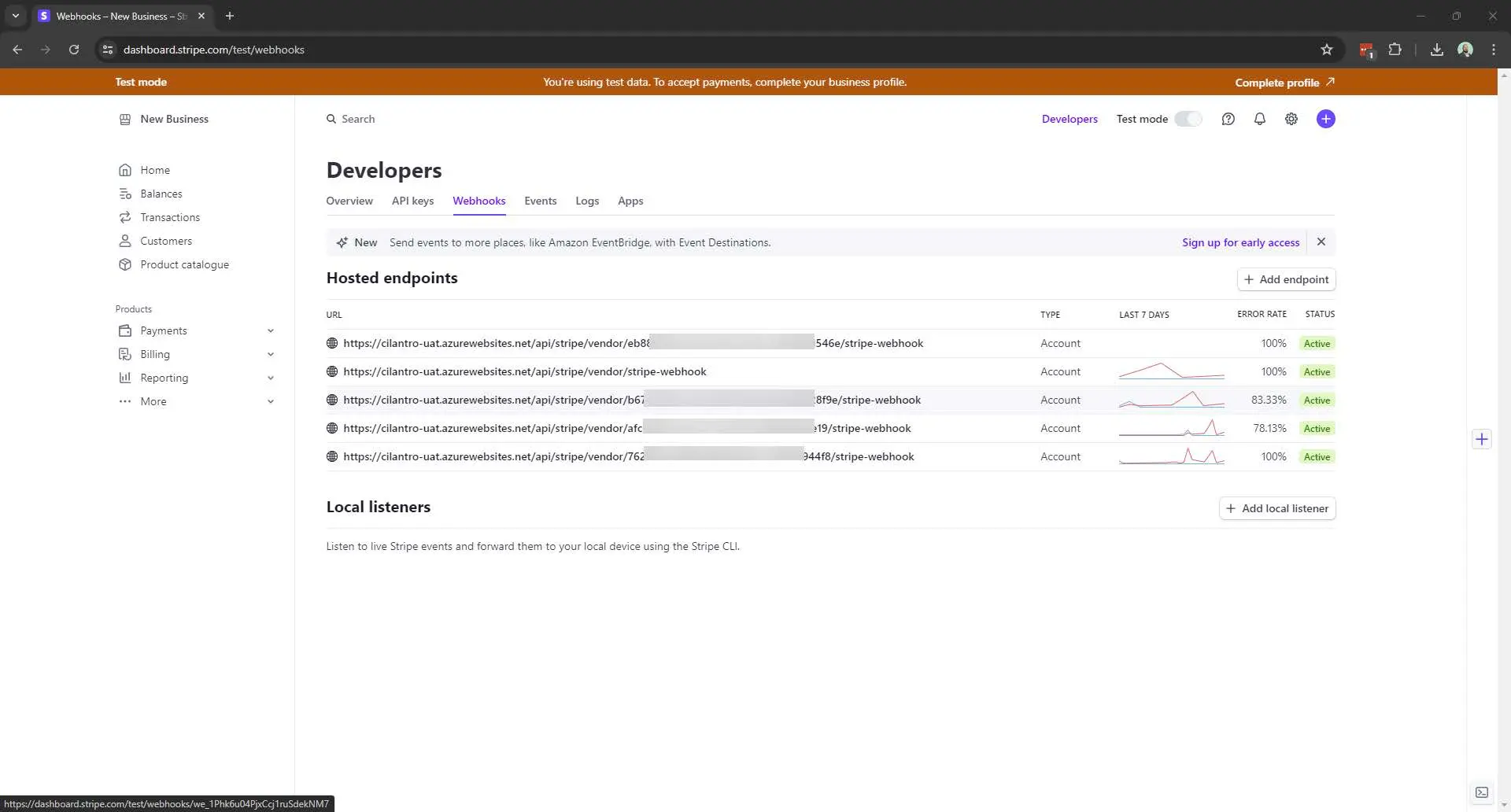
Once Cilantro is connected, a webhook will be automatically created in Stripe for the specific Cilantro vendor.
Create Stripe Product
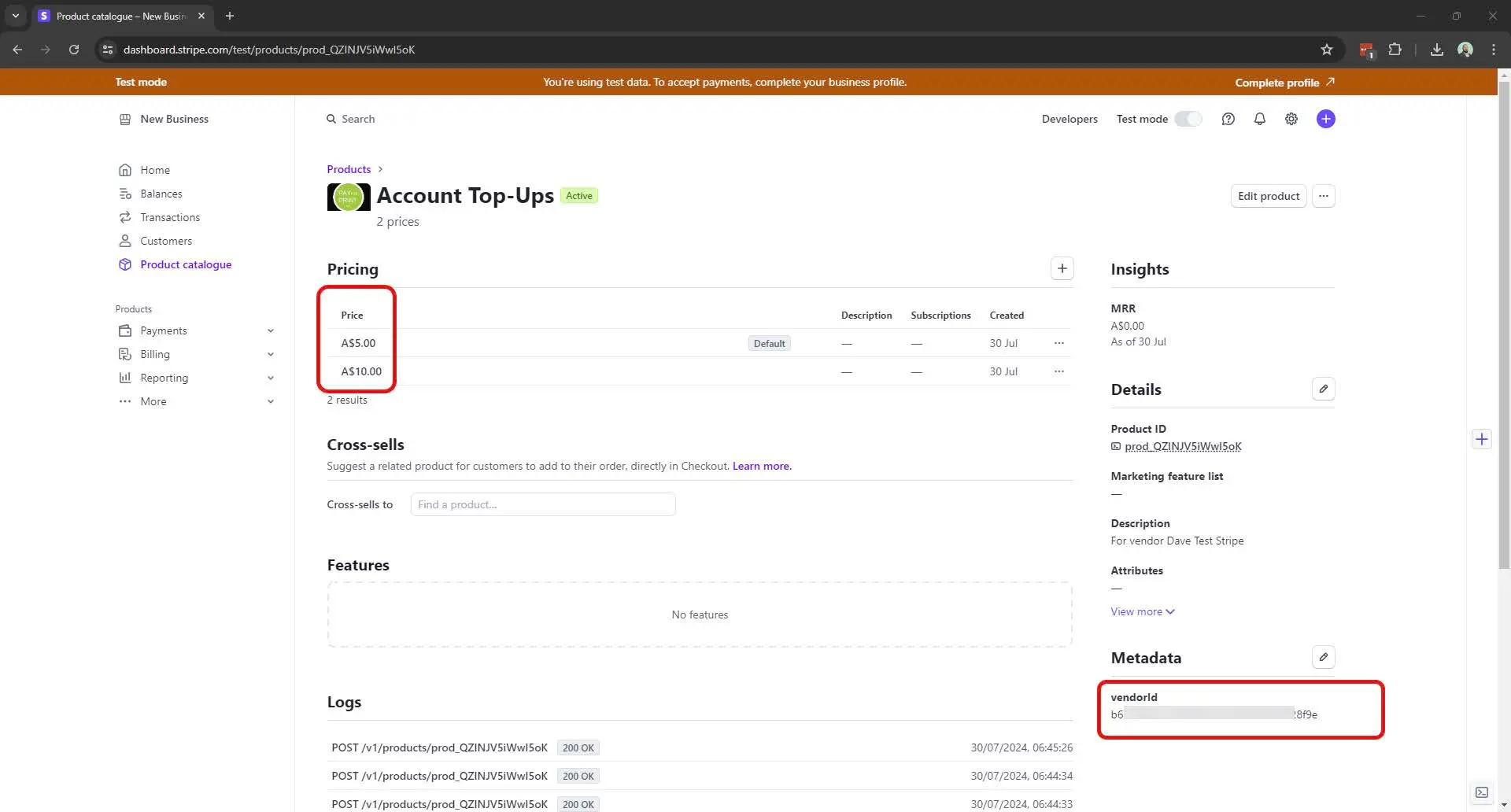
You must also create a Product in Stripe and add "one-off" items to act as the top-up amounts (e.g., $5, $10, $20).
To ensure Cilantro's payments page only shows the relevant product, you must add a metadata tag to this product:
- Metadata key:
vendorId - Metadata value: The customer's unique Cilantro vendor ID
2) PaperCut MF Configuration
Configure your PaperCut MF server to allow API connections from the Cilantro Server Connector.
2.1 Enable XMLRPC API connection
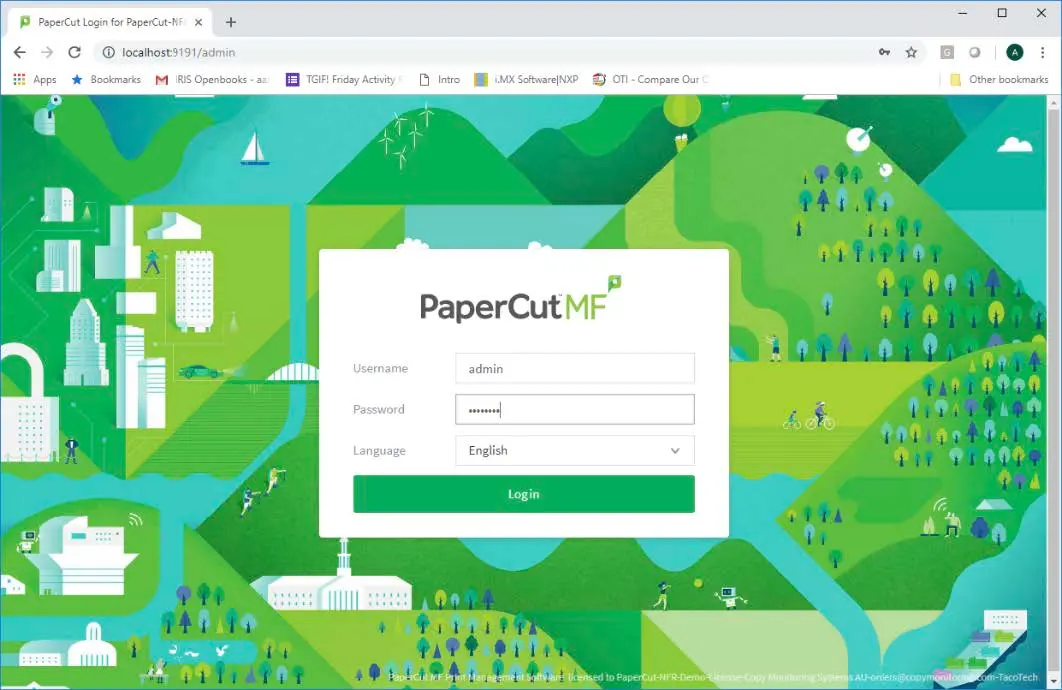
Log into the PaperCut MF Server admin interface.
Go to Options → Advanced and scroll to the Security section.
In the Allowed XML Web Services callers textbox, enter the IP Address of the machine where the Cilantro Server Component will be installed. If installing on the PaperCut server itself, use the loopback address: 127.0.0.1.
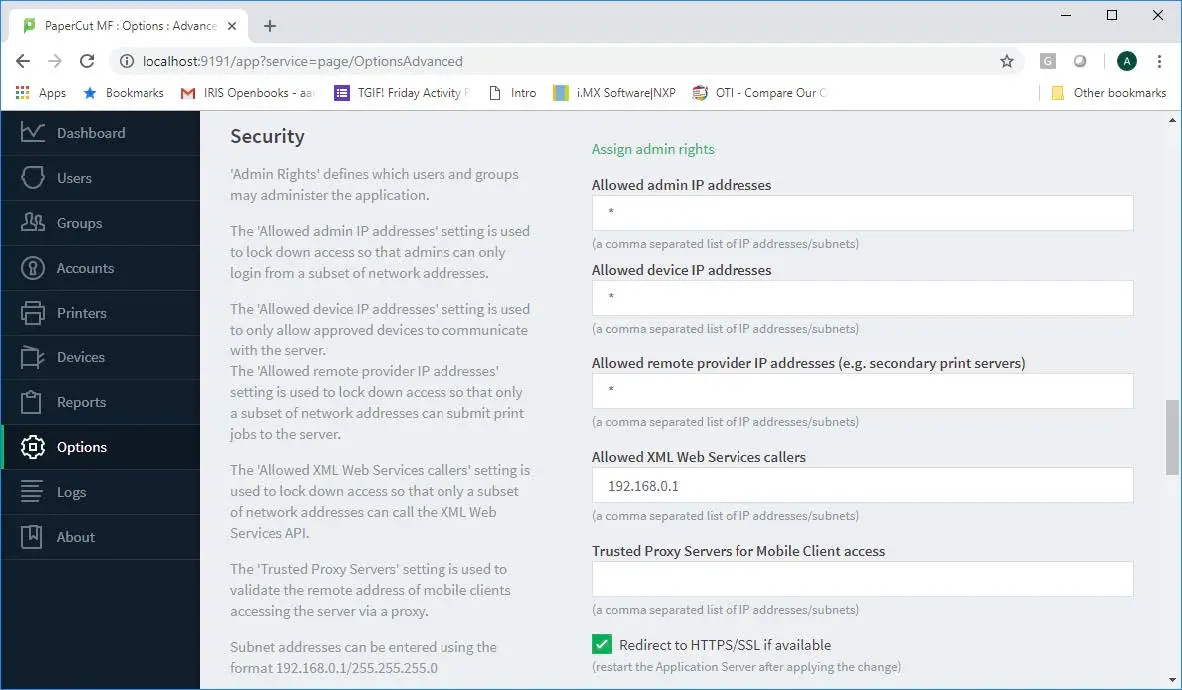
Add the Server Connector's IP address to the allowed list. Scroll to the bottom and click Apply.
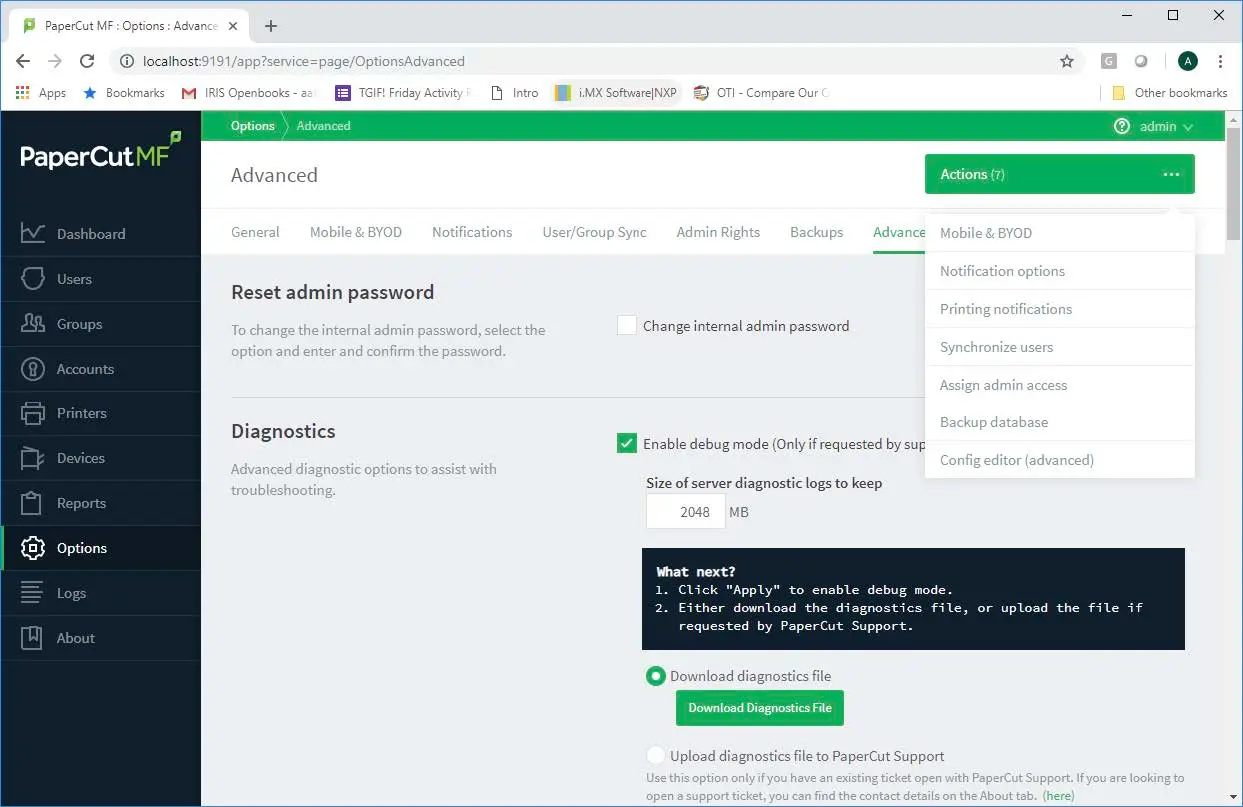
From the left-hand menu, select Options. From the Actions menu (top right), select Config editor (advanced).
Scroll to the bottom to the "Add new key" section.
In the Name field, enter
auth.webservices.auth-token.In the Value field, enter a strong, unique password (this is your API Key).
Click the Add button.
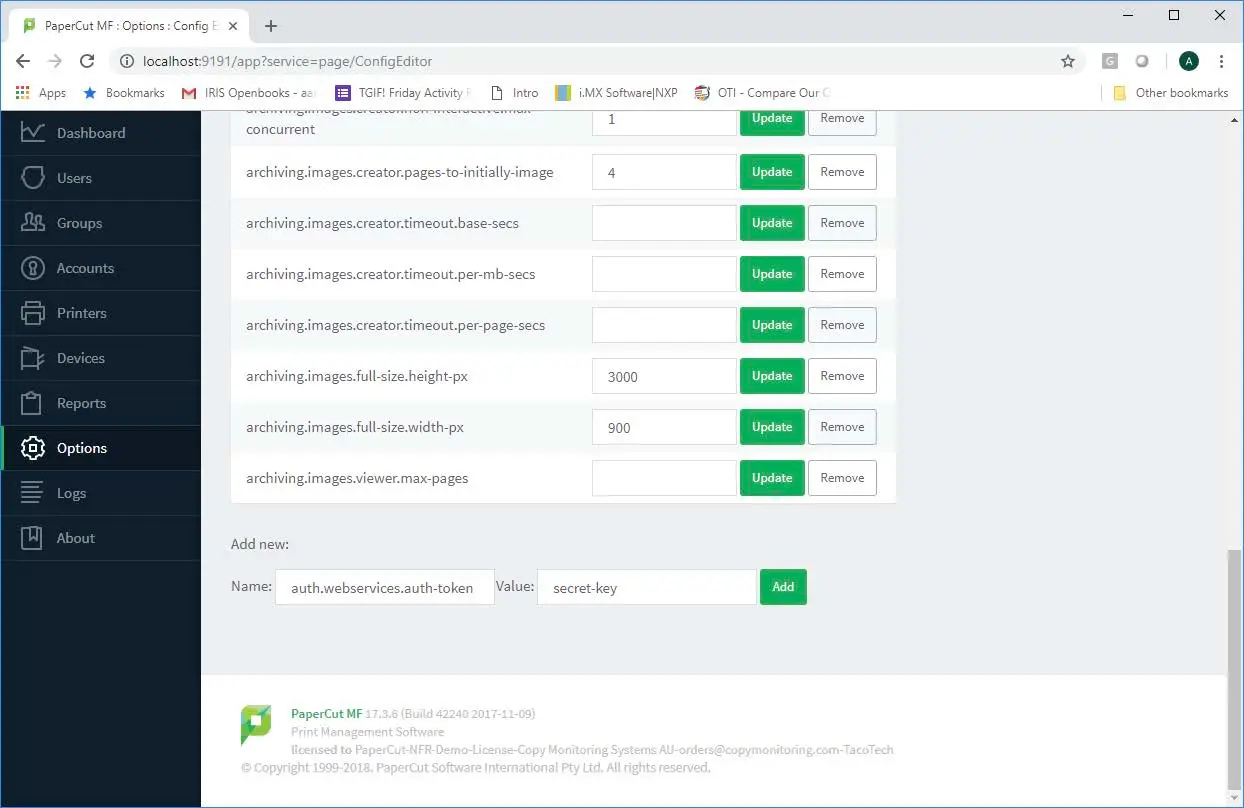
Set the 'auth.webservices.auth-token' config key.
2.2 Configure "Account Top-up" custom link
This adds a link to the PaperCut user web interface, allowing users to add funds.
Go to Options → General tab.
In the User Features section, tick the Add custom links to the user web navigation menu checkbox and click Apply.
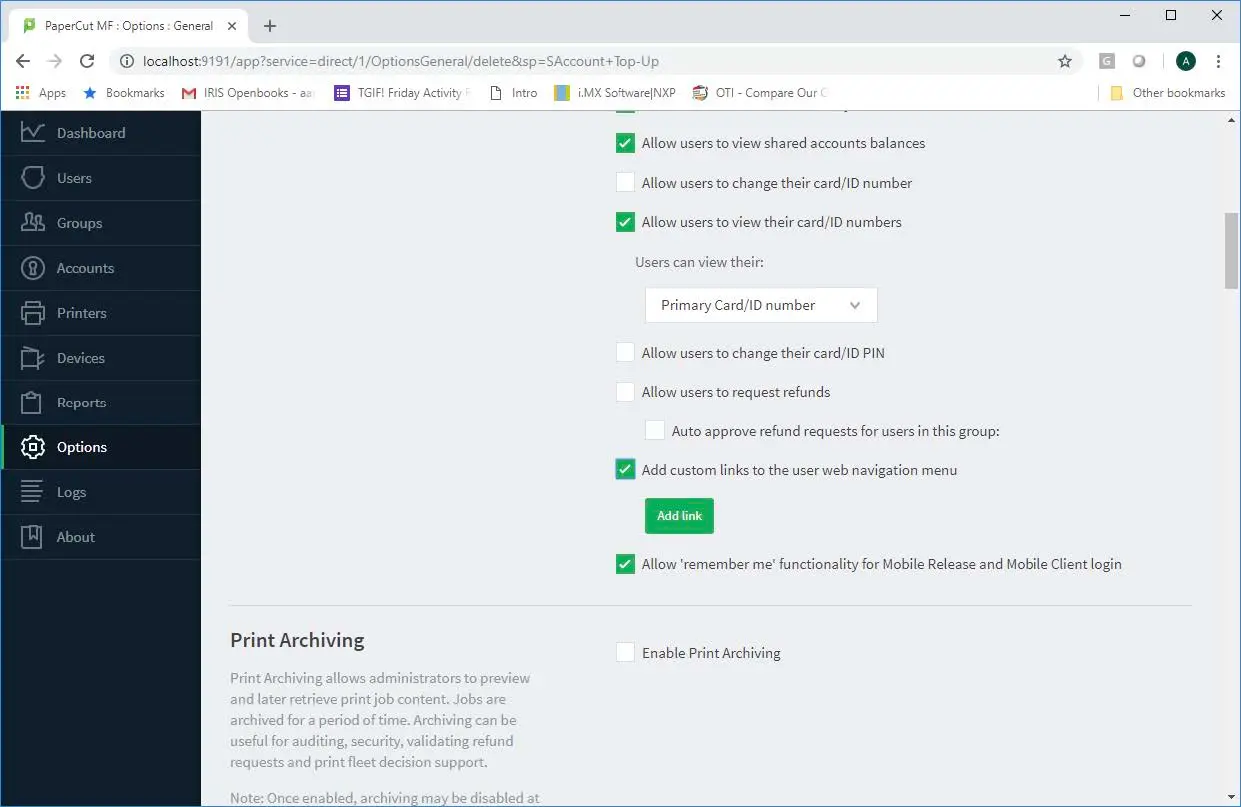
Click the Add Link button that appears.
In the dialog, set the following values:
- Label/Text:
Account Top-Up - URL:
https://cilantro.taco-tech.com/payments/[VENDORID]/%user%
(Replace[VENDORID]with the Vendor's Unique ID from the Cilantro Reseller portal). - Target:
_blank
- Label/Text:
Click Add.
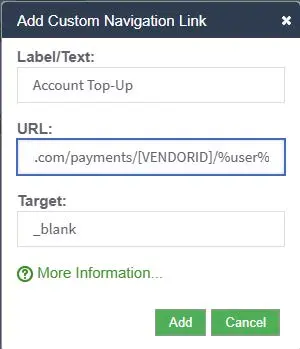
Configure the Account Top-Up link for the user web interface.
3) Cilantro Integration
The Cilantro Server Connector is a Windows™ Service that facilitates communication between your PaperCut MF server and Cilantro's Cloud services.
3.1 PaperCut Integration
Sign into your region's Cilantro Reseller portal (Your Cilantro invite email will contain your region's address.).
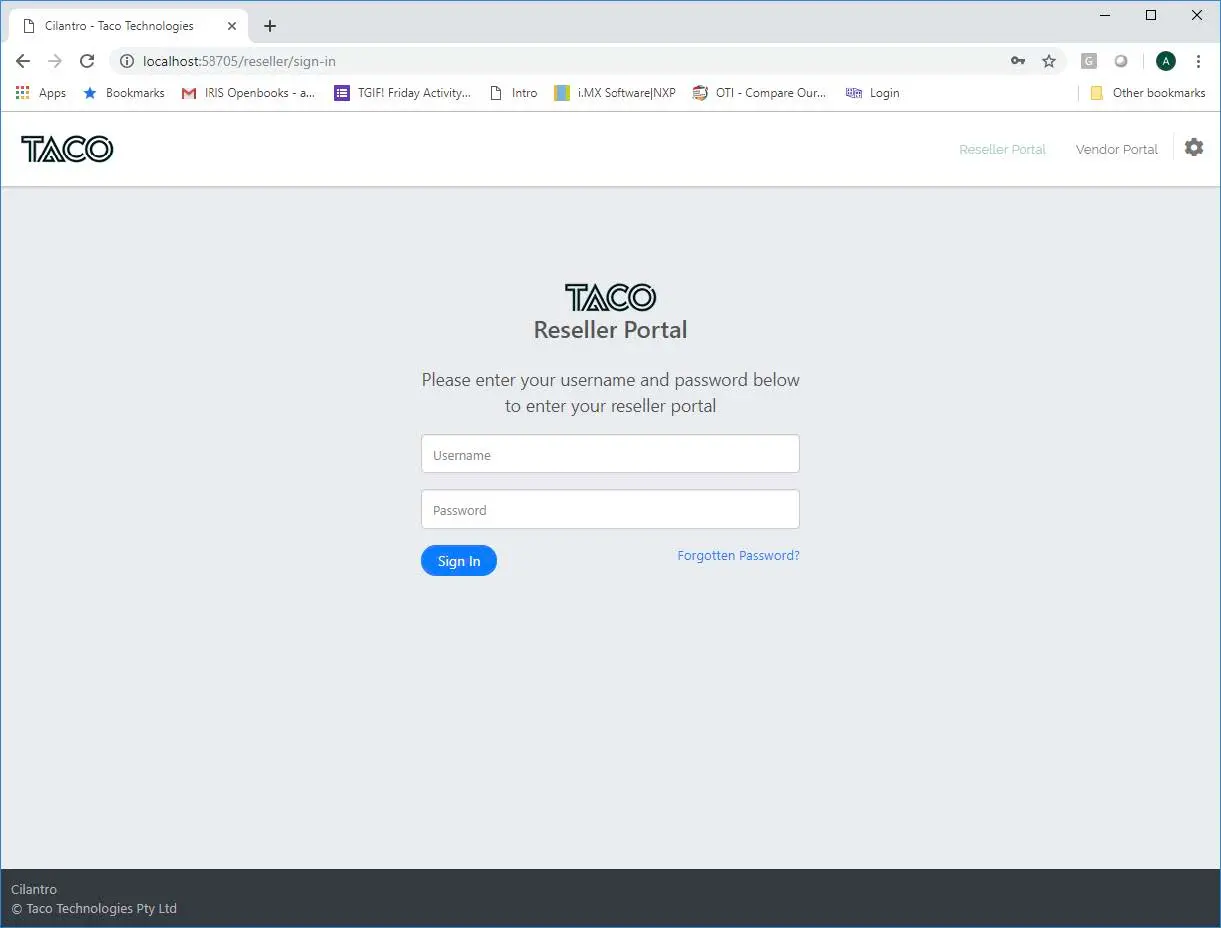
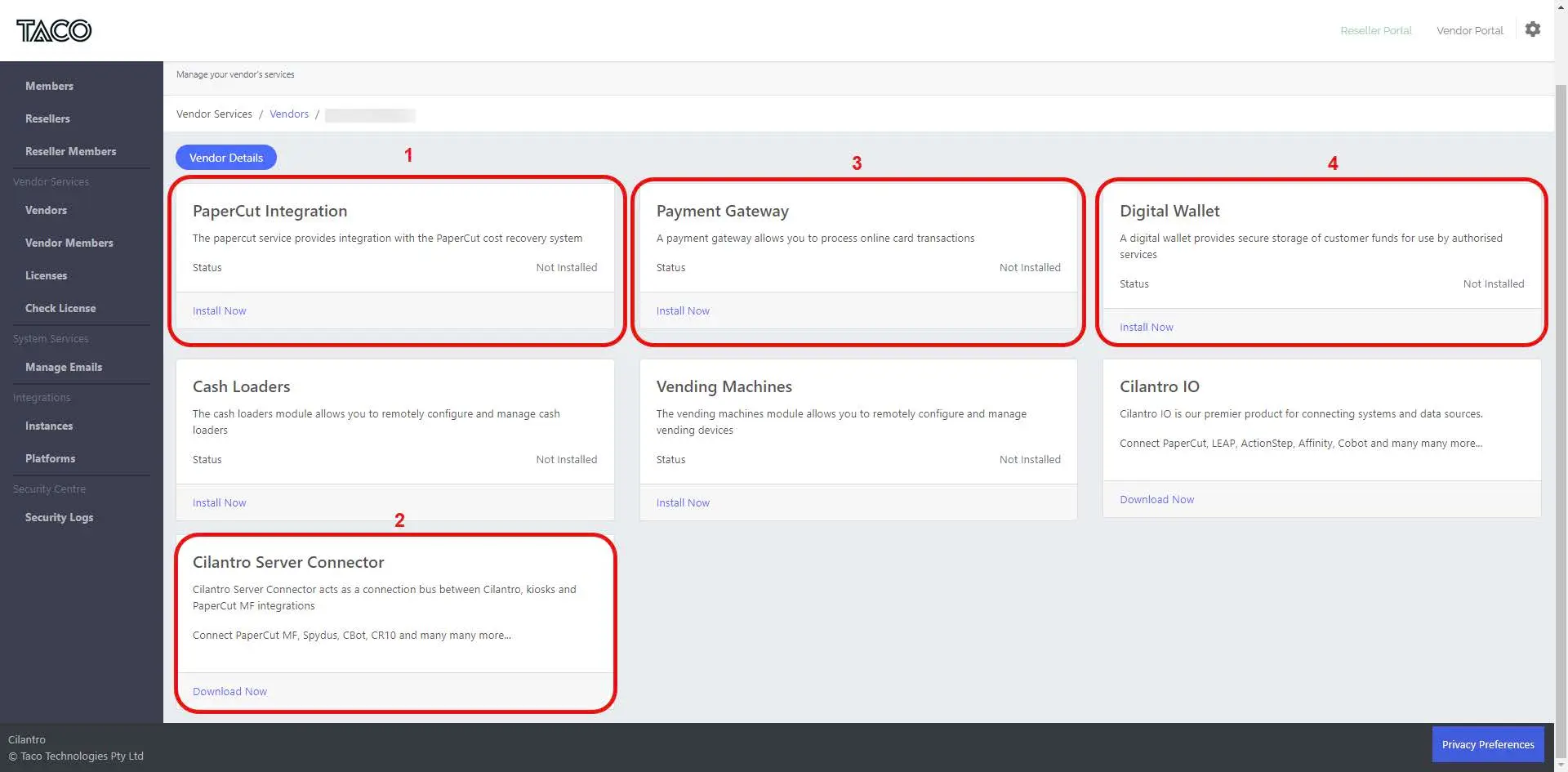
Select 'Install Now' on the PaperCut Integration service. On the Vendor Dashboard, find the PaperCut Integration service tab and select Install Now.
Generate the License Activation Key. Generate a License Activation Key and copy it to your clipboard; you will need this soon.
Select Finish.
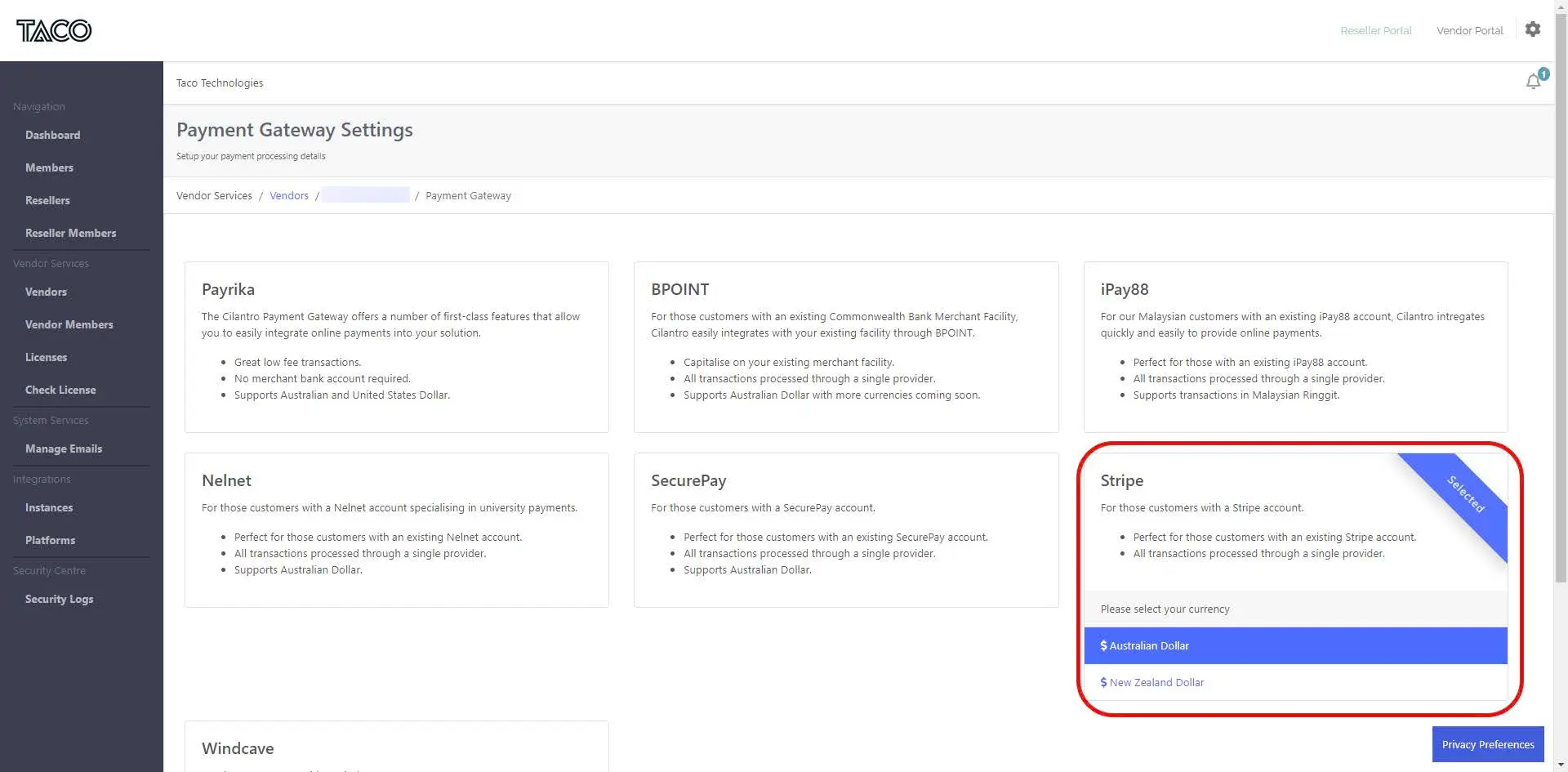
Select Stripe as the payment gateway and set your currency.
3.2 Download the Installer
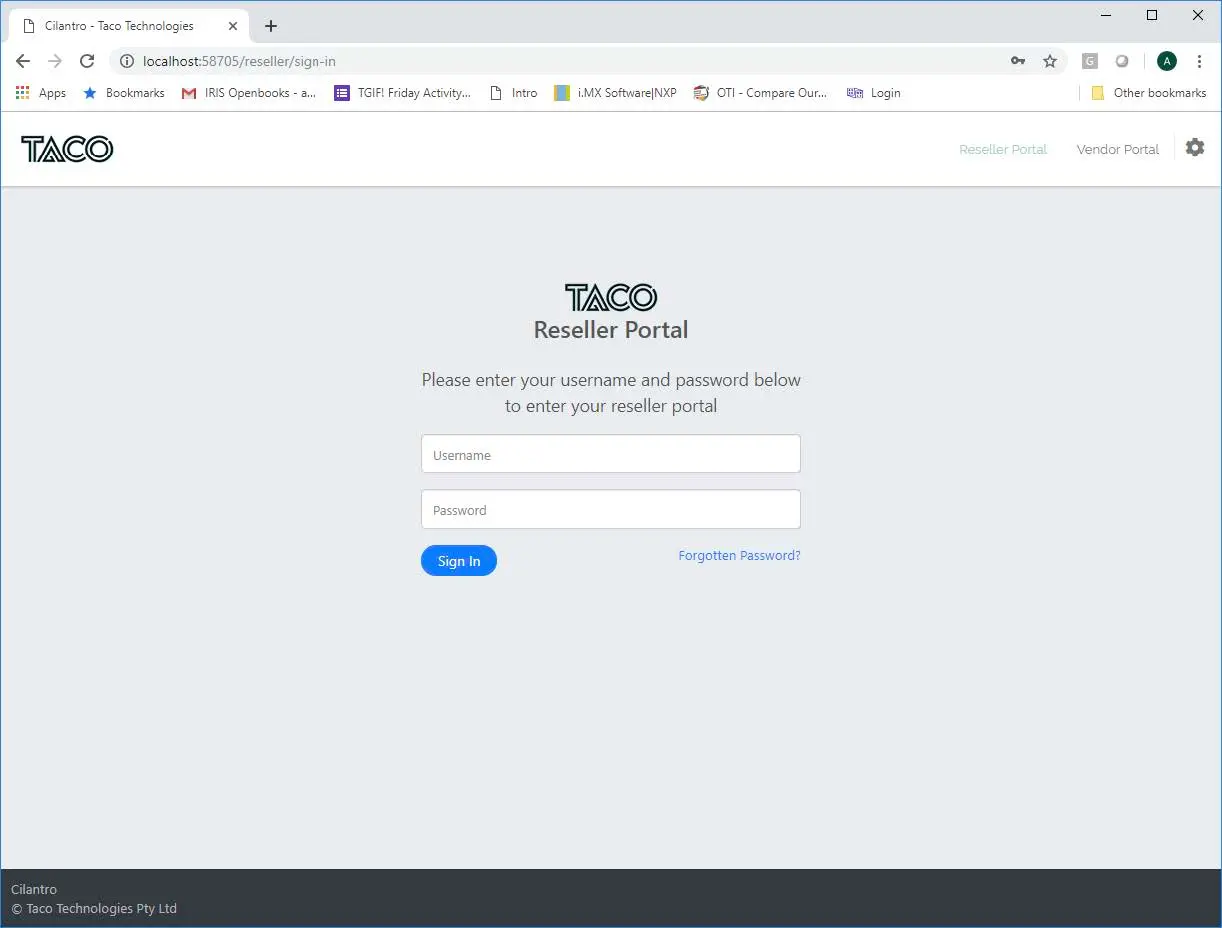
Sign in to your region-specific Cilantro Reseller or Vendor Portal.
3.3 Payment gateway configuration
Next, select Install Now in the Payment Gateway tab.
Select STRIPE and the correct Currency.
Select Add Service to finish.
Configure the Digital Wallet to send funds to the PaperCut balance.
3.3 Digital Wallet configuration in the /Reseller portal
A destination must be defined for the funds. While Stripe handles the real money, the top-up balance must be applied to a "wallet".
Select Install Now in the Digital Wallet tab to finalize the configuration.
Select the desired destination to deposit the funds post-top-up:
- Cilantro: Use when multiple systems draw from the funds.
- PaperCut: Funds reside in the user's PaperCut balance (most common for this setup).
Select Save Settings to finish.
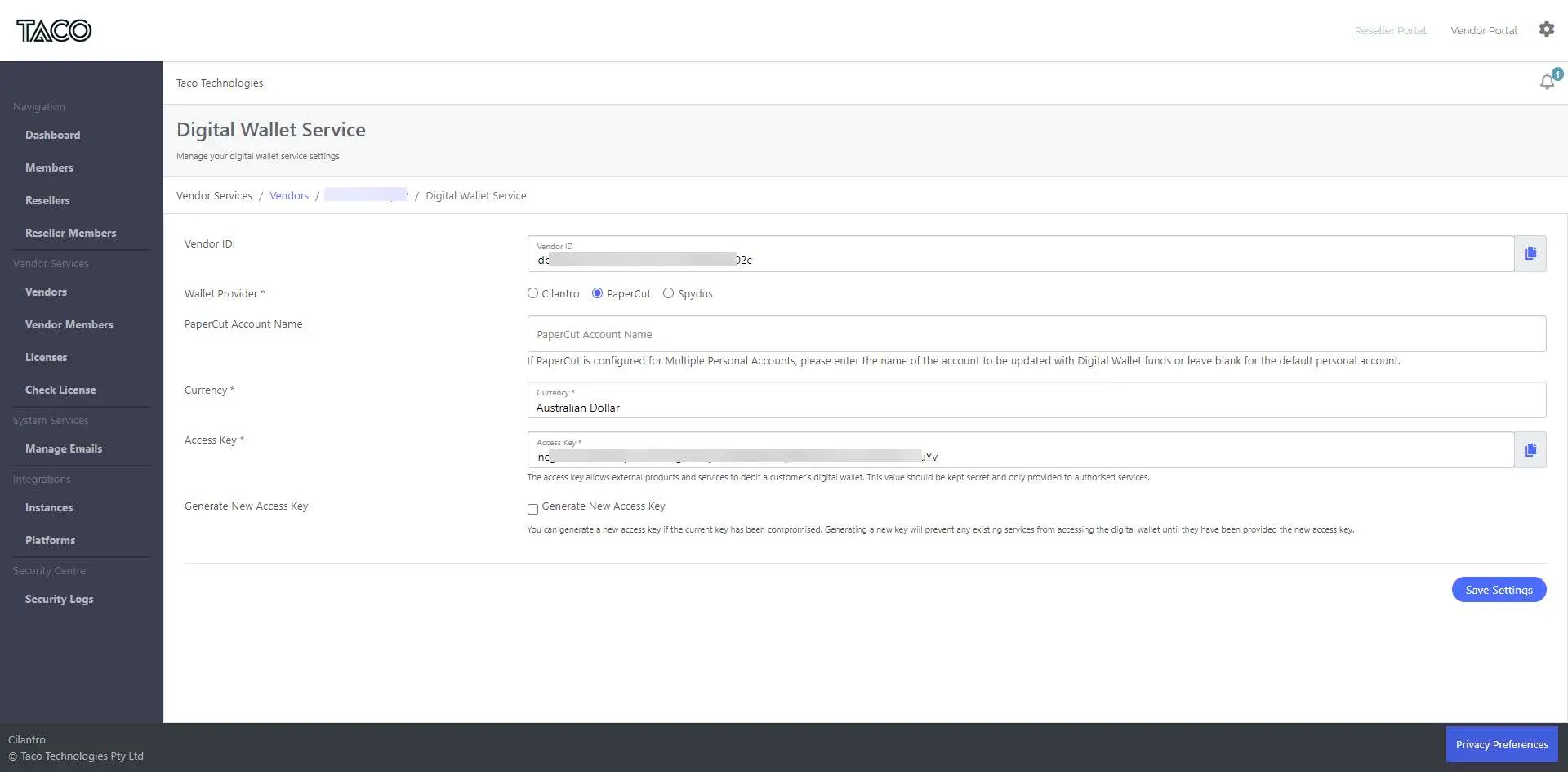
The Reseller Portal dashboard with all services configured.
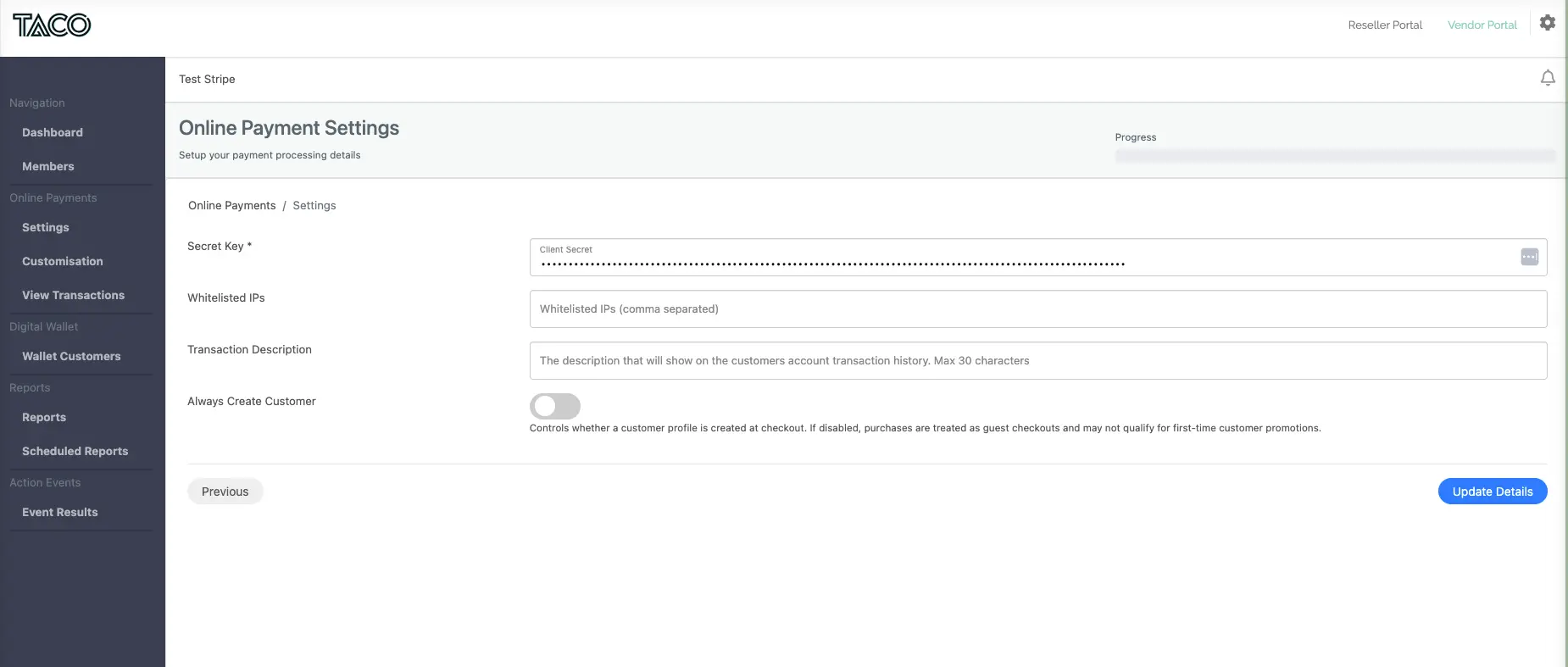
3.5 Customer configuration in /Vendor portal
After the reseller setup, the customer must log in to their /Vendor portal to complete the connection.
Instructions are provided for the customer when they click on the "Payment Gateway" tile. Clicking "Edit Details" allows them to:
- Enter the Stripe Secret key.
- (Optional) Configure a whitelist of IP addresses that can connect to the payments page.
- Configure their preferred transaction description, which will appear in Stripe (e.g., "PaperCut Account Topup").
- Always create customer. Enables organisations to reconcile transactions against customers within Stripe, otherwise transactions are conducted as Guest Checkouts.
4) Troubleshooting
4.1 Server Connector connection test fails
Check that the Server Connector Windows service is running on the host server.
Can you open the Cilantro Cloud portal (e.g.,
https://cilantro.taco-tech.com) from the server's browser?Can you successfully telnet to your region's Cilantro instance on port 443 from the server?
Education environments typically have very strict network controls. Ensure the server can communicate with all required addresses and ports as per the "Networking" prerequisites (section 1.3).
4.2 Transaction refund issues
Warning: Refunds initiated directly from the Stripe dashboard do not have the ability to check if the user has sufficient funds in their PaperCut wallet. This can result in a refund being processed in Stripe, but the funds failing to be deducted from the user's PaperCut balance.
Best Practice: Always initiate refunds from within the Cilantro portal / Transaction History. This ensures the refund process checks the wallet balance before completing.