
Cilantro IO: PaperCut MF & LEAP — Setup Guide
The purpose of this document is to provide an installation and configuration guide for integrating LEAP with PaperCut MF using the Cilantro IO platform.
Before attempting to action this guide, contact your PaperCut Reseller to purchase a license.
1. Document Information



1.1 Introduction
The purpose of this document is to provide an installation and configuration guide for integrating LEAP with PaperCut MF using the Cilantro IO platform.
2. Pre-requisites
2.1 Cilantro IO application download
Changes have been made to secure access to the Cilantro installers. It was previously possible to download via a generic link, this no longer works.
To obtain the latest version, you must log into either the /reseller portal for your region. Alternatively, customers can download via their /vendor portal. A link is emailed to all customers upon account creation.
- Australia or New Zealand - Click to open (opens in a new tab)
- Canada - Click to open (opens in a new tab)
- United Kingdom - Click to open (opens in a new tab)
- United States - Click to open (opens in a new tab)
2.2 Source the Client information
As part of the install you require the Client ID and Secret Key. This is unique information that connects Cilantro IO securely. To obtain this information:
The customer must log in to their Cilantro Vendor portal, using credentials that would have been emailed to them when their order was placed with Taco. Once logged in, they can obtain their credentials via the "Cilantro Instance" tile.
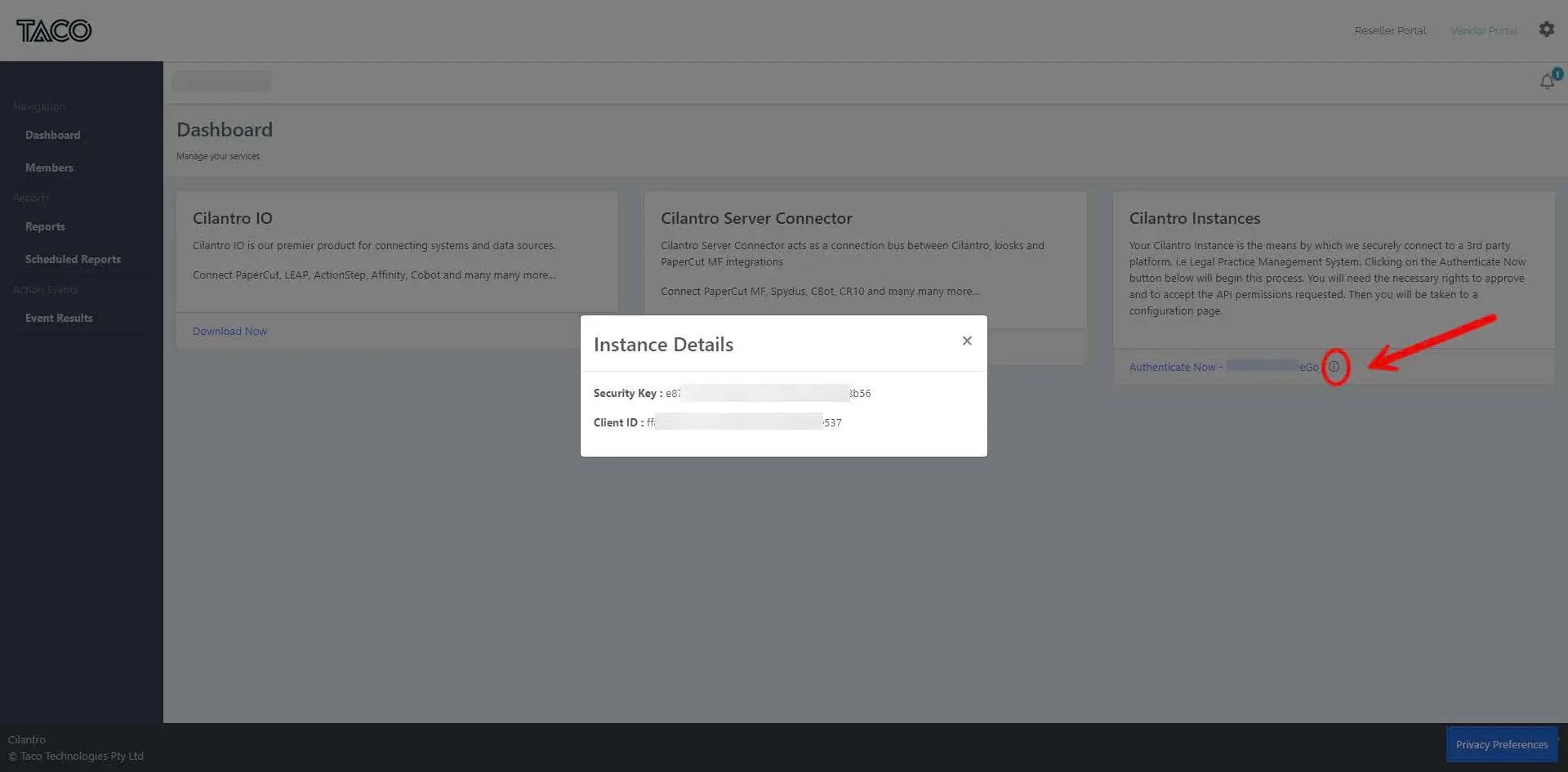
Click on the i button and copy.
2.3 Authentication
The client needs to authenticate with LEAP via the Cilantro Vendor portal, as per the above steps. Instructions on how to do this can be found in the Cilantro for LEAP User Guide.
This document should be provided to customers before installation begins, so they can familiarise themselves with their role in the process. Below is the latest version of the Cilantro for LEAP User Guide: Click to download (opens in a new tab).
2.4 Check System for Previous Software
Confirm that the current system is not currently using another connector. This can be checked in Task Scheduler and in PaperCut account sync to confirm if PaperCut is, for example, syncing matters from a document on the server.
All traces of any other connectors should be removed before commencing the install of Cilantro IO.
2.5 Using Scan to LEAP without cost recovery
Some customers may prioritise Scan to LEAP functionality without needing to make use of the cost recovery features. The below config steps will allow users to select accounts to scan to, without prompting users to select an account to print.
Set all users for advanced account selection. This can be done in Users > Bulk User Actions > Change Account selection setting (Show advanced account selection).
In Printers set all printers to override this setting and charge to personal account. This can be done in Printers > [Template Printer] > Advanced Configuration > Override user-level settings > Do not show account popups and allocate jobs to: (User personal account).
With this configuration users will be able to select an account when scanning at the MFD, but will not be interrupted when printing.
3. PaperCut MF Configuration
In order for Cilantro to integrate with PaperCut MF, it's necessary to configure the PaperCut MF Application Server appropriately. Please follow the steps below to configure the PaperCut MF Server.
Log into the PaperCut MF Server using your admin username and password.
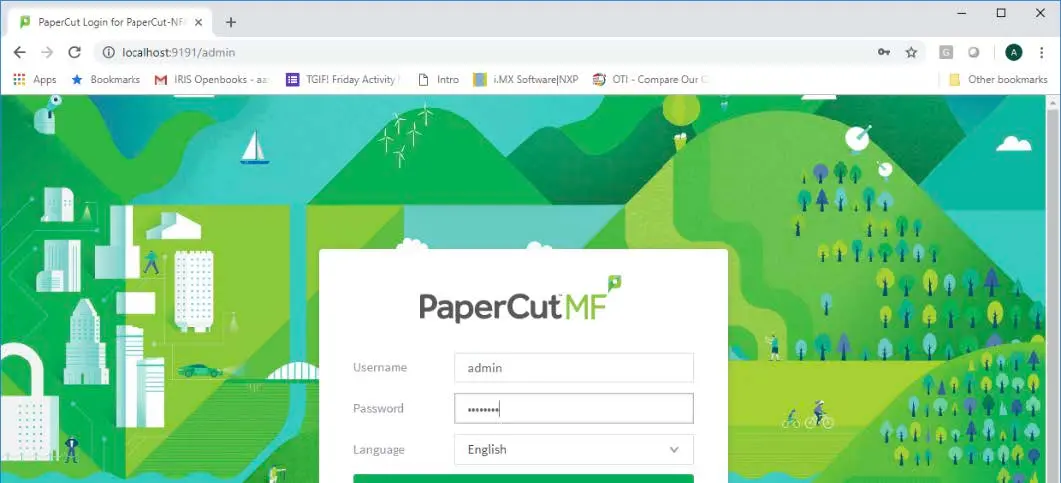
Log into the PaperCut MF admin interface. From the menu on the left-hand side, select Options, click the Advanced tab and scroll to the Security section. In the Allowed XML Web Services callers textbox, enter the IP Address of the computer on which the Cilantro Server Component is to be installed. If the Server Component is to be installed on the PaperCut MF Application Server, simply enter the Local Machine Loopback IP Address
127.0.0.1. Once the IP Address has been entered, scroll to the bottom of the page and click Apply.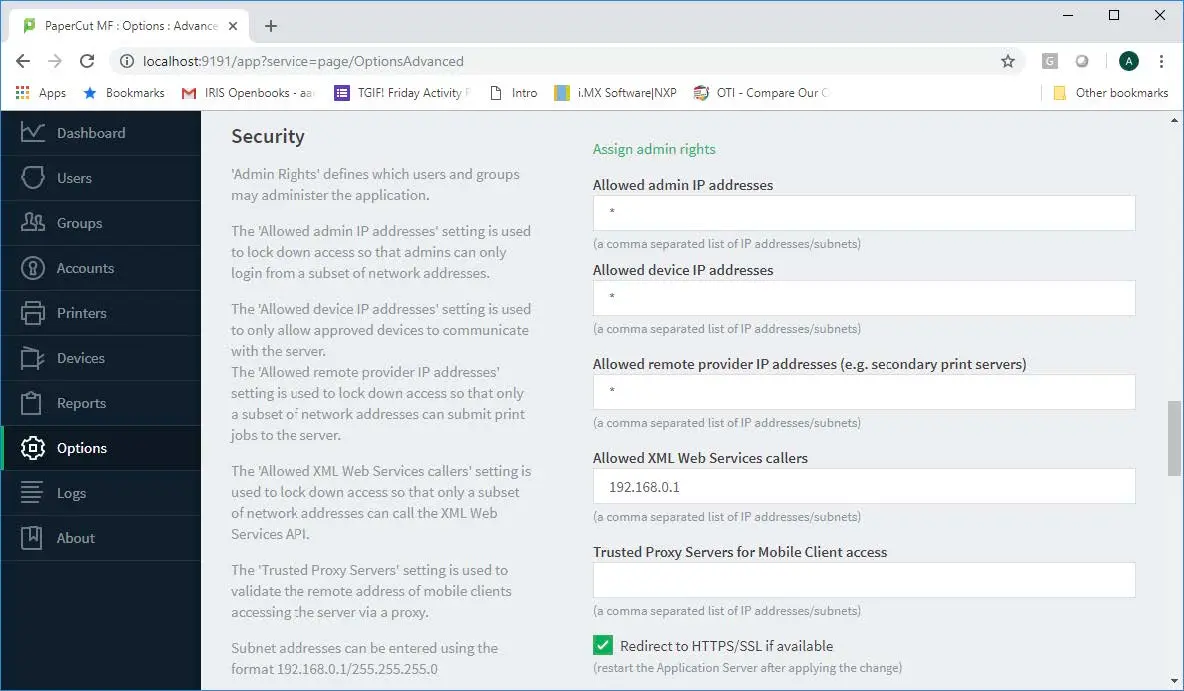
Configure allowed XML Web Services callers. From the menu on the left-hand side, select Options and from the Actions menu select Config editor (advanced).
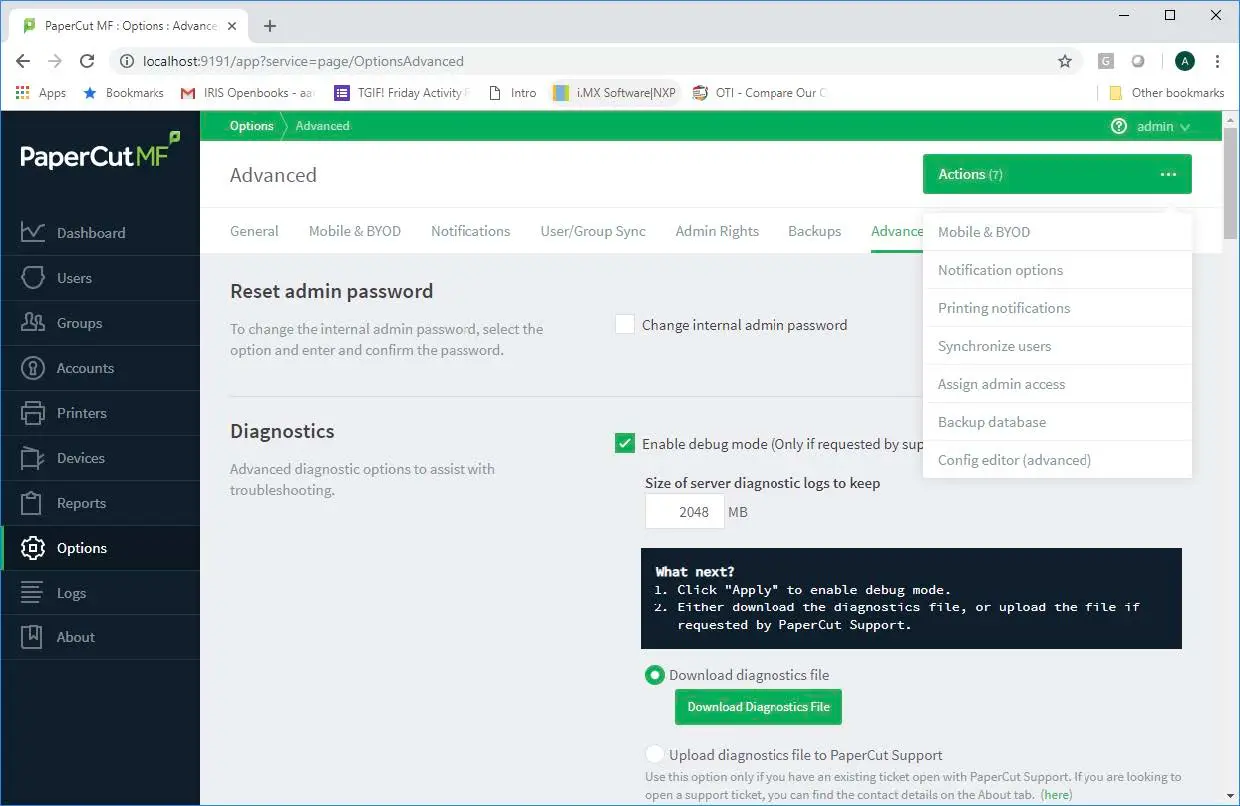
Select Config editor (advanced) from the Actions menu. Set the PaperCut XML Web Services API Key. The key is like a password that authorises Cilantro to access the PaperCut MF Server and functions. To add the API Key, scroll to the bottom of the page and in the name field enter
auth.webservices.auth-tokenand in the value field enter a password of your choice.
Click the Add button to add the new PaperCut XML Web Services API Key.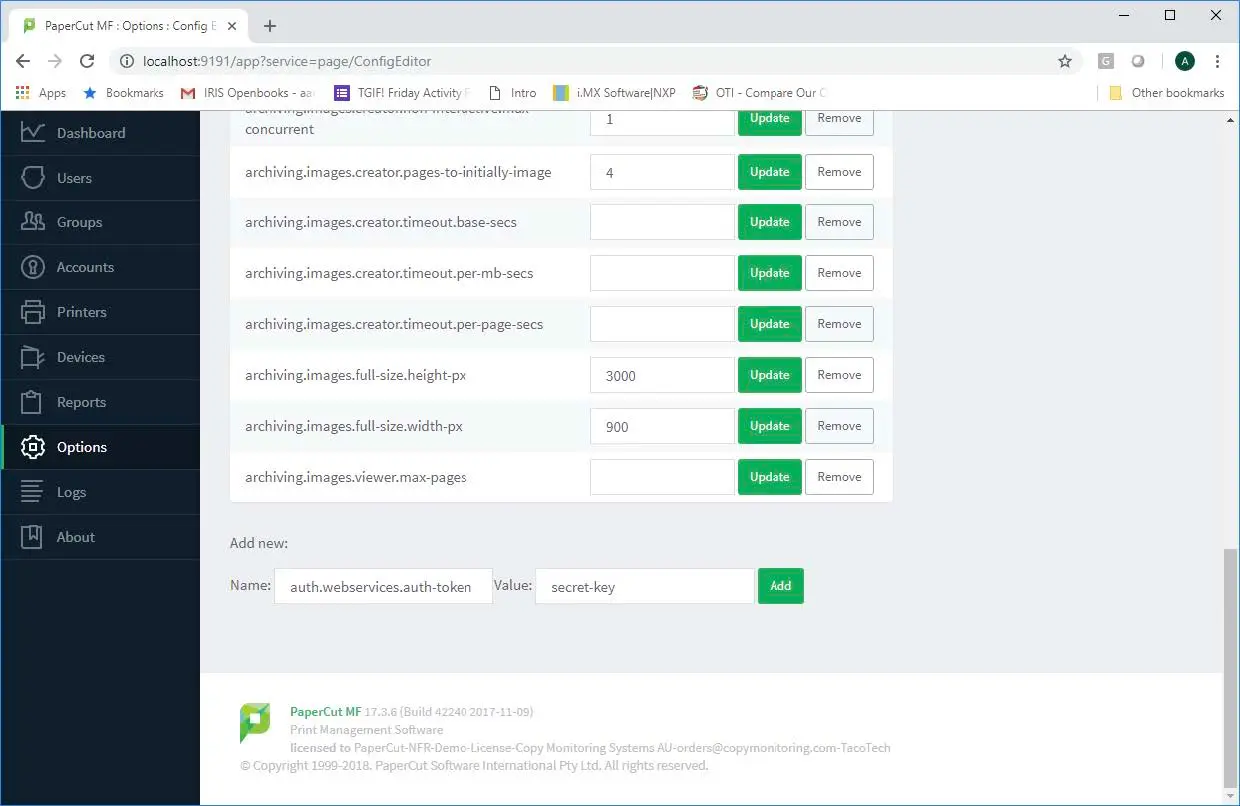
Add the auth.webservices.auth-token config key. From the menu on the left-hand side, select Options and scroll to Account Options. Ensure the checkbox "Make shared account PIN/code visible" is ticked.
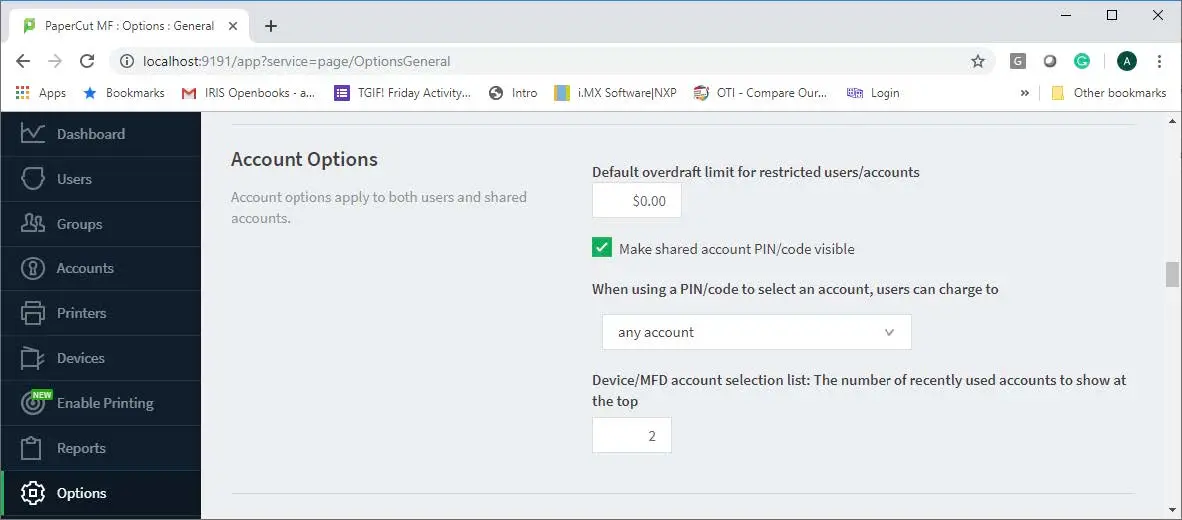
Enable "Make shared account PIN/code visible". From the menu on the left hand side, select Accounts and click the Template Account, then the Security tab, and add the "All users" group to the security access to ensure all users can see newly created accounts. If accounts have already been created, use a bulk action to apply the security access to all users on all accounts to apply to existing accounts as well.
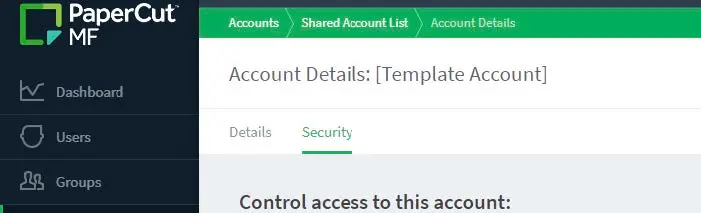
Update Template Account security to include "All Users". From the menu on the left-hand side, select Reports and click the Schedule / Email Reports tab.
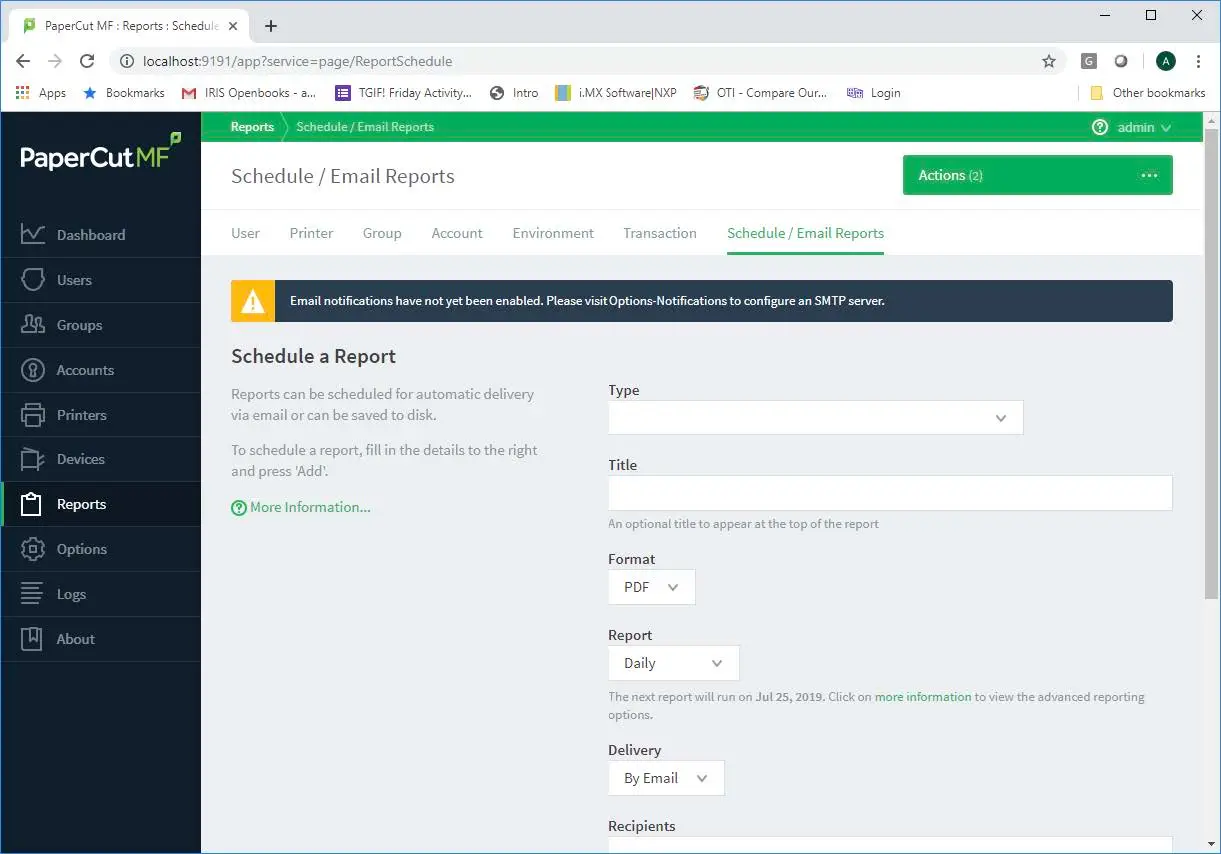
Navigate to Schedule / Email Reports. For Type select Shared account print/copy/scan/fax invoice - breakdown.
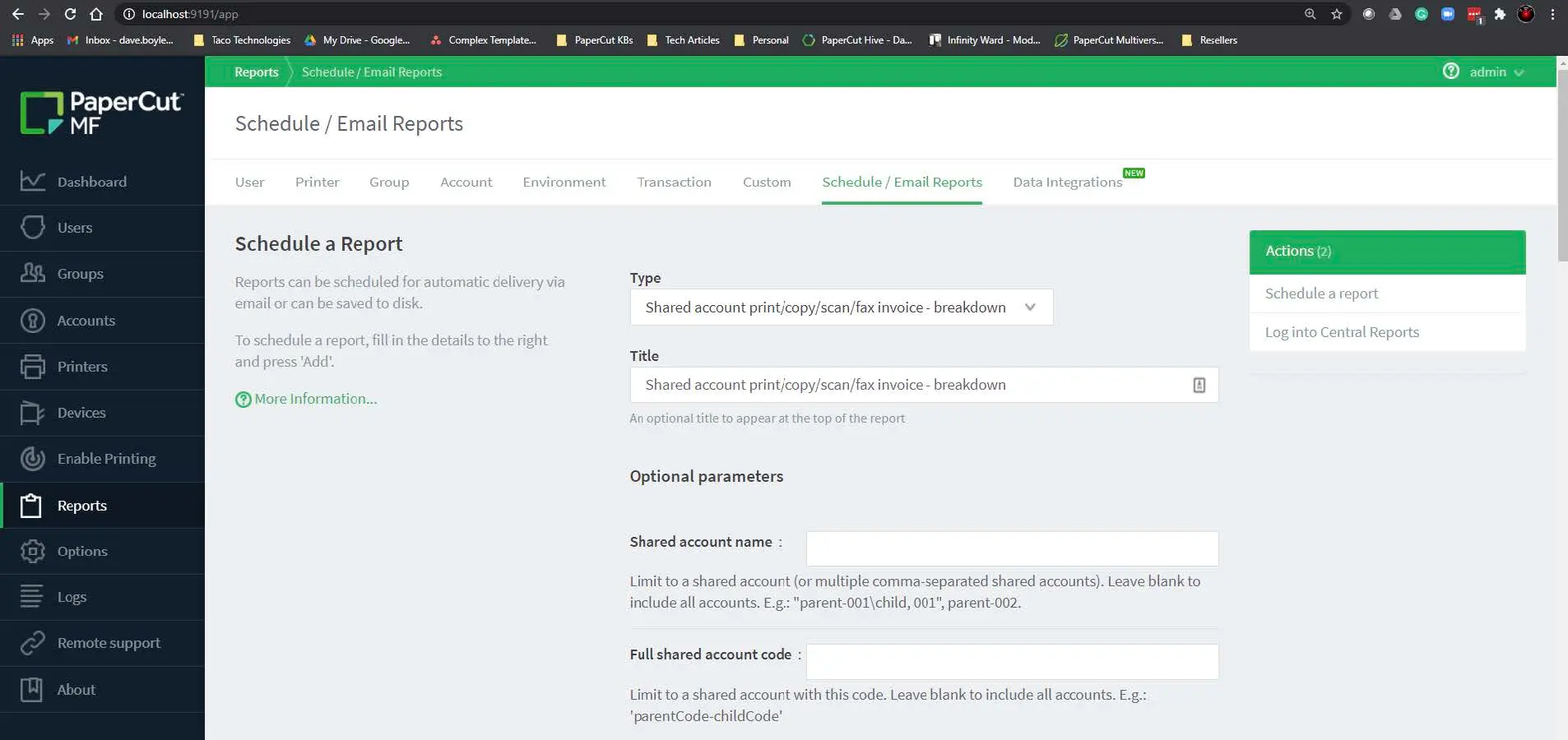
Select the "Shared account print/copy/scan/fax invoice - breakdown" report type. Scroll to Job Type and click the Select All button.
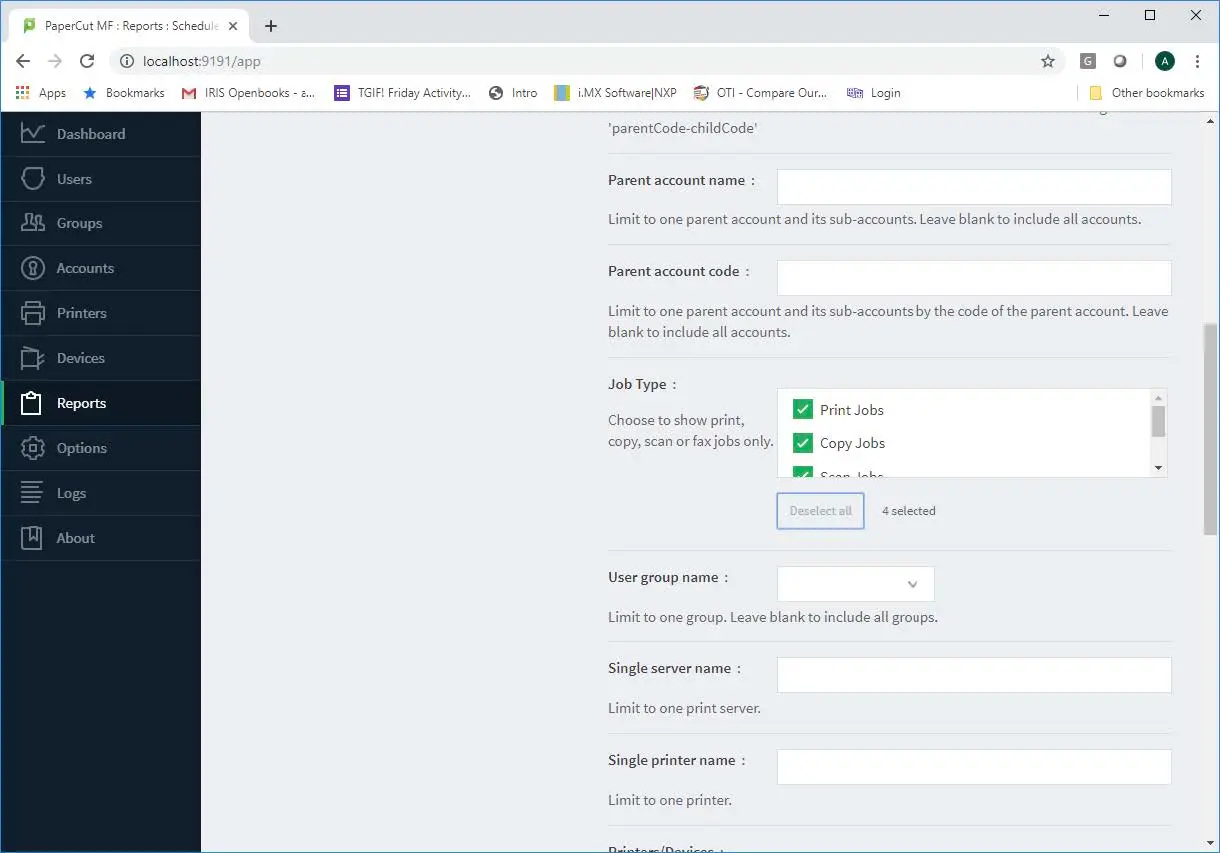
Select all Job Types. Scroll to Format and select CSV, change Delivery to To File, in the File name text box, enter
transactionsand tick the Append date-stamp to file name check box. Finally click the Add button.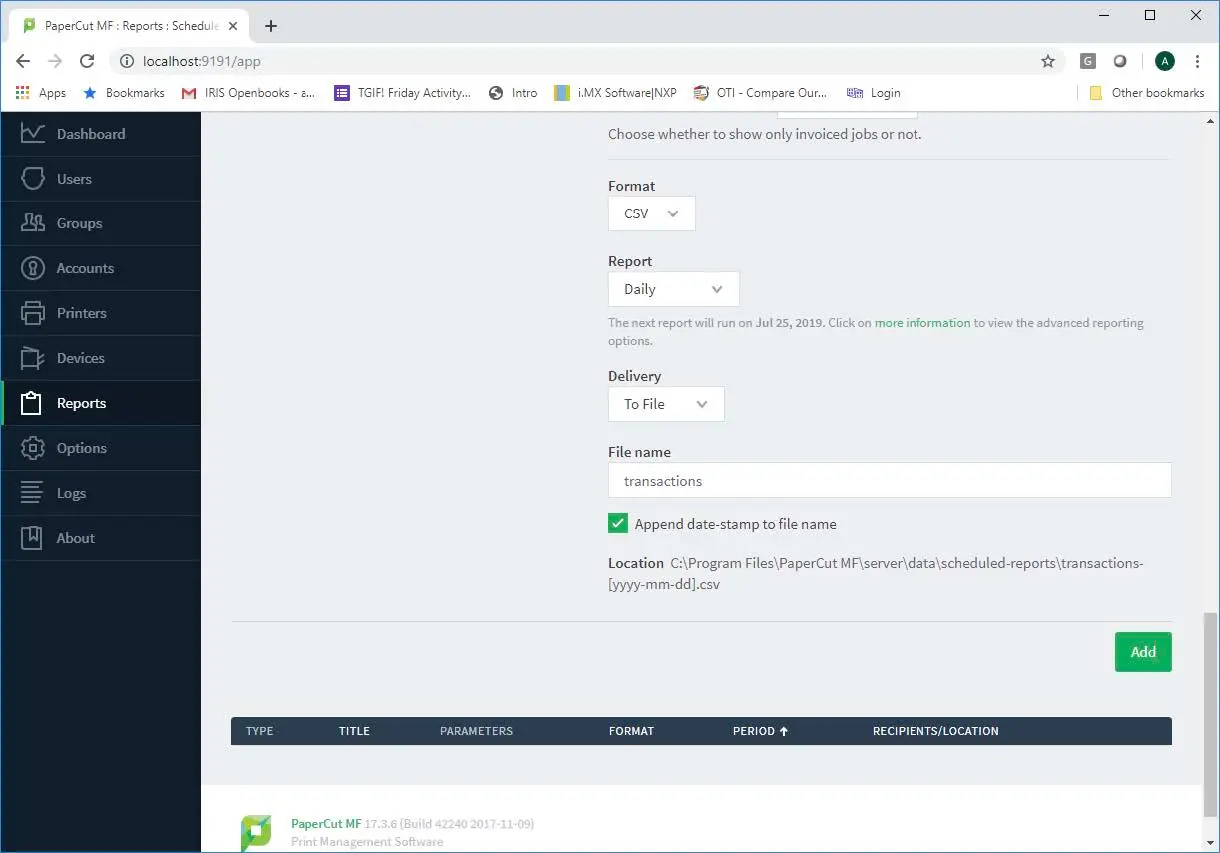
Configure Report format to CSV and delivery to File.
4. PaperCut MF Scan to LEAP Configuration
If the client is not using Scan to LEAP functionality, please proceed to the next section.
From the left-hand menu in PaperCut MF, click Devices, select the Scan Actions tab and click the Create New button to create a new Scan Action.
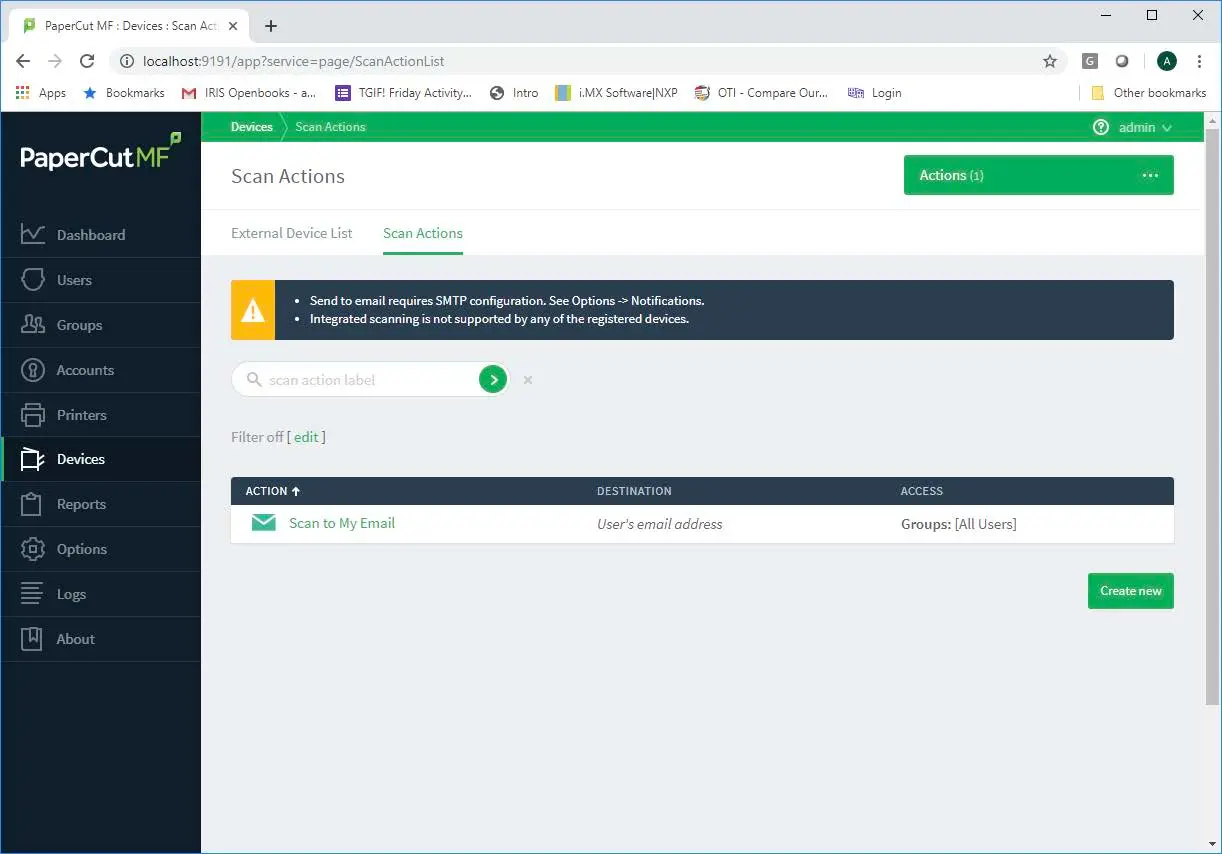
Create a new Scan Action. Enter the details for the Scan Action ensuring the Type is set to Folder. The Label may be of your choosing but Scan to LEAP is suggested. The Path should be a specific folder on the PaperCut Server and may include substitution macros. Please make a note of the path as this will be required in the configuration of Cilantro IO. Additionally, the Include scanned metadata (as XML file) check box MUST be ticked.
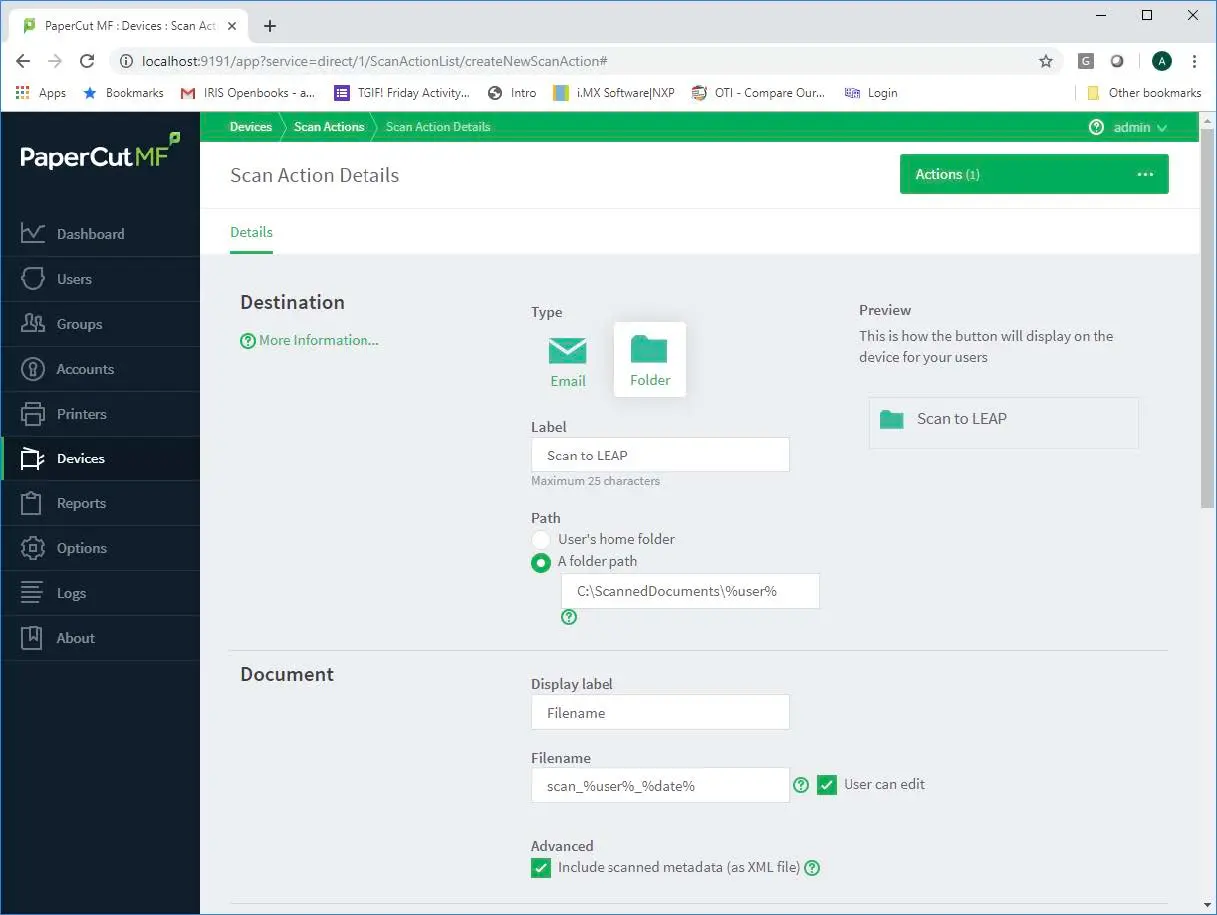
Configure the Scan Action path and enable metadata XML. Finish the action configuration with the client's scan preferences and click Save & configure access.
On the Access List, configure who may access the scan to LEAP functionality as per the client's request.
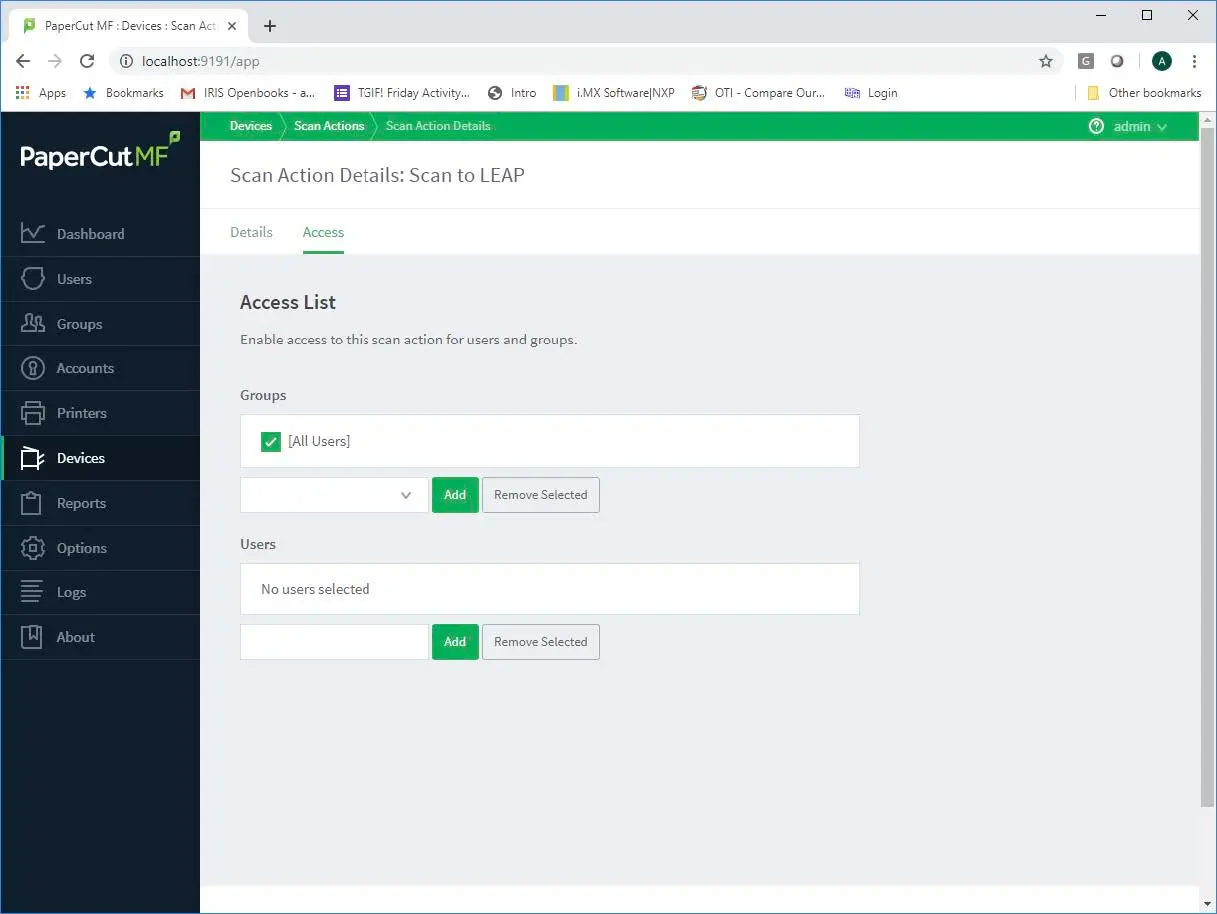
Configure Access List for the Scan Action.
5. Cilantro IO Installation
As per the prerequisites, obtain the installer from your region's Cilantro environment and run the installation package.
Set the location on the PaperCut MF Server where Cilantro IO should be installed and click Next.
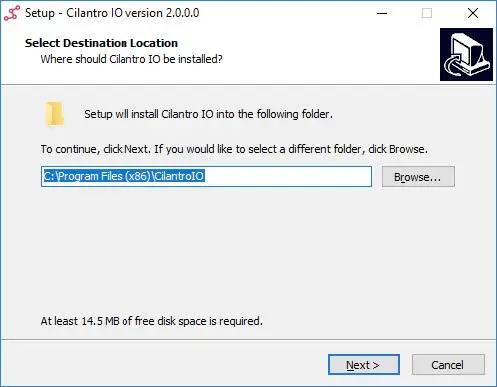
Select installation location. Enter the Program Group name in which links to Cilantro IO will be created under the start menu.
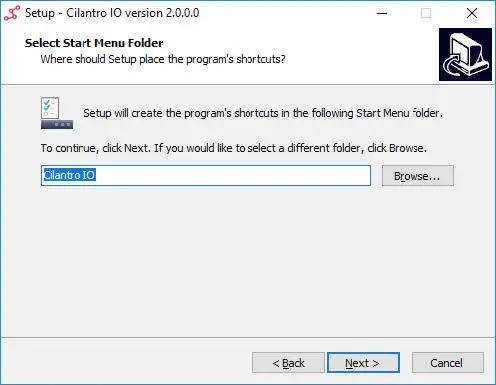
Select Start Menu folder. Click the Install button to install Cilantro IO.
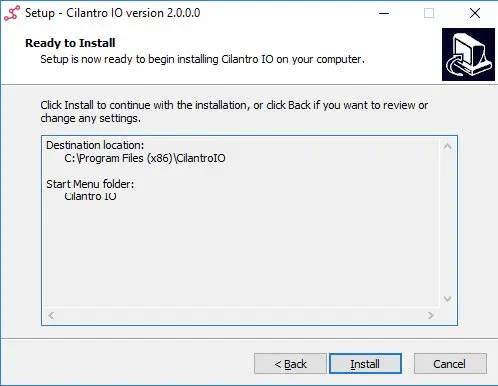
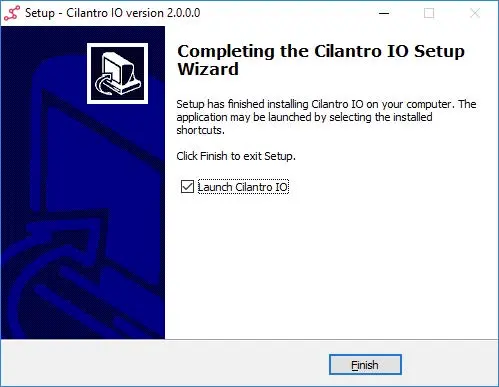
Click Install to proceed. Once Cilantro IO has been installed, launch the program by clicking the Finish button.
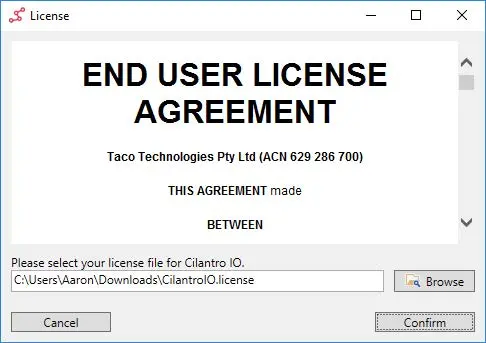
Launch Cilantro IO. Cilantro IO will request the license file either previously provided or generated. Click the Browse button to select the license file and click Confirm.
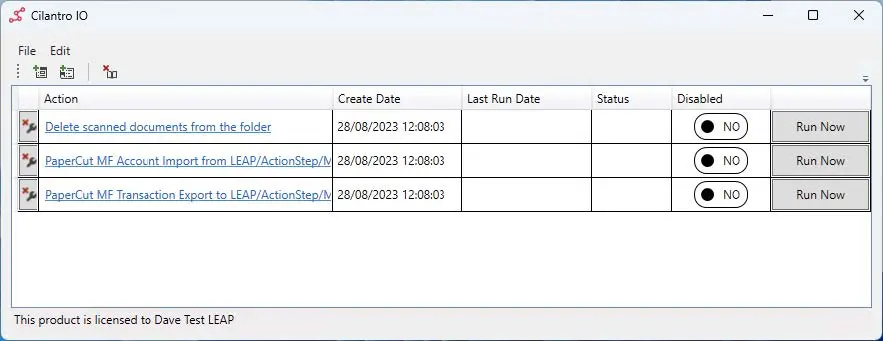
Select and confirm the license file. Cilantro IO will configure some default settings based on the selected license and display three tasks. Please wait for the tasks to be displayed before continuing.
Wait for default tasks to appear. On the application menu, click Edit and choose PaperCut Settings. Enter the PaperCut MF Server connection information and the
auth.webservices.auth-tokenvalue from PaperCut MF in the PaperCut API Key field. Once the information has been entered, click the Save button.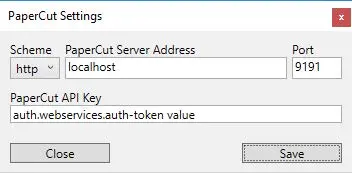
Configure PaperCut API connection settings.
6. Configure the Account Import Task
The account import task is responsible for importing the active Matters from LEAP and creating them as Shared Accounts in PaperCut MF.
From the main application window, click the PaperCut Account Import from LEAP/ActionStep task.
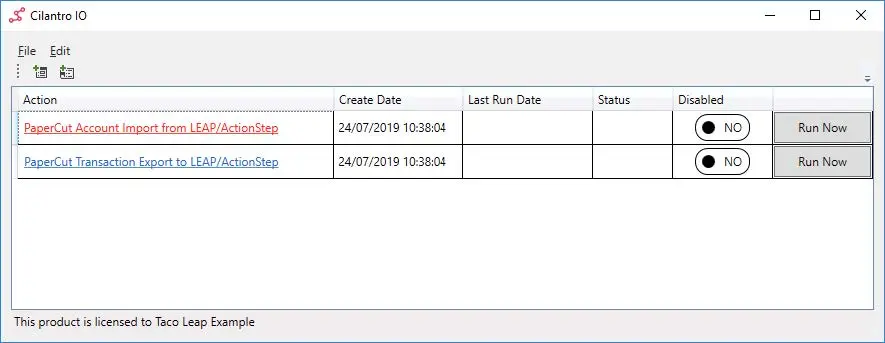
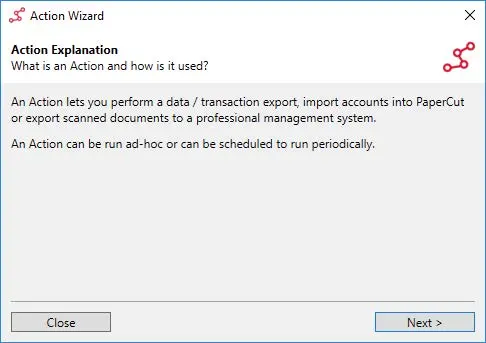
Select the Account Import task. The Action Wizard is displayed providing a description of the Wizard and its purpose. Click the Next button.
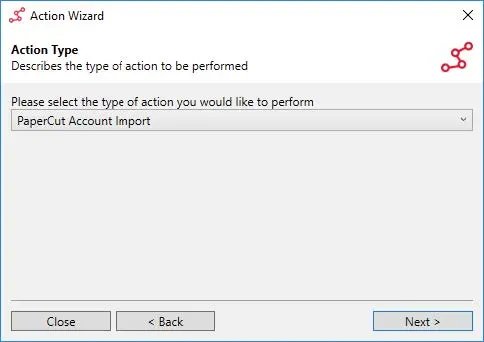
Select the Account Import task. The Action Type dialog is displayed showing the type for the Action. This has been pre-configured to import accounts to PaperCut MF. Ensure the Action Type is PaperCut Account Import and click Next.
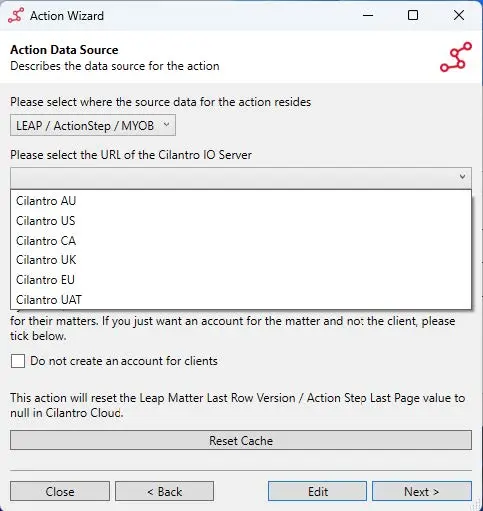
Configure Data Source with LEAP credentials. In the Action Data Source dialog, ensure LEAP / ActionStep is selected for the data source and then select the Cilantro Server Address for your regional instance of Cilantro.
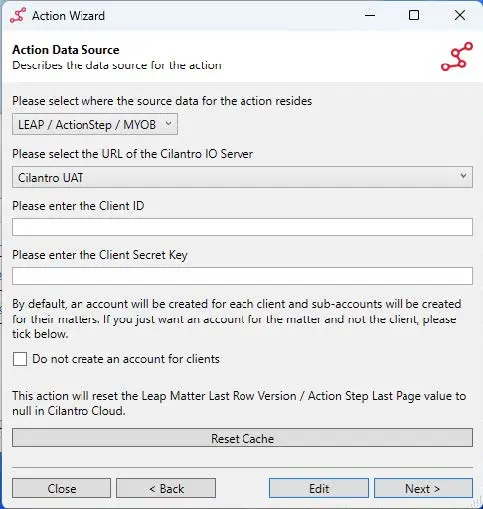
Configure Data Source with LEAP credentials. Enter the Client ID and Client Secret for the client as per those provided from the action in section "Request Client ID and Secret Key" and click Next.
Configure Data Source with LEAP credentials. On the Action Schedule dialog, tick the This action should be repeated on the below schedule check box. This ensures the account import recurs with the specified frequency and that new Matters are regularly imported into PaperCut MF.
Enter a start date from which the Action is to repeat, a start time for the Action and an import frequency. A frequency of 1 hour is suggested.
Once the appropriate values have been entered, click Next.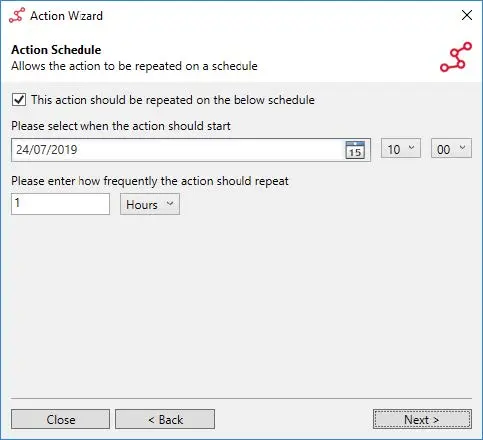
Enter details On the Action Name dialog, you may rename the Action to something more descriptive if desired and finally click Save.
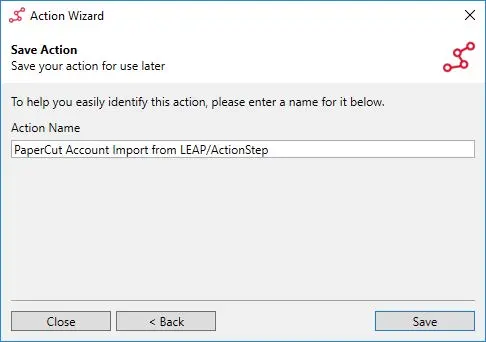
Renaming the Action.
7. Configure the Transaction Export Action
The transaction export action is responsible for transferring all PaperCut MF print, photocopy, scan and fax transactions to the appropriate Matters within LEAP.
The action itself manages data based on a 'Conversion Profile' which aligns the PaperCut MF data with the data structure of LEAP. One of the services this profile provides is in introducing a transaction date. As Cilantro needs to wait for PaperCut MF to produce a report, the upload occurs the day after the transaction actually occurred. We add some logic here, as the report we need to use from PaperCut MF doesn't contain the actual transaction date.
- The conversion profile does not need to be created but does need to be edited.
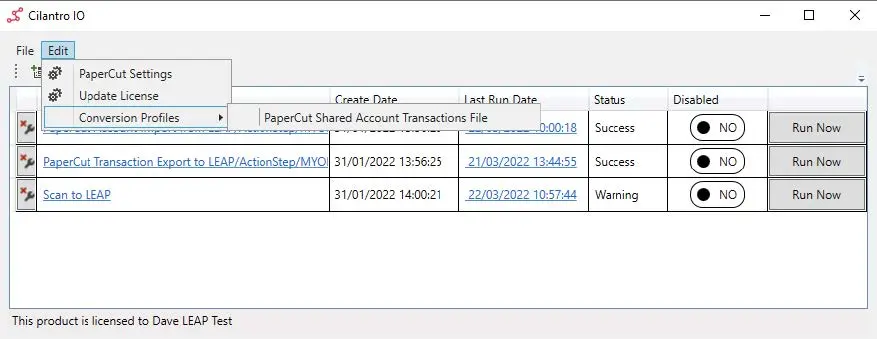
Editing conversion profile. - Select 'Edit' above the action view and select the Conversion Profile in use.
- The conversion profile wizard will open, and navigate to the 'Destination Mapping' page.
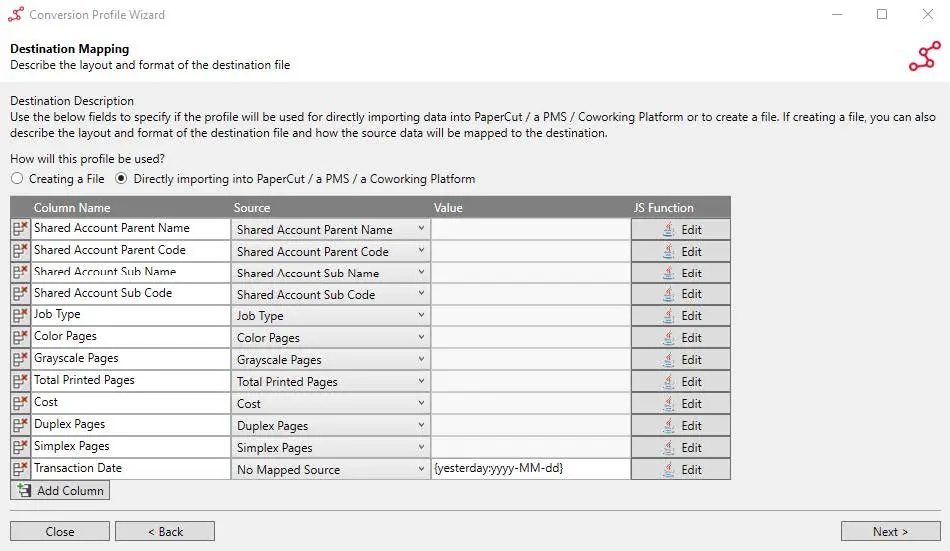
Set schedule frequency to 1 Hour. - Select 'Add Column':
- Column Name = Transaction Date
- Source = leave as 'No Mapped Source'
- Value =
{yesterday: dd/MM/yyyy} - JS Function = leave as default
- Select 'Next' and navigate to finish the profile.
- The conversion profile does not need to be created but does need to be edited.
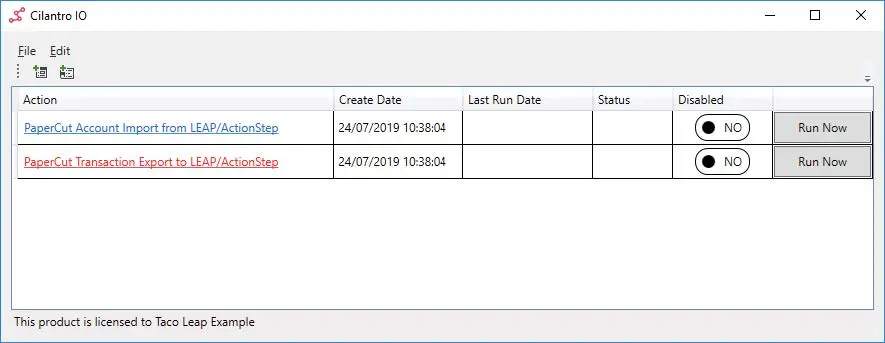
From the main application window, click the PaperCut Transaction Export to LEAP/ActionStep task.
The Action Wizard is displayed providing a description of the Wizard and its purpose. Click the Next button.
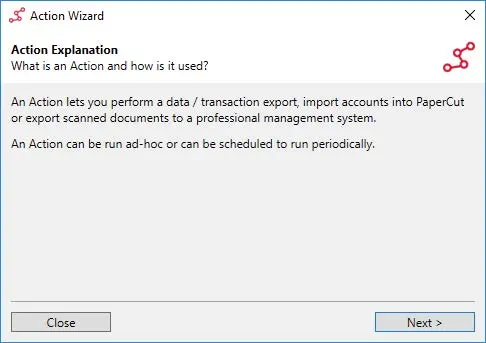
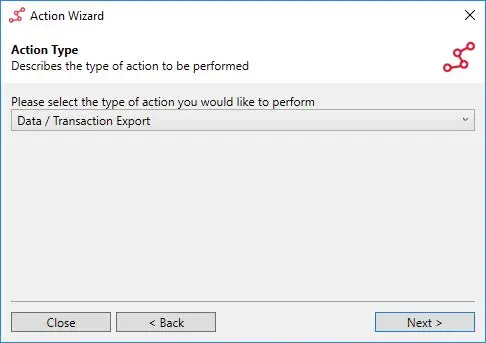
The Action Type dialog is displayed showing the type for the Action. This has been pre-configured to export transactions from PaperCut MF. Ensure the Action Type is Data / Transaction Export and click Next.
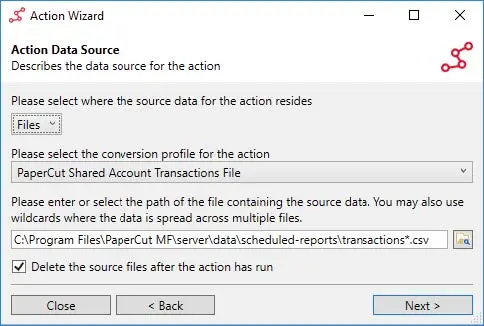
In the Action Data Source dialog ensure Files is selected for the data source, PaperCut Shared Account Transactions File is selected for the conversion profile and the correct location is selected for the scheduled reports exported from PaperCut MF. Additionally, the Delete the source files after the action has run check box should be ticked. This ensures transactions are not duplicated in LEAP by reprocessing the same scheduled report files the next time the Action runs.
Configure source file path and enable file deletion. In the Action Data Source dialog, ensure LEAP / ActionStep is selected for the data source and then select the Cilantro Server Address for your regional instance of Cilantro.
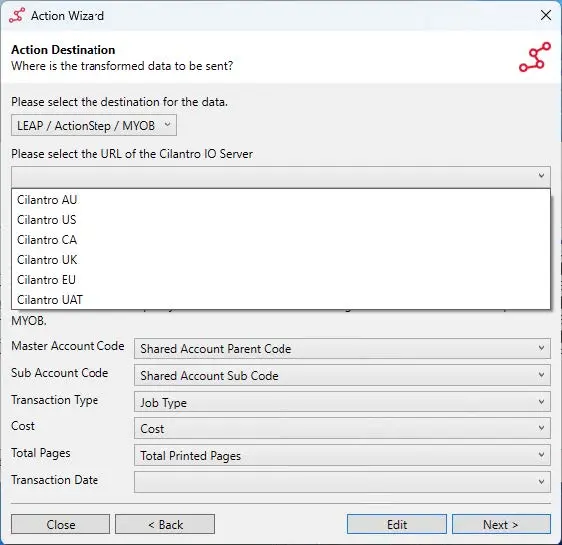
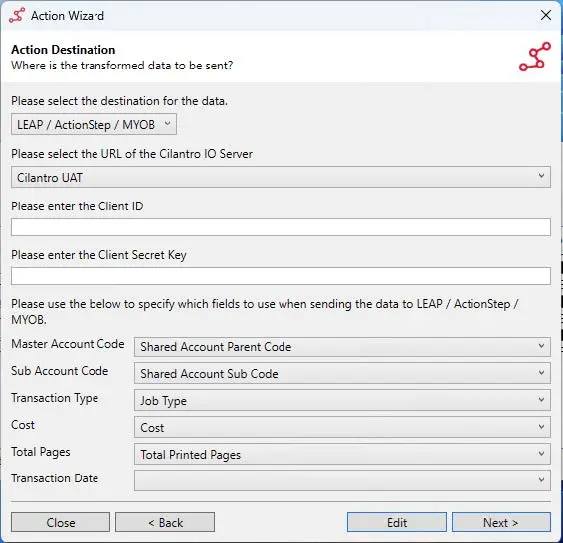
Map the Transaction Date field. Enter the Client ID and Client Secret for the client as per those provided from the action in section Request Client ID and Secret Key. The file mappings are mostly pre-configured, the previously created ‘Transaction Date’ needs to be added though!
- Simply select the Drop-down menu beside ‘Transaction Date’ and select ‘Transaction Date’ from the list
Note: Screenshot below shows the Australian URL of the Cilantro IO Server.
Map the Transaction Date field. On the Action Schedule dialog, tick the This action should be repeated on the below schedule check box. This ensures the transaction export recurs with the specified frequency and that transactions are daily exported to LEAP.
Enter a start date from which the Action is to repeat, a start time for the Action and an export frequency.
As transactions are exported daily from PaperCut MF at 01:00, the start time for the task should be between 02:00 - 05:00, to allow PaperCut MF to finish the export and for transactions to be uploaded in readiness for the new working day. We ask that you vary the time for this action across multiple customers in an attempt to reduce the number of simultaneous calls to our API.
The repeat frequency should be 1 day.
Once the appropriate values have been entered, click Next.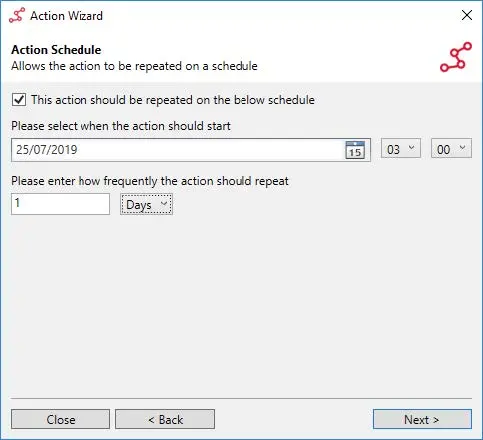
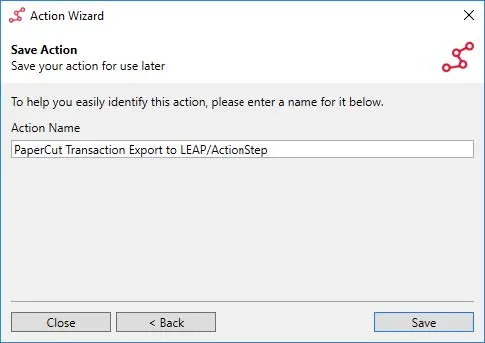
Schedule daily export between 02:00 and 05:00. On the Action Name dialog, you may rename the Action to something more descriptive if desired and finally click Save.
Schedule daily export between 02:00 and 05:00.
8. Configure Scan to LEAP
If the client is not using Scan to LEAP / ActionStep functionality, please disregard this section.
On the main application window, click the File menu, select New and choose Action.
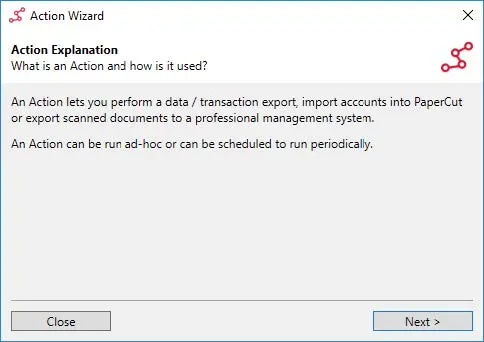
The Action Wizard is displayed providing a description of the Wizard and its purpose. Click the Next button.
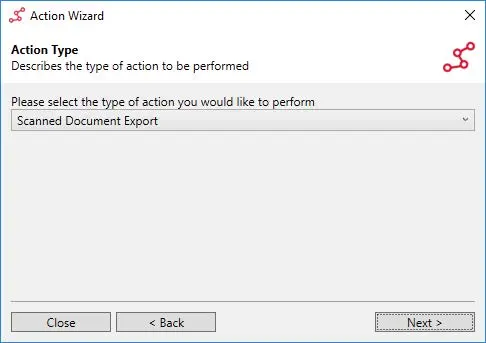
Select Scanned Document Export action type. In the Action Type dialog, select Scanned Document Export and click the Next button.
Select Scanned Document Export action type. In the Document Export dialog, enter the path where scanned documents are placed by PaperCut MF.
If the path configured in PaperCut MF contains a substitution macro, enter the parent folder location without the substitution macro. As an example, if the path configured in PaperCut MF isC:\Scanned Documents\%user%, the path entered in Cilantro IO should beC:\Scanned Documents.
Select LEAP as the document destination, select the Cilantro Cloud environment for your region. And enter the client's unique ID and secret as per those provided from the action in section "Request Client ID and Secret Key".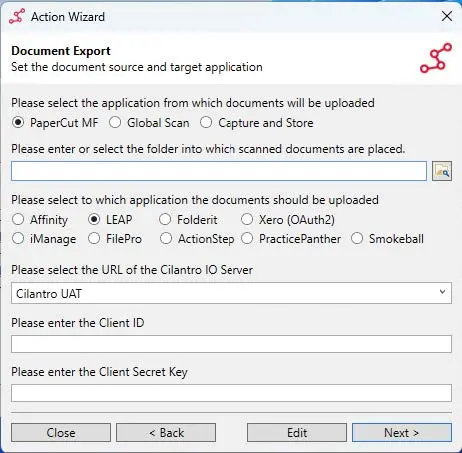
Configure document source path and destination LEAP settings. On the Action Schedule dialog, tick the This action should be repeated on the below schedule check box. This ensures the document export recurs with the specified frequency and that new documents are regularly exported to appropriate Matters in LEAP.
Enter a start date from which the Action is to repeat, a start time for the Action and an import frequency. A frequency of 5 minutes is suggested.
Once the appropriate values have been entered, click Next.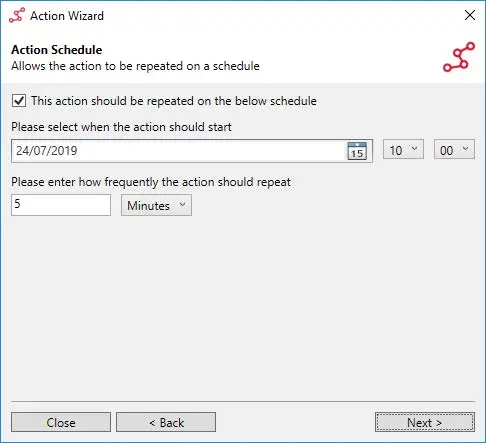
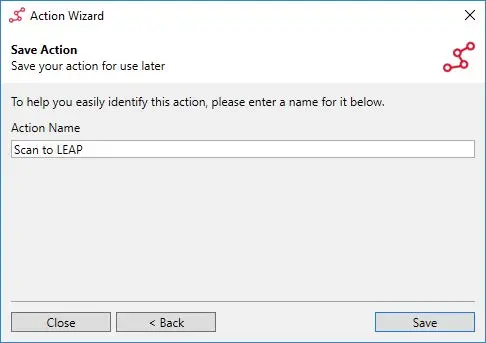
Set scan export frequency to 5 minutes. On the Action Name dialog, enter a descriptive name for the Action and finally click Save.
9. Delete Scanned Documents after upload
To save drive space from being consumed by long since uploaded documents, schedule a housekeeping task to clean them up after a defined period of time.
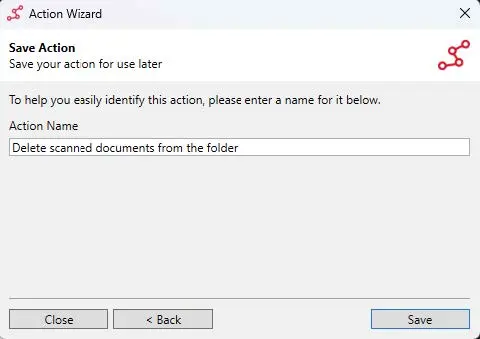
From the main application window, click on the Delete scanned documents from the folder action.
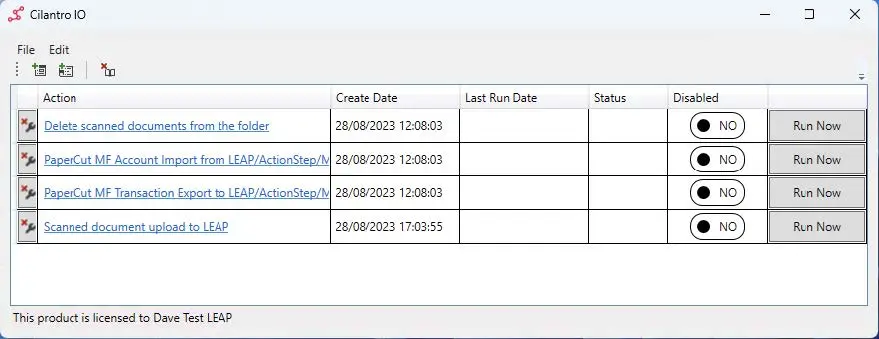
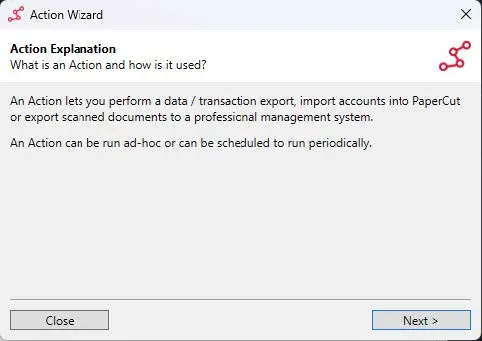
Select the Delete scanned documents action. The Action Wizard is displayed providing a description of the Wizard and its purpose. Click the Next button.
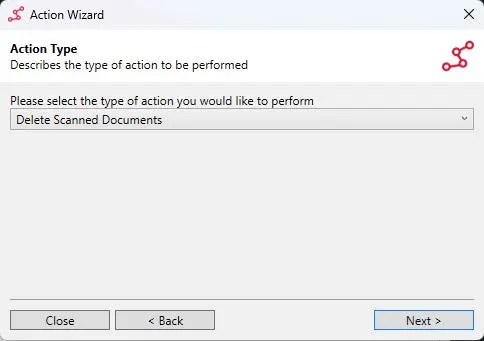
Select the Delete scanned documents action. The Action Type dialog is displayed showing the type for the Action. This has been pre-configured to export transactions from PaperCut MF. Ensure the Action Type is Delete Scanned Documents and click Next.
Select the Delete scanned documents action. In the Document Deletion dialogue, browse to the folder that contains the .PDF and .XML files created by PaperCut MF.
Cilantro IO processes documents using extensions to the name of the .XML files:- .WIP = File actively being processed by Cilantro IO
- .DONE = File processing complete and uploaded to the Destination
- .ERROR = There was an issue with this specific file
Likely causes for an error are:
- User selected 'Personal Account' instead of a Shared Account
- A User modified the filename at the time of scanning, PaperCut MF imposes a DateTime stamp to ensure filenames are unique
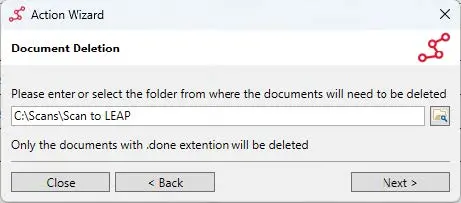
Configure the folder for document deletion.
In the Action Schedule dialogue, configure the frequency that Cilantro IO will check for files that need to be deleted. A retention period must also be set for the files, the minimum is 1 Day. Files with .ERROR or .WIP will be retained, only .DONE will be deleted.
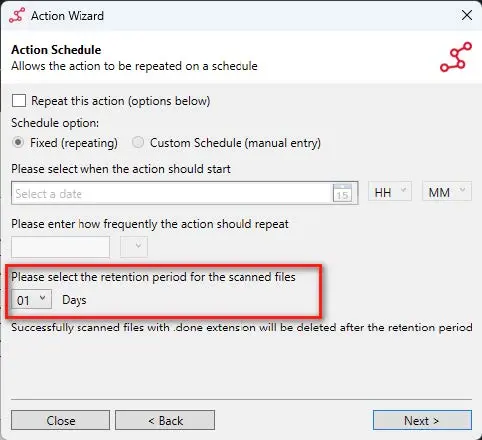
Set retention period to at least 1 Day. In the Save Action dialogue, select Save.
10. Post Install Testing & Troubleshooting
Upon completion of the installation, testing should be undertaken to confirm that the actions are running as intended.
Account Import
Testing the account import is done by manually running the account import action from the Cilantro IO application. Upon completion the status will either be Warning, Error or Success. If Warning or Error, check the error message to cause.
Transaction Export
Testing the transaction export is a process that is unlikely to be completed in a day. Transaction data from PaperCut is uploaded to LEAP the following morning after PaperCut generates the report.
Scan to LEAP
Testing the Scan to LEAP functionality can be done once accounts have been imported. Ensure that the Scan to LEAP action has run successfully before checking LEAP for the scan. There may be a short delay as LEAP manages the document.
Update License
If a new License file is provided due to integration change or expiry. To update the license follow as below.
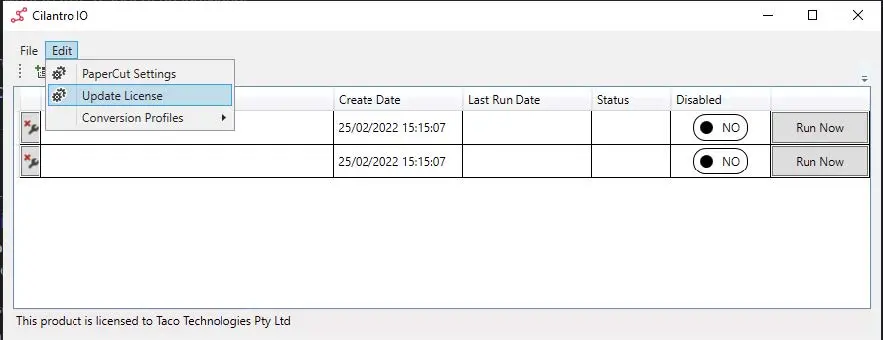
- In the Cilantro IO Application, click Edit, then Update License.
- When presented with the EULA screen, select browse and choose the new file as provided by your Reseller or Taco Tech.
- Apply the new License and confirm that on the Cilantro IO Application it states the product is licenced to your organisation.
Troubleshooting
Error: An error occurred performing the action. Unable to send Action Results Report Host https://.....
When this error is seen on Cilantro for Transaction Export and Scan to LEAP Actions, this usually means that the information on the license which is used for Cilantro IO has either the wrong customer information (such as Email address information on the license). Or, that there are multiple licenses for the same vendor in the Cilantro portal.
If a new license has been generated for the vendor, all earlier licenses for that vendor must be revoked so there is only one active license in the Cilantro system, and that license includes the email address details of the vendor members that are to have access to the event result emails.