Cilantro IO: PaperCut MF & LEAP — User Guide
Guidance for customers on authentication, cost code management, and notification configuration for the LEAP integration.
Before attempting to action this guide, contact your PaperCut Reseller to purchase a license.
1. Document Information



1.1 Introduction
The purpose of this document is to provide guidance to customers for the steps required to permit Cilantro to communicate with their Firm in LEAP.
It covers obtaining the Cilantro Instance credentials required by the Cilantro installer and how to map PaperCut MF job type references with Cost Codes within LEAP.
2. LEAP Integration
2.1 Authentication with LEAP
As part of the installation process, a member of staff with full LEAP privileges is required to authenticate Cilantro with LEAP. It is through this user that the information is passed to LEAP.
You will receive credentials and a link from Taco or your reseller for your Vendor portal account. Please log in, change your password and setup your MFA preference.
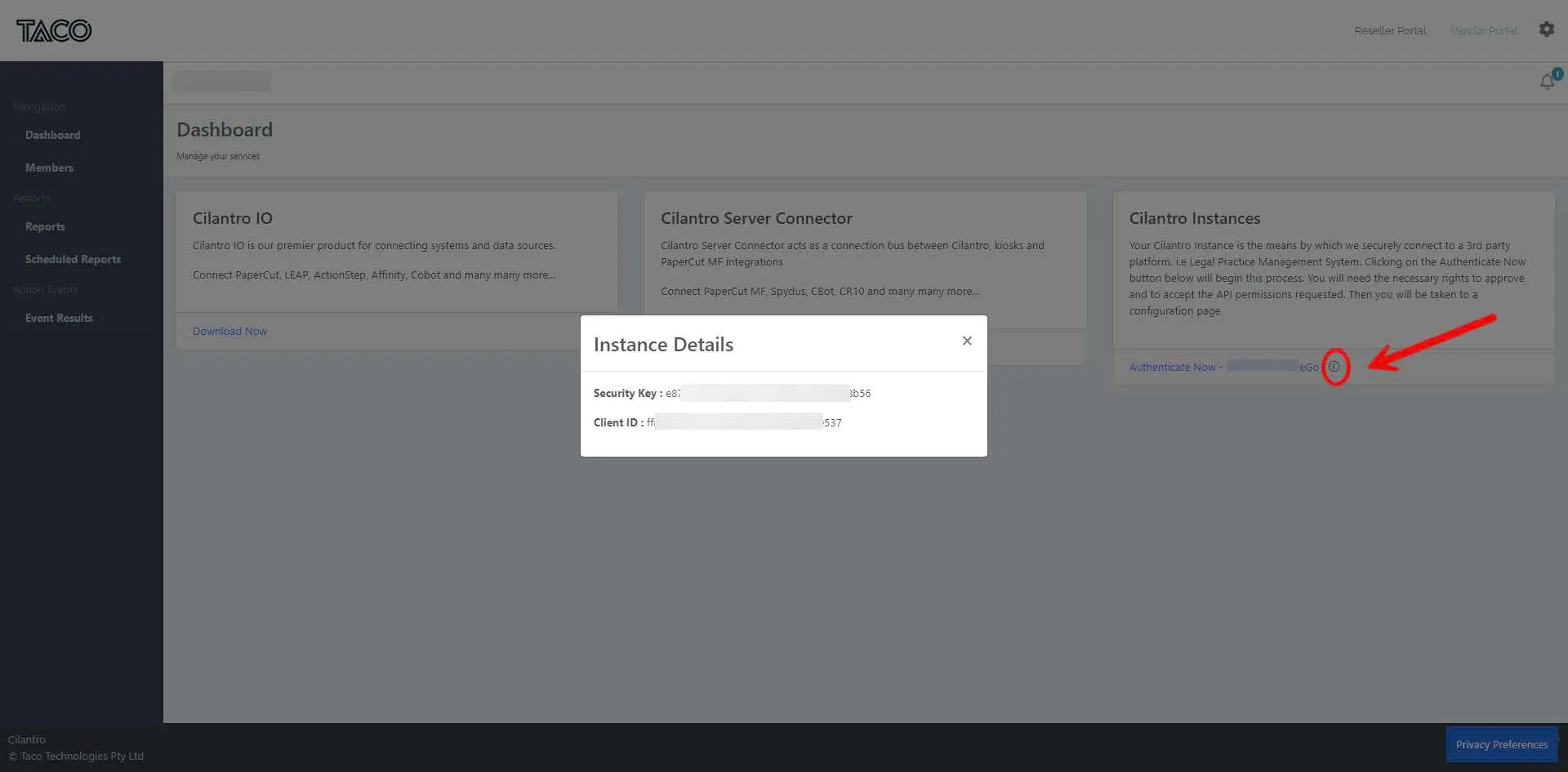
Once logged in, navigate to the "Cilantro Instance" tile and click on the blue hyperlink. Beside the hyperlink, you will see an i button; click on this to obtain your unique Client ID & Secret Key. The person installing and configuring Cilantro for you will need these credentials.
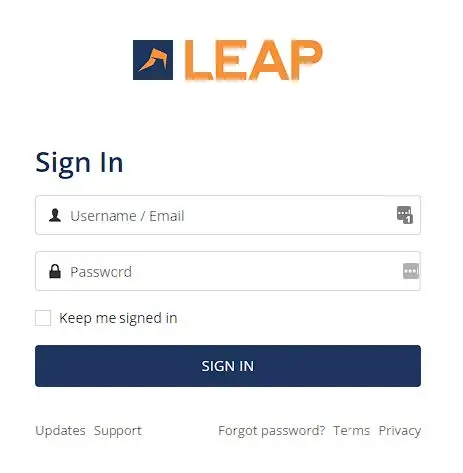
You will be taken to a LEAP login screen as below, where your chosen user will enter their LEAP credentials.
It is this user that uploaded scans are associated with.
Note: If this user leaves the company or their LEAP account is removed, a new user will have to be chosen and this process repeated.
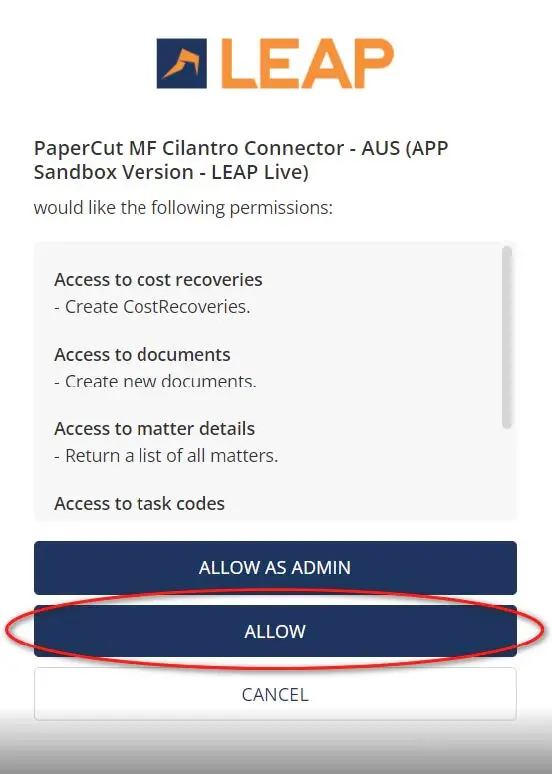
You will then be presented with the permission you are granting Cilantro IO; click Allow.
Note: 'Allow as Admin' permits all the Practice's LEAP users to have access, but this is not required by Cilantro. All connections to LEAP via Cilantro use a single LEAP user account.
2.2 Assigning Cost Codes
From here, you will be redirected to a Taco page to assign Cost Codes. This aligns the data that comes from PaperCut with the values configured in LEAP. It is important to ensure these are assigned correctly for your business.
- E.g align COPY from PaperCut with PHOTOCOPIES from LEAP.
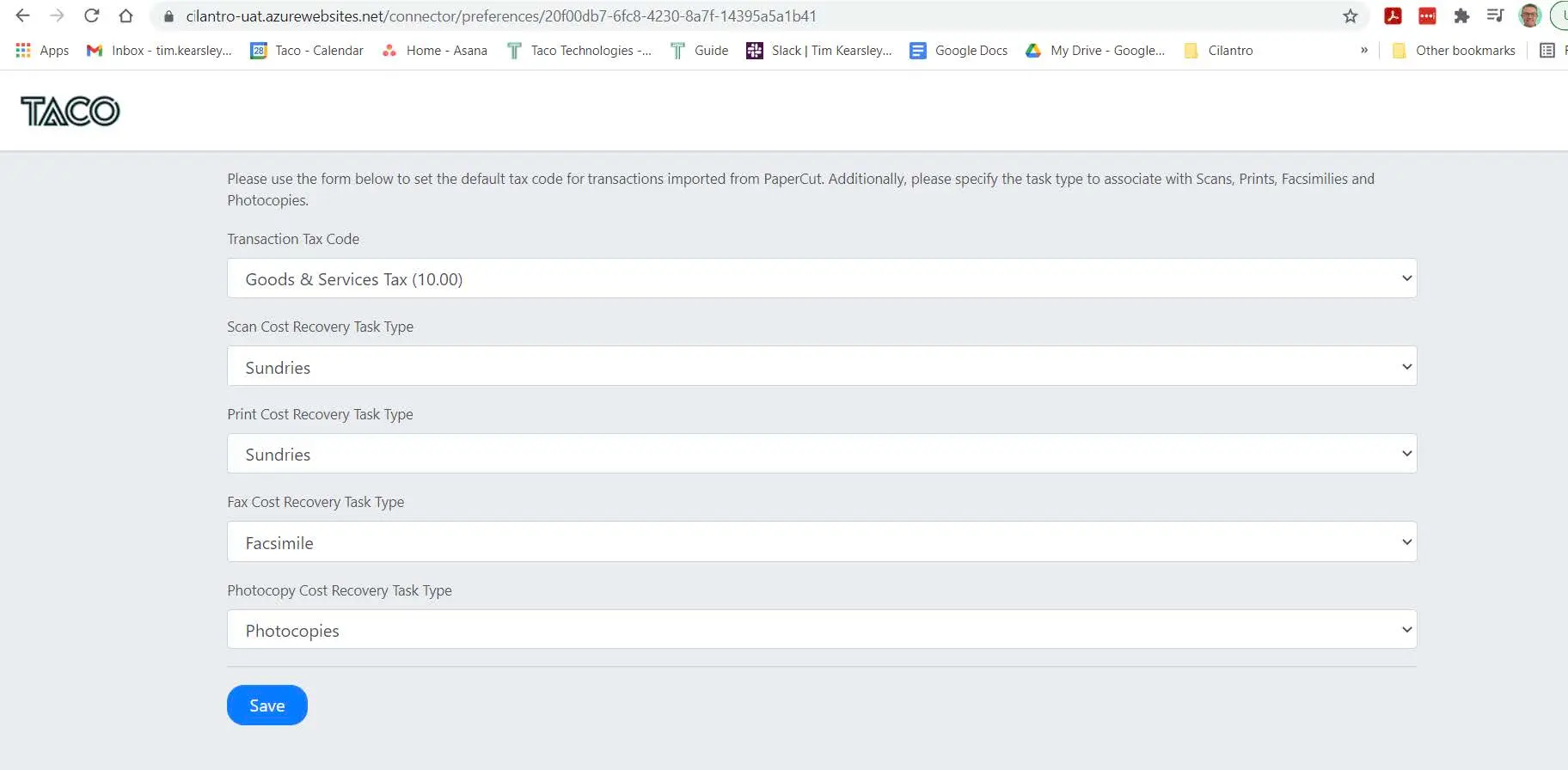
Save and close the window; the authentication process with LEAP is complete.
3. Cilantro Vendor Portal
3.1 Login & Security
Log in to the Taco Cilantro Vendor Portal at the URL appropriate for your region:
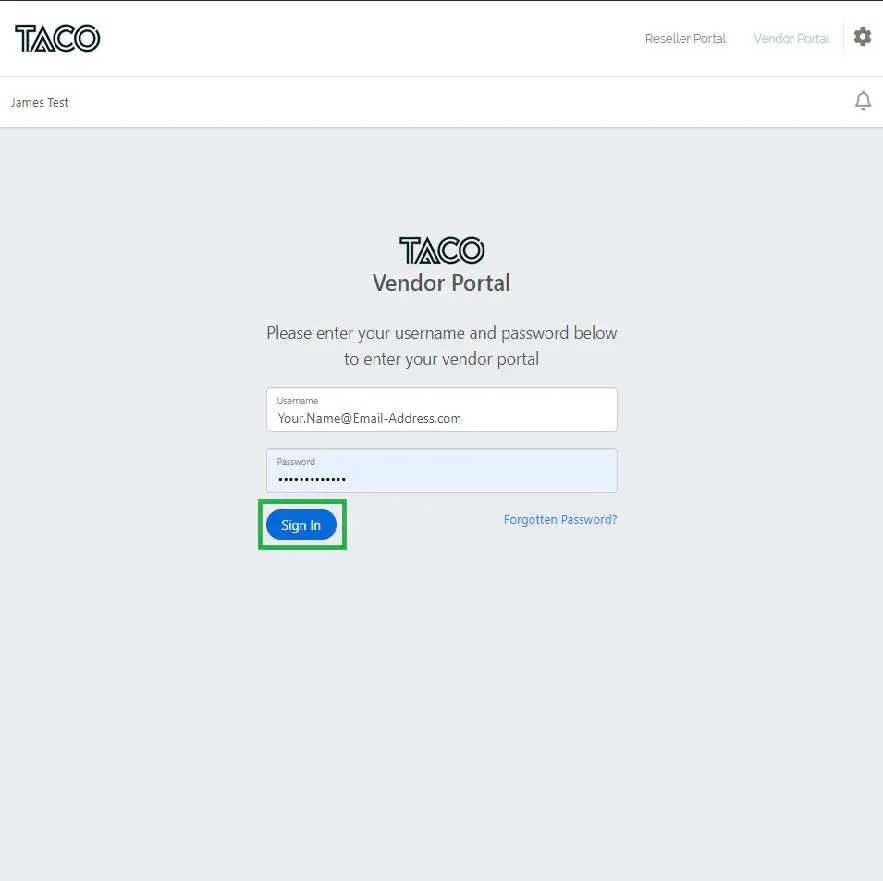
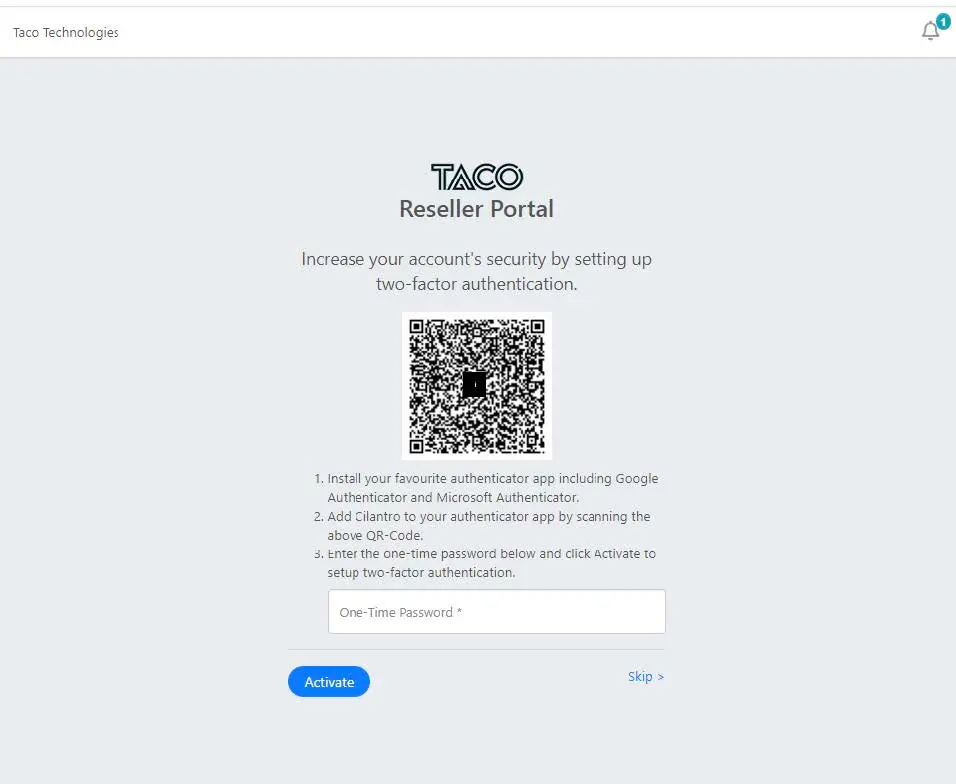
If this is your first time logging in, or you have yet to set up 2-factor authentication, you will be prompted to do so. This can be done through the Microsoft or Google Authenticator app by following the instructions on screen. Though not mandatory, it is highly recommended for security.
3.2 Managing Members
Once logged in, navigate to the Members tab of the sidebar.
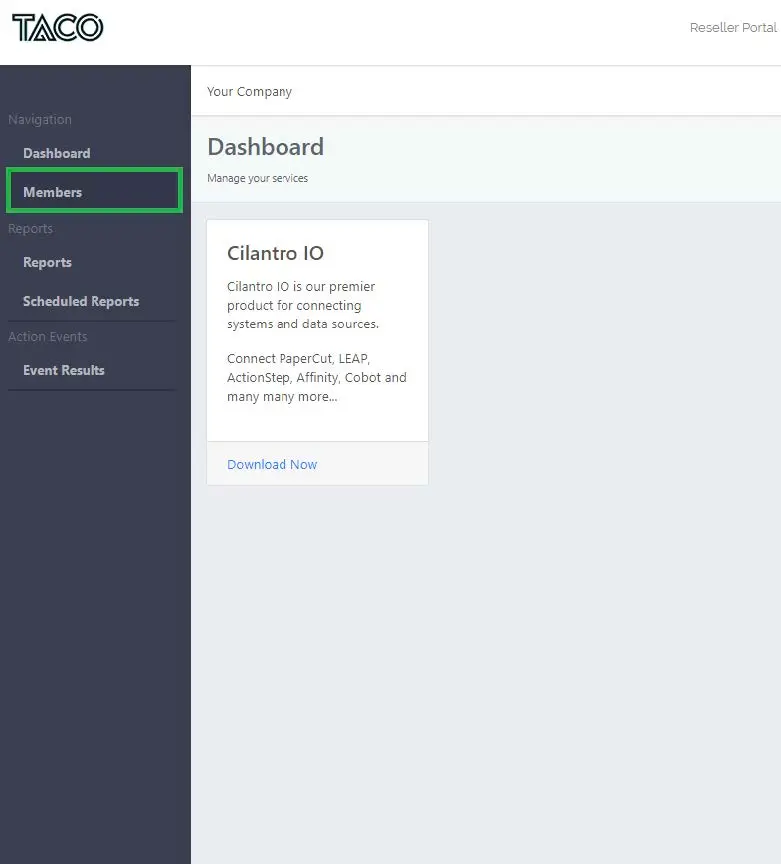
Navigate to the Members tab. Open your vendor settings by selecting the hyperlinked date.
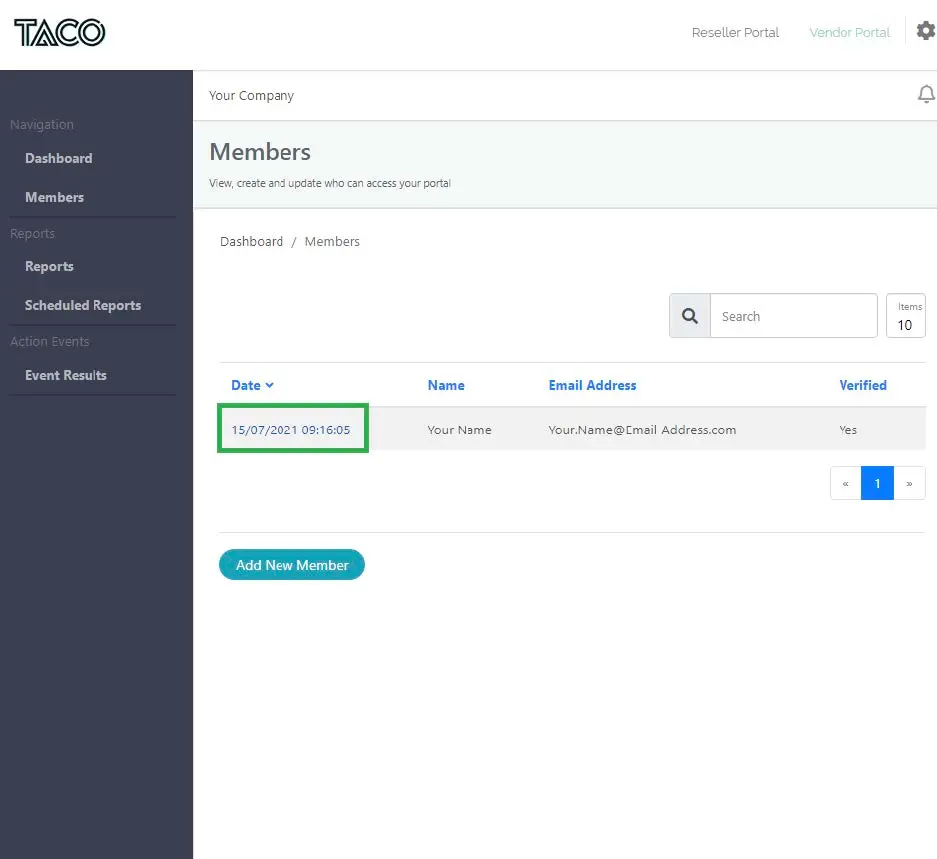
Select the member to update. On this page confirm your details are correct and continue to the next page.
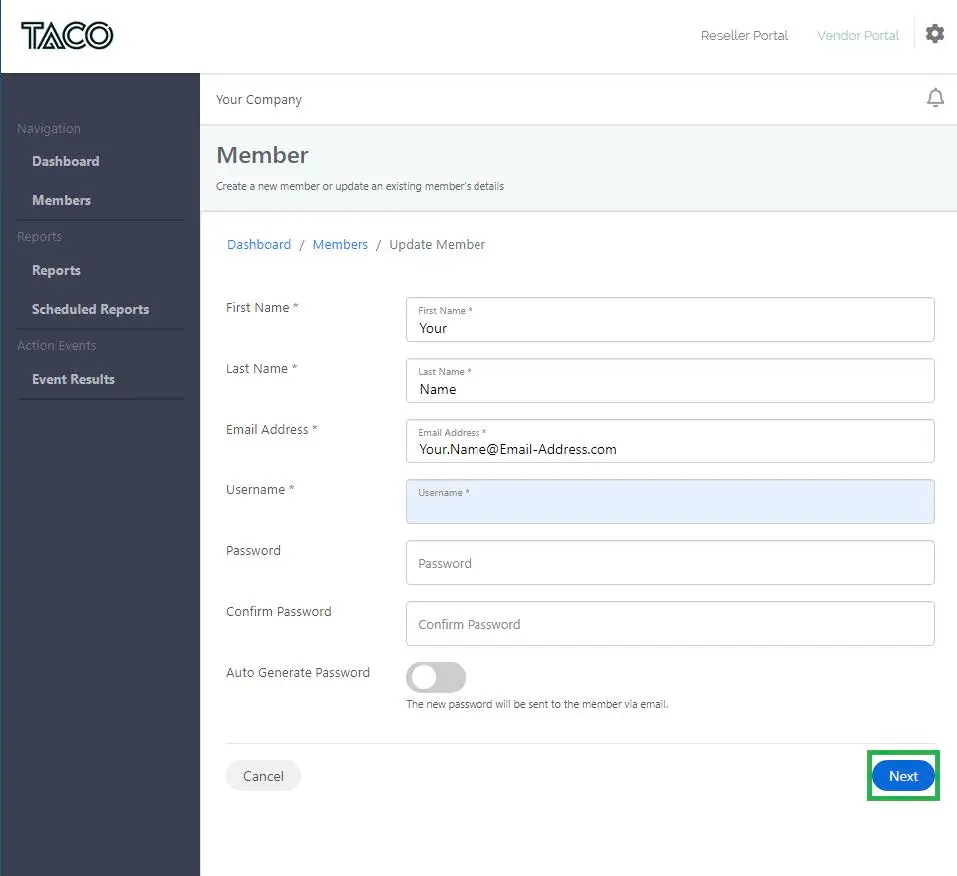
Confirm member details. Scroll down and continue to the next page.
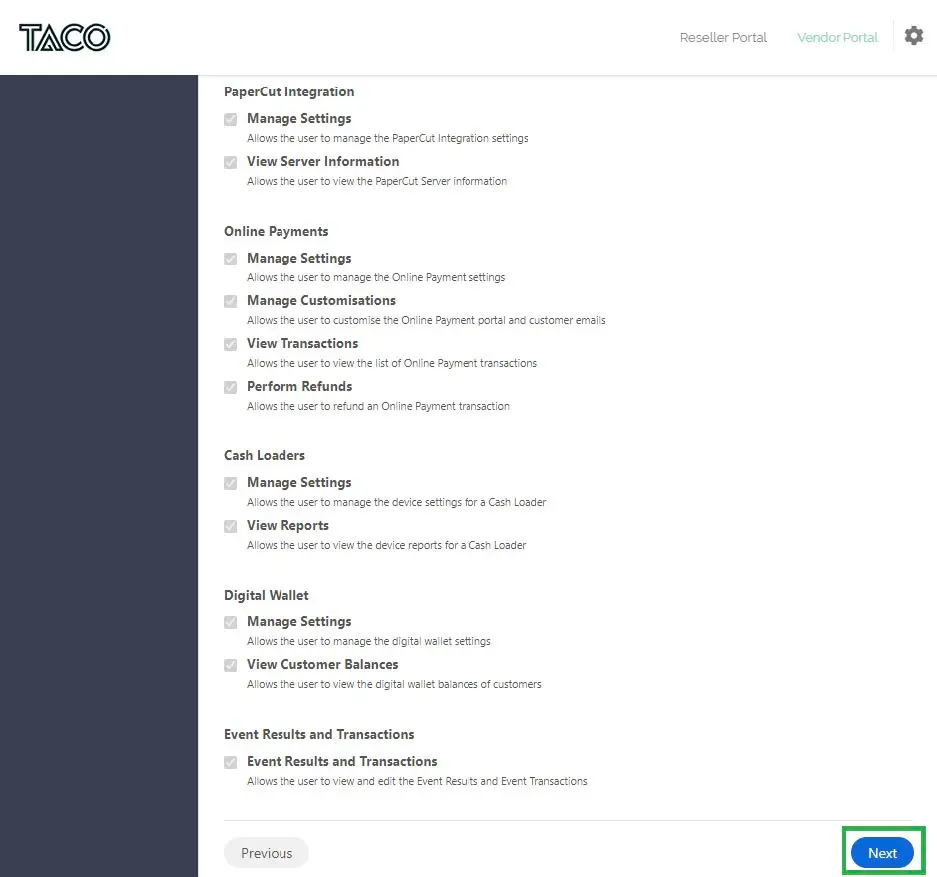
Review permissions and continue.
3.3 Configure Error Notifications
On this page, configure the email notifications you would like to receive from Cilantro[cite: 204]. Note that if a condition is met, when the action runs, an email will be sent.
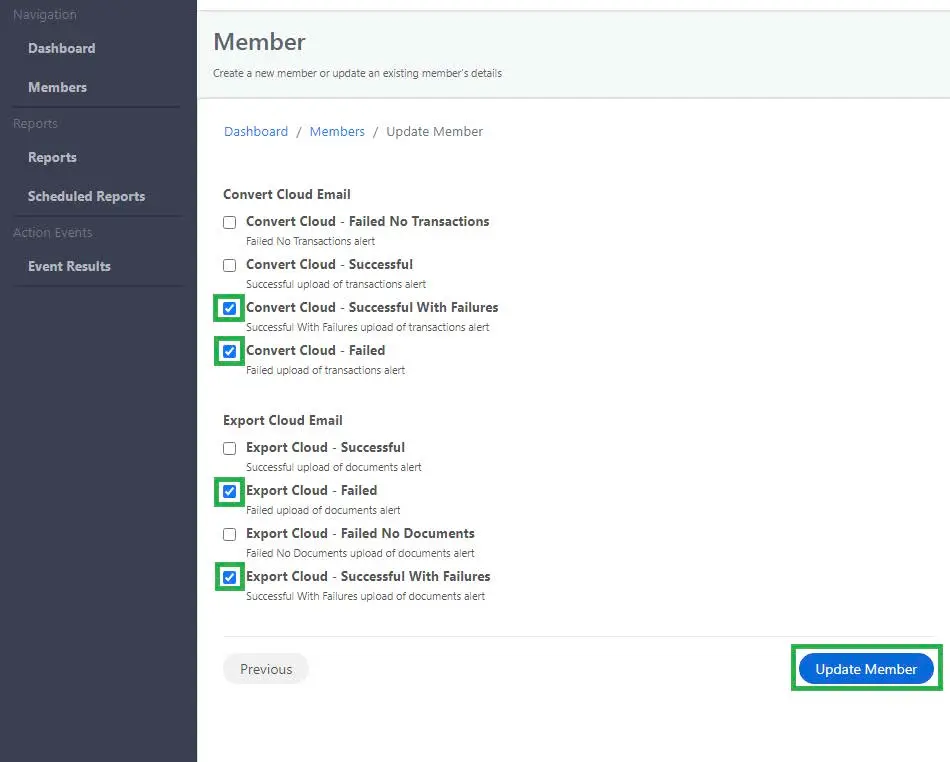
Pictured above are the recommended, or standard, notification settings. Select Update Member when the appropriate boxes are selected.
Category | Notification Type | Description |
|---|---|---|
Convert Cloud Email | Failed No Transactions | No transactions were found. Likely occurs Sunday/Monday mornings. |
Successful | Occurs Tue-Sat mornings as the previous day's transactions are moved. | |
Successful with Failures | Transfer was partially successful, but some failures occurred. | |
Failed | No transactions were able to transfer at all. | |
Export Cloud Email | Successful | Successfully transfers one or more scans to LEAP. |
Failed | The action failed due to an error. | |
Failed No Documents | No documents to move to LEAP. Will occur often. | |
Successful with Failures | Not all scans successfully transferred to LEAP. |
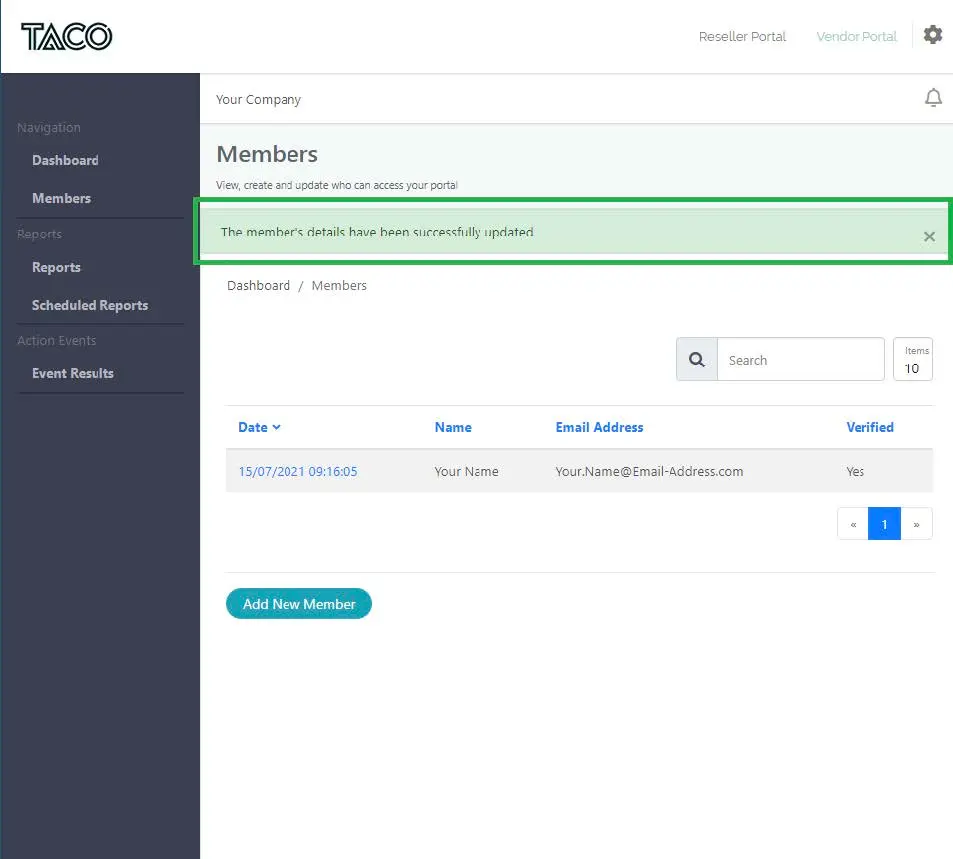
A banner will be shown upon completion as you are returned to the members page.
3.4 Event Results
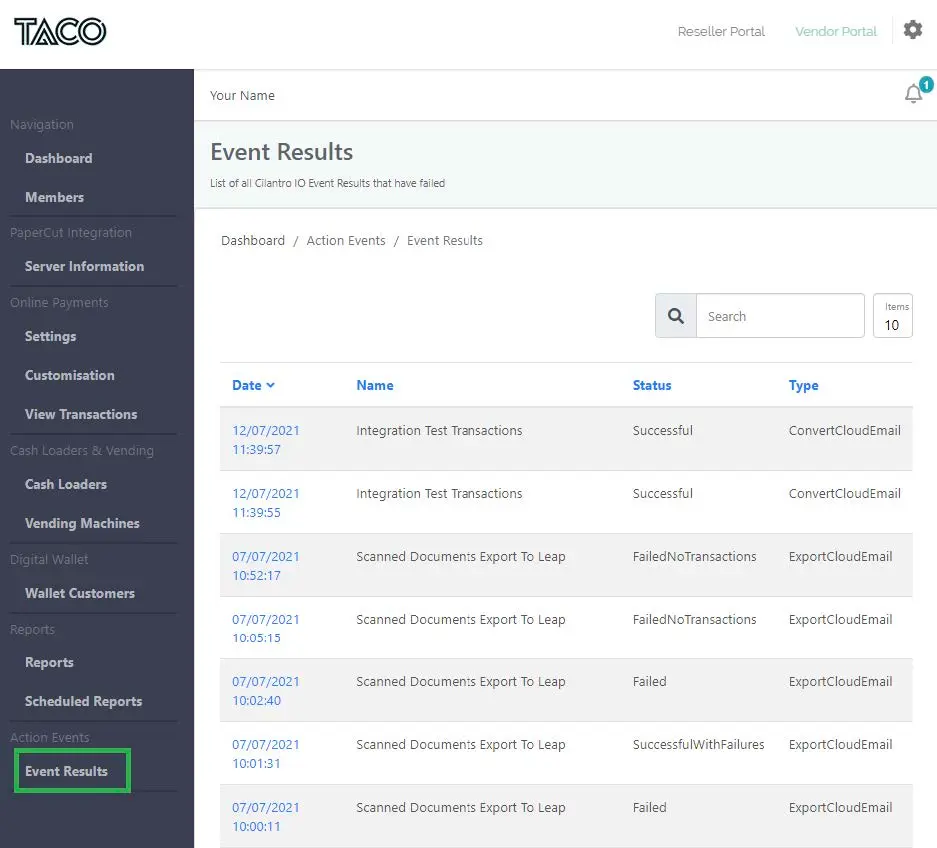
In the Event Results tab under Action Events in the sidebar, all actions taken by Cilantro can be seen.
If an error occurs due to a missing or incorrect Matter code, this can be rectified from this page by entering the correct Matter code and Resubmitting the transaction.